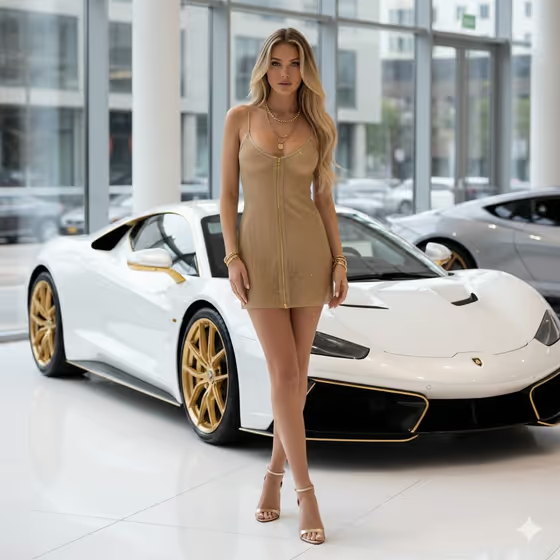
Gold Showroom Pairing makes a 3:4 portrait of one person standing in front of a luxury car inside a bright, polished showroom. The whole image stays in a strict white-and-gold palette, with glossy floors, soft reflections, glass windows in the background and a direct, camera-facing pose.
It suits anyone who wants a polished fashion-and-automotive look, such as creators, models, or brands pairing a subject with a vehicle. You describe the person and car in one field and the outfit in another, and each field can also take a visual reference.
What works best as input
- The template asks for 2 or more photos, so plan to provide at least one clear photo of the person and one of the car. Both fields accept a photo as well as text.
- For the person, use a well-lit image where the face is clearly visible and unobstructed. A full-length or three-quarter shot helps, since the result is a full-body portrait.
- For the car, choose a photo showing the whole vehicle from the front or a three-quarter angle, with its color and shape easy to read. The cover result shows a low, glossy white car with gold wheels and trim.
- In the Person and Vehicle Product field, you can add a short description alongside your references, for example 'a blonde woman beside a white-gold supercar'.
- Only use photos of people you have permission to use, and keep the subject an adult.
How to use it
- Open the Gold Showroom Pairing template in Phosphene.
- In Person and Vehicle Product, describe your subject and the car, or attach your reference photos (at least two in total).
- In Luxury Styling, type the outfit direction or attach a visual reference, such as 'shimmering gold mesh dress' or 'white tailoring with gold accessories'.
- Generate the image, then check the 3:4 result for how the person, car and outfit came out, and adjust your wording if needed.
Tips for a better result
- Keep the styling inside the white-and-gold theme. Examples like 'champagne satin look and gold jewelry' or 'white tailoring with gold accessories' match the template's palette best.
- Try the example pairings to vary the mood, such as a pearl performance coupe, a black-gold grand tourer or a silver concept car.
- Name materials and accessories in Luxury Styling, like mesh, satin or metallic jewelry, because the template builds on metallic accessories and reflections.
- If a result is close but not right, change only one field at a time so you can see which change made the difference.
Common mistakes
- Uploading only one photo. The template expects two or more, so include both the person and the vehicle.
- Using a cropped or blurry reference. A tight face crop or a partial view of the car gives the template less to work with for a full-body, full-car composition.
- Asking for a busy, multi-color outfit. The template is built around a strict white-and-gold palette, so clashing colors work against it.
FAQ
Do I have to upload photos?
The template lists 2 or more photos as its upload requirement. Each field also accepts a text description, so you can combine a reference photo with a short written description.
What shape is the final image?
The output is a single image in 3:4 aspect ratio, a portrait orientation.
Can I change the car or the outfit?
Yes. The car is set in Person and Vehicle Product and the outfit in Luxury Styling, so you can swap either one independently.
Will it include more than one person?
The template is designed around one full-body subject standing in front of the car, so describe a single person.