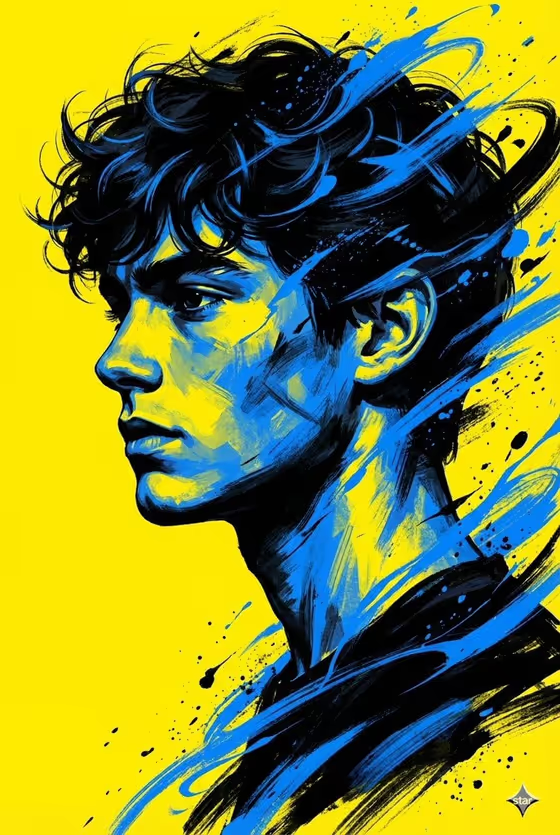
Street Art Profile turns a person into a graphic side-profile portrait with loose brush strokes, paint splashes and a solid yellow backdrop. The cover shows the look: a face turned to the left, heavy black shadows, sharp yellow highlights and swirls of blue and black paint wrapping around the head and shoulders.
It suits anyone who wants a bold, poster-style portrait for an avatar, a cover image or a print. The output is a 3:4 image, so it fits portrait-format spaces well.
What works best as input
- In the first field (young man in profile portrait subject) you can type a short description or upload a reference photo of the person you want portrayed. Use a clear photo of one person.
- If you upload a photo, pick one where the face is well lit and not hidden by sunglasses, hands or heavy shadow. A profile or three-quarter angle gives the side-view result a good starting point.
- If you describe instead, keep it short and concrete, like the placeholder suggests: who the person is and one or two defining traits such as curly dark hair or a sharp jawline.
- Only upload photos of yourself or people who have agreed to it, and avoid busy group shots so the template knows who the portrait is about.
How to use it
- Open the Street Art Profile template in Phosphene.
- In the subject field, type a description of your subject or upload a reference photo.
- Open Pose and scene and pick a framing from the options, such as the intimate close portrait, the full-body editorial frame or the environmental candid frame.
- Generate the image, then check the result for the side profile, the yellow background and the paint strokes, and adjust your inputs if you want another take.
Tips for a better result
- Start with the default pose and scene option, which matches the cover look of a tight side-profile portrait, then try the other framings to compare.
- Mention hair texture or hair volume in your description. Curly or tousled hair gives the brush strokes more to play with, as in the cover.
- Run the template several times with the same input. Paint splashes and stroke placement can change from one result to the next, so you can pick the composition you like best.
- Try a different subject type through the examples, such as an editorial portrait subject or a candid everyday subject, to see how the same yellow, blue and black style handles different faces.
Common mistakes
- Writing a long, detailed description with many colors or settings. The template already fixes the yellow background and blue and black strokes, so extra styling instructions can compete with that.
- Uploading a low-light or blurry photo, or one where the face is turned away or covered. The portrait depends on a readable face.
- Expecting a full-body or scenic image from the close portrait option. Choose the framing in Pose and scene that matches what you want.
FAQ
Do I have to upload a photo?
No. The subject field accepts either typed text or an uploaded reference, so you can describe the person instead if you prefer.
Will the person always face left in profile?
The template is built around a side profile facing left, as in the cover image. Your subject and framing choice shape the details.
Can I change the yellow background?
The solid yellow backdrop is part of the fixed direction for this template, so it stays as the signature of the look.
What shape is the image?
The result is a 3:4 portrait image, suited to posters, profile art and vertical layouts.