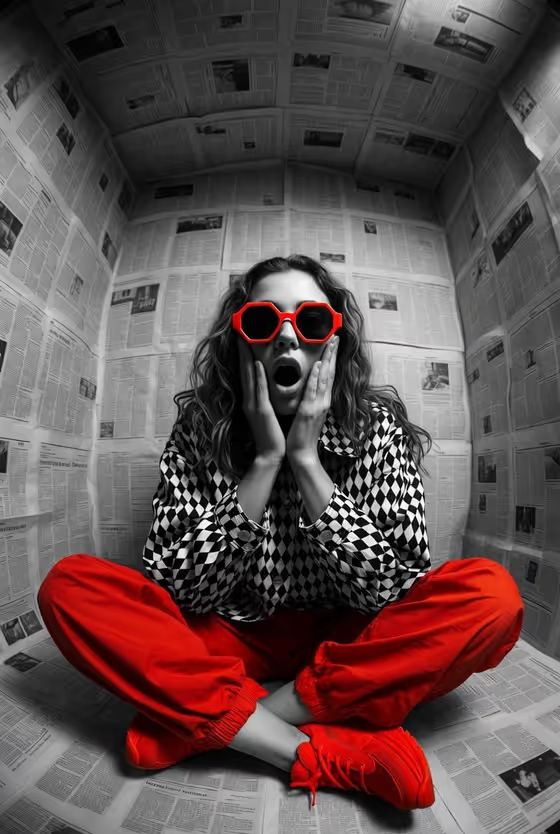
Newspaper Shock Room makes a wide-lens editorial portrait of a subject sitting cross-legged on the floor of a small room papered in real newsprint, hands pressed to the cheeks and mouth open in a gasp. The look is mostly black and white with red as the only saturated accent, and the ultra-wide lens gives the walls a curved, barrel-distorted feel.
It suits anyone who wants a bold fashion-magazine style portrait: creators making profile images, social posts, or editorial-style shots from a reference photo or a simple description. The outfit and scene are built into the template, so you mainly decide who the subject is and how the frame is composed.
What works best as input
- For the subject field (shocked woman portrait subject), you can describe the person in text or upload a reference photo, since this slot accepts both. A clear, well-lit photo of the face gives the template the most to work with.
- Pick a reference where the face is fully visible and not covered by hands, hats, or heavy shadow. The template adds its own sunglasses and gasping pose, so a neutral or lightly expressive source is fine.
- Make sure the photo shows the person's natural hair and features, since the template calls for long wavy hair and natural skin texture. Only use photos of yourself or people who have agreed to be photographed.
- If you type instead of upload, keep it short and concrete, like the placeholder 'a shocked woman' or 'an editorial portrait subject'. Avoid adding clothing details, because the outfit is already fixed.
How to use it
- Open the Newspaper Shock Room template in Phosphene.
- In the subject field, upload a reference photo or type a short description of your subject.
- In Pose and scene, choose how the frame is composed. The default is the eye-level 12mm ultra-wide editorial shot, and the examples also suggest an intimate close portrait, a full-body editorial frame, or an environmental candid frame.
- Generate the image, then review the result and adjust the subject or framing choice if you want a different look.
Tips for a better result
- Try different Pose and scene options to change the distance and mood. A close portrait emphasizes the face and sunglasses, while a full-body frame shows off the red pants and sneakers.
- Run the same subject with a typed description and again with an uploaded photo to compare how closely each matches what you had in mind.
- Keep the subject description simple. The template already fixes the checkered jacket, red cargo pants, and red octagonal sunglasses, so extra styling words may only compete with them.
- The palette is built around black, white, and red, so a subject with natural coloring tends to sit well inside that grade.
Common mistakes
- Describing a different outfit or a colorful setting. The template keeps red as the only saturated accent, so conflicting color details work against the look.
- Uploading a photo where the face is small, blurry, or half hidden, which gives the template little to reproduce.
- Writing a long, detailed paragraph in the subject field when a short phrase would do, which can muddy the fixed editorial direction.
FAQ
Do I have to upload a photo?
No. The subject field accepts either a short text description or an uploaded reference photo.
Can I change the clothes or the room?
The outfit, the newspaper-covered room, and the black, white, and red grade are part of the template's fixed direction. You mainly change the subject and the Pose and scene choice.
What does the Pose and scene option do?
It sets how the shot is framed. The default is an eye-level ultra-wide editorial photo, and other examples include a close portrait, a full-body frame, and a candid environmental frame.
What shape is the output?
The template is set up for a 16:9 image, a wide landscape frame.