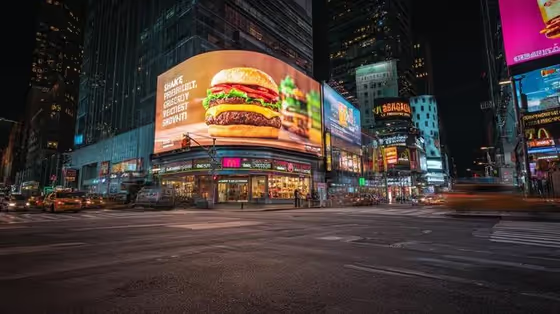
Times Square Burger places your product on a huge curved LED billboard above a busy, neon-lit city intersection at night. The result is a wide 16:9 image with wet asphalt reflections, glowing screens on the surrounding buildings, and motion-blurred traffic in the street.
It suits anyone who wants a bold mock advertisement: a food brand testing a burger visual, a small business picturing its product in a big-city ad, or a designer who wants a dramatic cityscape scene for a concept or pitch.
What works best as input
- The Billboard product field accepts either a photo of your item or a short written description, so pick whichever you have. A photo helps most when you want the billboard to show your exact item.
- If you use a photo, choose a clear, well-lit shot of the product on its own, with the whole item visible and little clutter around it.
- If you describe it instead, be concrete. The placeholder example is "a gourmet burger", so name the item and add one or two details such as materials, colors, or style.
- Start from the provided examples if you are unsure: a gourmet burger, a premium consumer product, a sculptural design object, or "my exact referenced item" when you attach a photo.
- Stick to one product per generation so the billboard has a single clear subject.
How to use it
- Open the Times Square Burger template in Phosphene.
- In the Billboard product field, type what should appear on the billboard, or attach a photo of the product. This is the only required field.
- Generate the image. It is produced as a 16:9 scene with your product on the large curved screen.
- Review the result, checking that the billboard product looks the way you intended. If not, adjust your description or photo and generate again.
Tips for a better result
- Use a specific noun phrase rather than a vague one. "a gourmet burger with melted cheese and lettuce" gives the screen more to work with than "food".
- Try different product types with the same scene, such as a premium consumer product or a sculptural design object, to see how the billboard treatment changes.
- Pick a product with a strong, recognizable silhouette and bold colors, since it will be shown large and glowing against a dark night sky.
- Generate a few times with small wording changes and compare, since the street, lighting, and screens can vary between results.
Common mistakes
- Describing several products or a whole menu in one field. The billboard works best with a single clear subject.
- Leaving the description too generic, which gives the template little to build the ad around.
- Expecting readable text or logos on the screens. The scene is built with no text overlay, so do not rely on exact lettering appearing.
FAQ
Do I have to upload a photo?
No. The Billboard product field accepts either a photo or a typed description, so you can describe the item in words instead.
What shape is the image?
It is a 16:9 widescreen image, suited to a wide street-level view of the intersection.
Will it show my exact product?
If you attach a photo or choose the "my exact referenced item" example, the template aims to use your item on the billboard. Results can vary, so review the output and regenerate if needed.
Can I put words or a logo on the billboard?
The template is set up with no text overlay, so it focuses on the product visual rather than readable lettering.