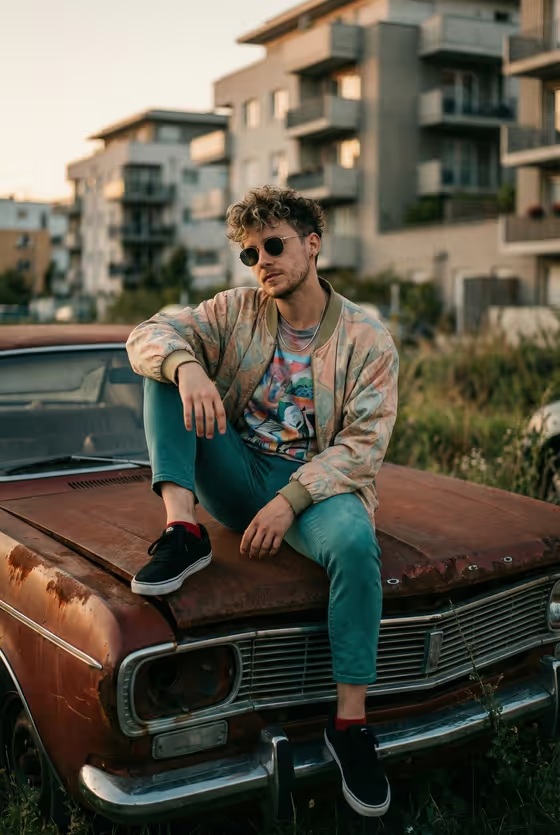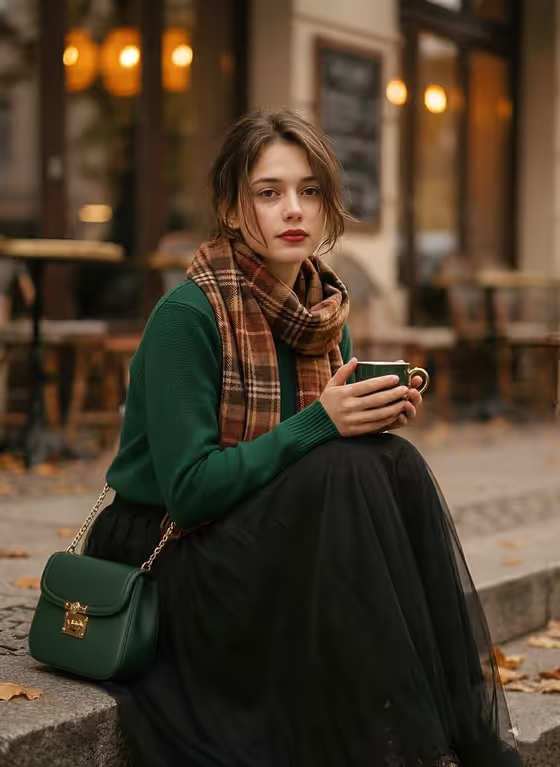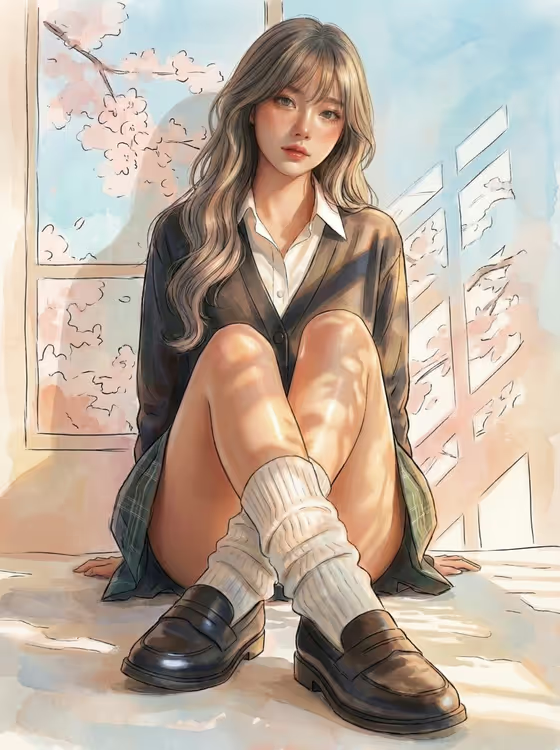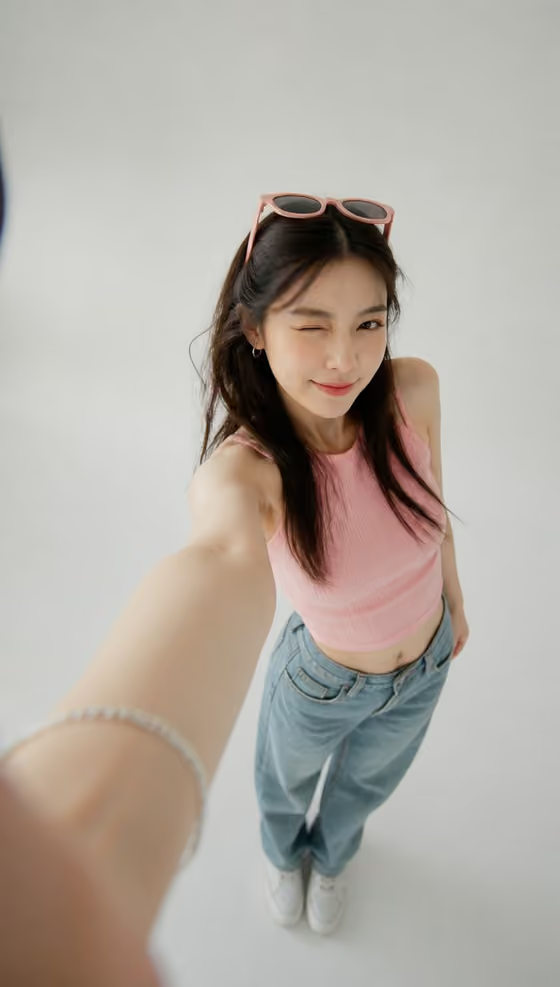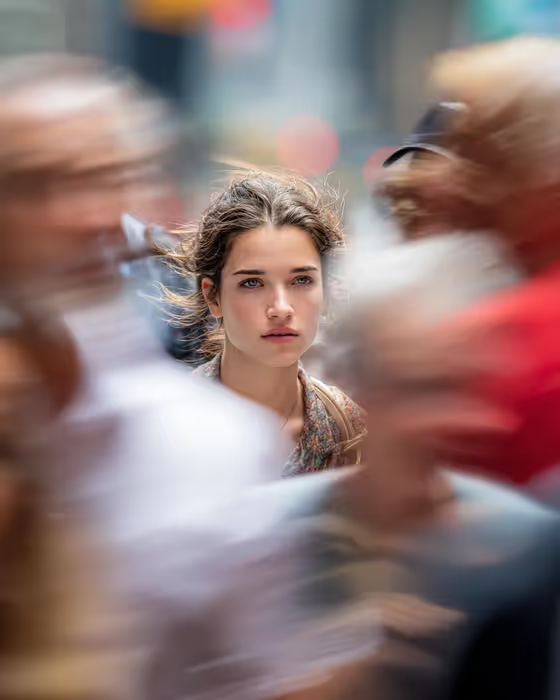
Zoom Crowd Portrait makes a close-up street portrait in which one face stays sharp while a busy New York crossing smears into motion around it. The cover shows the idea well: a calm, direct gaze in the center, with passing figures turned into soft streaks of color on both sides.
It suits anyone who wants a portrait with a sense of stillness inside a hectic city, such as profile pictures, creative headshots or editorial-style concept images. The result is a 3:4 image, so it fits a vertical portrait frame.
What works best as input
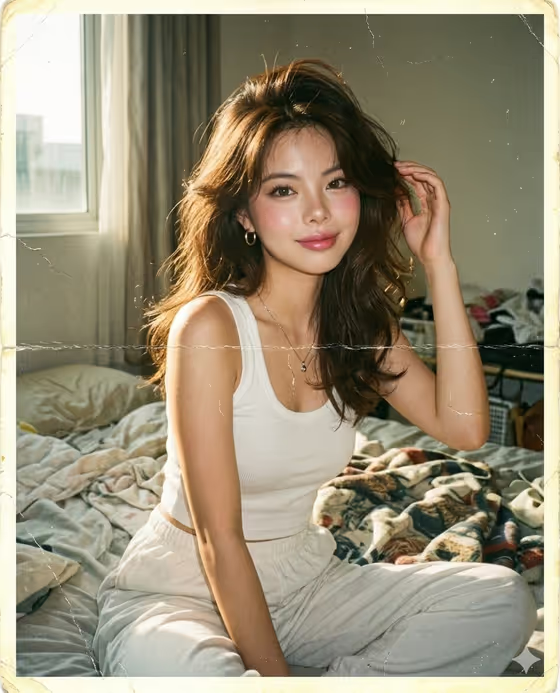
- Use a clear, well-lit photo of one adult, shot from the front or close to it. The template is built around a close-up of the face looking at camera, so a visible, unobstructed face gives it the most to work with.
- Pick a photo where the expression is already the one you want. The default pose option follows the gaze and expression in your source, so a relaxed, steady look in the photo carries through.
- Avoid photos with other people close to the face or heavy motion blur already in the frame. The template adds the crowd blur itself, so a clean source keeps the subject sharp.
- If you prefer not to use a photo, you can describe the subject in the Portrait subject field instead, for example a short description of an adult with a distinctive presence.
How to use it
- Open the Zoom Crowd Portrait template in Phosphene.
- In Portrait subject, upload your photo or type a short description of the person. The placeholder suggests something like an adult subject matching my reference.
- In Pose or expression, pick one of the options or describe your own, such as calm direct gaze, quiet introspection or intense focused gaze. Leave the source gaze and expression option if you want it to match your photo.
- Generate the image, then check that the face is sharp, the expression reads the way you wanted, and the crowd blur surrounds the subject without cutting across the face.
Tips for a better result
- Try the different pose options on the same photo. A calm direct gaze and an intense focused gaze give quite different moods against the same blurred crowd.
- Keep your subject description short and specific. The template already sets the New York street, the close-up framing and the long-lens look, so extra scene details in the subject field can compete with them.
- If the first result changes the look of the person more than you like, run it again with the source gaze and expression option so the pose stays closer to your reference.
- Generate a few versions and compare them. The motion trails around the subject vary from result to result, and one may frame the face better than another.
Common mistakes
- Using a photo with several people in it. The template is built for a single portrait subject, so a crowded source can confuse who should stay sharp.
- Writing a long scene description in the subject field. The street, the blur and the lens look are already fixed by the template, so describe only the person.
- Choosing a pose that fights the concept, like a laughing or looking-away expression. The template is designed around a still, direct gaze at camera.
FAQ
Do I have to upload a photo?
The Portrait subject field accepts either a photo or a text description, so you can describe the subject instead. Pose or expression is a text or choice field only.
Can I change the city or background?
No. The busy New York street with motion-blurred people is fixed in the template. You control the subject and the pose or expression.
What shape is the result?
The output is a single image in a 3:4 vertical aspect ratio.
What does the pose or expression option do?
It sets the look of the subject, such as a calm direct gaze or quiet introspection. The default option keeps the gaze and expression from your source photo.