AI WORKFLOWS

PhototoVideoAI:BringaPhototoLife

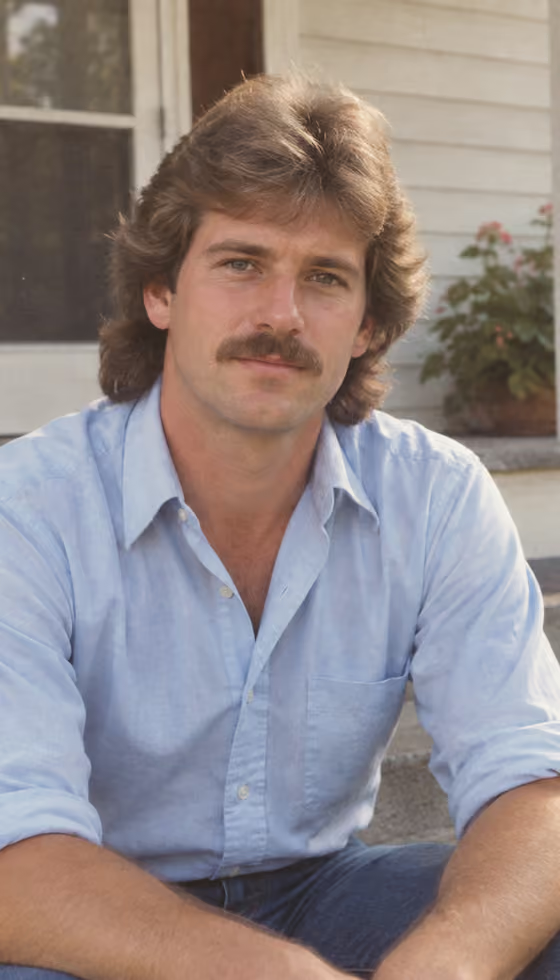
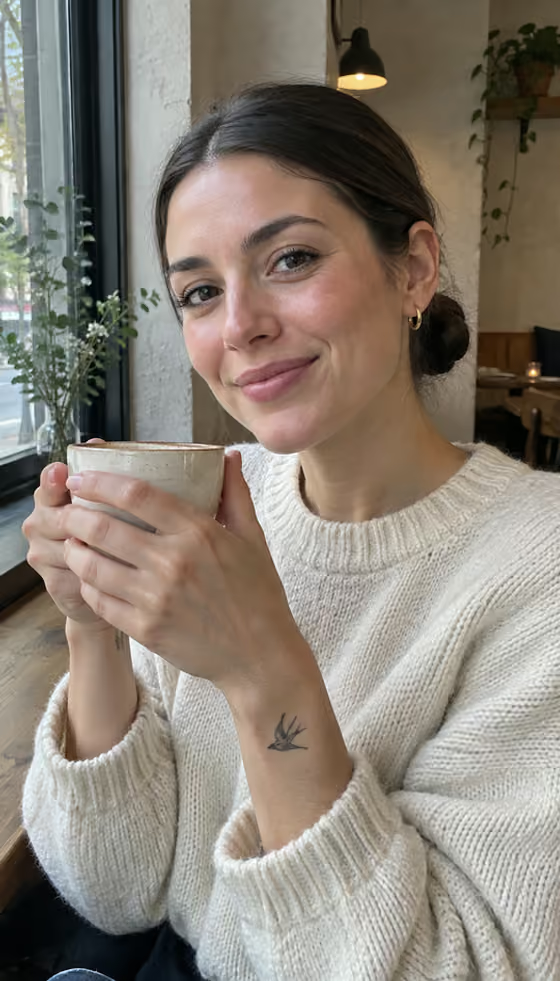
Turn a photo into a short video. Pick a motion such as a smile, a laugh, a wave, or a dance, upload one photo, and Phosphene makes a five-second clip that starts from your original photo.

Upload one photo
Pick a motion
Get a 5-second clip
Photo to video collection

Pick the look first.

Upload happens after you choose a style, so the first decision is the final vibe.

Photo to video AI

How do I turn a photo into a video?

Open one of the Bring Photo to Life templates in Phosphene, upload a photo with a clearly visible face, and generate. Each template makes a five-second vertical clip from your photo with one natural motion, such as a smile, a laugh, or a wave, and keeps the original framing and background. Results depend on how clear the photo is, and the templates are written to avoid adding new people or objects.

What does photo to video AI do?

Photo to video AI starts from one still image and generates motion for it. In Phosphene your uploaded photo is the first frame, and the template describes only the motion, so the clothing, faces, colors, and background stay as they were in the photograph.

Which photos work best?

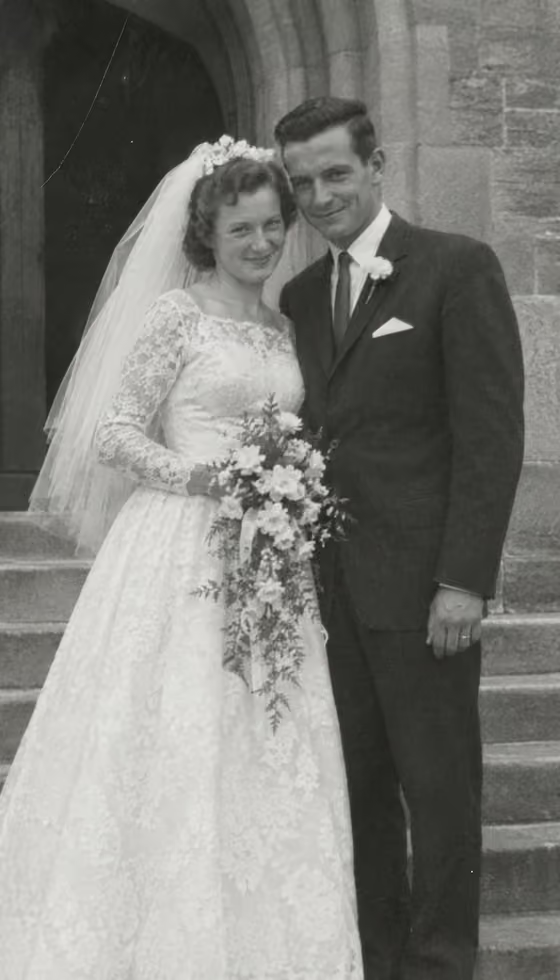
A photo with a clearly visible face works best. The templates are tuned for portraits, and old prints and scans work well. Blurry faces, heavy filters, or faces turned far from the camera give less reliable motion.

How long are the videos?

The Bring Photo to Life templates make five-second clips at 720p in a vertical 9:16 frame, which fits phone screens and short-video feeds.

Can I animate an old family photo?

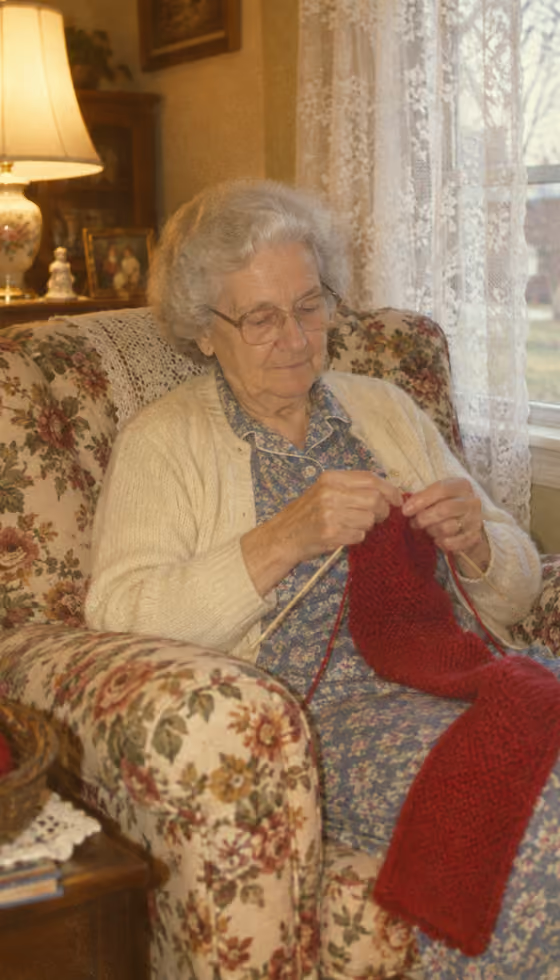
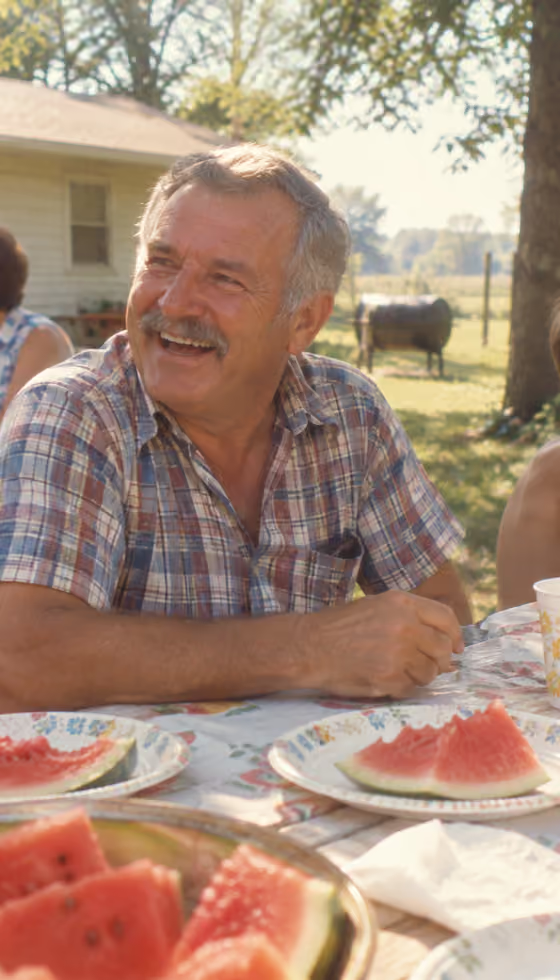
Yes. Scans of old prints are a common input. Use photos you own or have permission to use, and treat the result as an interpretation: the motion is generated, so expressions and gestures are not a record of how the person moved.

Can I animate a pet or two people together?

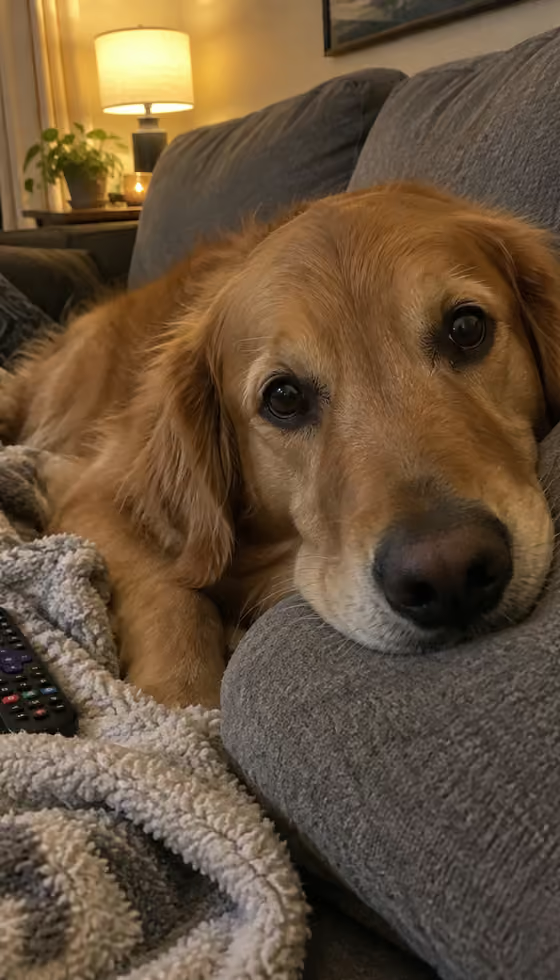
Yes. There is a Pet template that adds a head tilt, perked ears, and a wagging tail, and a Couple template where two people in one photo turn toward each other and laugh. Use a photo where each face is visible.

Can I make myself dance from a photo?

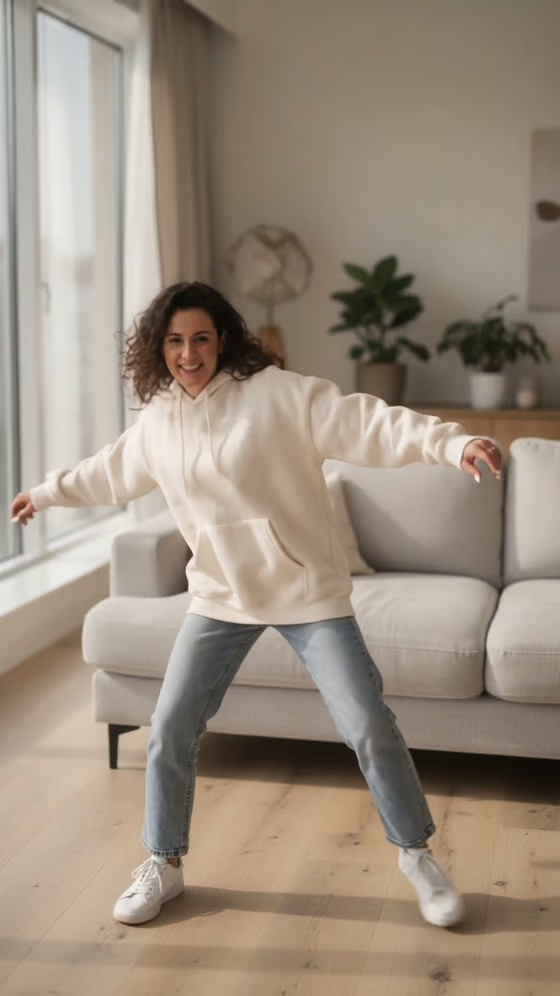
The Make Me Dance: Groove template turns one full-body photo into a five-second dance. Use a photo where your whole body is visible.

Workflow

How to turn a photo into a video with AI

  1. Choose a motionPick Smile, Laugh, Wave, Couple, Pet, Surprise Me, or Make Me Dance from the template pack on this page.
  2. Upload one photoAdd a clear photo that matches the template, such as a portrait, a photo of two people, or a pet photo.
  3. Generate the clipRun the template and wait for the five-second video to render.
  4. Save or share itDownload the video, or try a different motion on the same photo.

Common uses

  • Animating a portrait of a grandparent or an old family print.
  • A short smiling or waving clip for a birthday or anniversary message.
  • A moving version of a pet photo for a story or a post.
  • A dance clip from a full-body photo.

Better source photos

  • Choose a sharp photo with the face clearly visible and well lit.
  • Match the template to the photo: one person, two people, a pet, or a full body.
  • Run a few motions on the same photo and keep the one that looks most natural.
  • Use your own photo or get permission from the people in it.

More templates

Browse the full catalog.

0 total
Open all categories
7 templates

No templates match — try a different search or category.