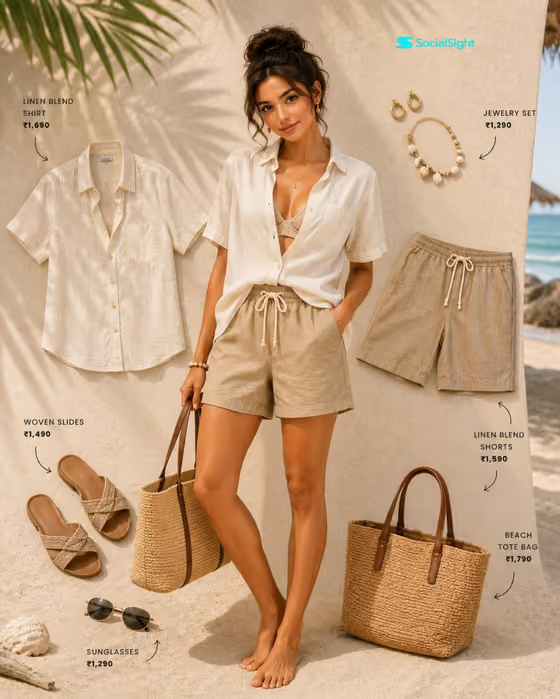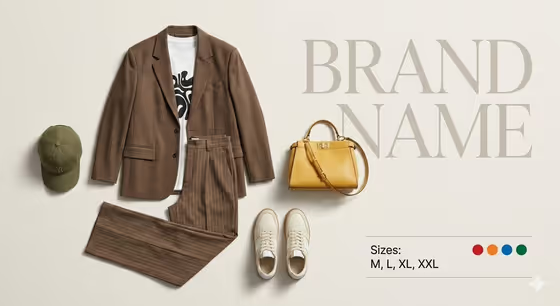
This template turns your garments and accessories into a catalog-style flat lay. Every piece is arranged separately on a soft beige background in a natural worn shape, with realistic folds and shadows, and no model, mannequin or body in the frame.
It suits small clothing brands, resellers and anyone building a product page or lookbook who wants a full outfit shown at once. The result also carries a large faded brand word behind the items, a compact size line and four round color swatches, as in the cover image.
What works best as input
- Both the Garment product or outfit slot and the Accessory set slot accept a photo, so you can upload pictures of the real pieces. The template is set up for 2 or more uploads, so give it at least one garment photo and one accessory photo.
- Use clear, well-lit photos of each item on a plain background so textures like pinstripes, knit or leather stay sharp in the result.
- If you describe instead of upload, be specific, for example "brown blazer streetwear set" or "olive cap, cream sneakers and yellow bag" rather than just "suit" or "shoes".
- Keep the Catalog brand name short, such as "BRAND NAME" or "THE DAILY EDIT", because it appears as one large faded word behind the layout. This field is text only, so there is no photo upload for it.
- Make sure your reference photos match what you type, so the garments and accessories belong together as one outfit.
How to use it
- Open the Complete Outfit Flat Lay template in Phosphene.
- Fill in Garment product or outfit with a short description or an uploaded photo of your clothing.
- Add your Accessory set (photo or description) and type your Catalog brand name.
- Generate the image, then check that every item is present, the brand word reads correctly and no person appears in the frame.
Tips for a better result
- Use the examples as a starting point, such as "black-and-cream tailored outfit" or "sandals, sunglasses and woven bag", then swap in details from your own product line.
- Keep your brand name to one or two words so the big faded lettering stays balanced behind the clothes.
- Choose a garment and accessories with different colors and shapes, since the layout separates each item and shows them side by side.
- If one item looks off, rerun with a clearer photo or a more specific description of that piece.
Common mistakes
- Typing a vague description like "clothes and bag", which gives the template little to work with and can produce generic items.
- Uploading photos that show a person wearing the items, which can confuse the reference when the template is meant to show the pieces alone.
- Using a very long brand name, which makes the faded background word crowded or hard to read.
FAQ
Will a model or mannequin appear in the image?
No. The template is built to arrange only garments and accessories, with no model, mannequin, body or character.
Can I upload photos of my own products?
Yes. The Garment product or outfit and Accessory set slots both accept photos, and the template expects 2 or more uploads. You can also describe the items in text.
What extra details are added to the layout?
A large faded version of your brand name sits behind the items, along with a small size row and four circular color indicators, as shown in the cover image.
What shape is the output?
It is a single image in a 3:4 aspect ratio.