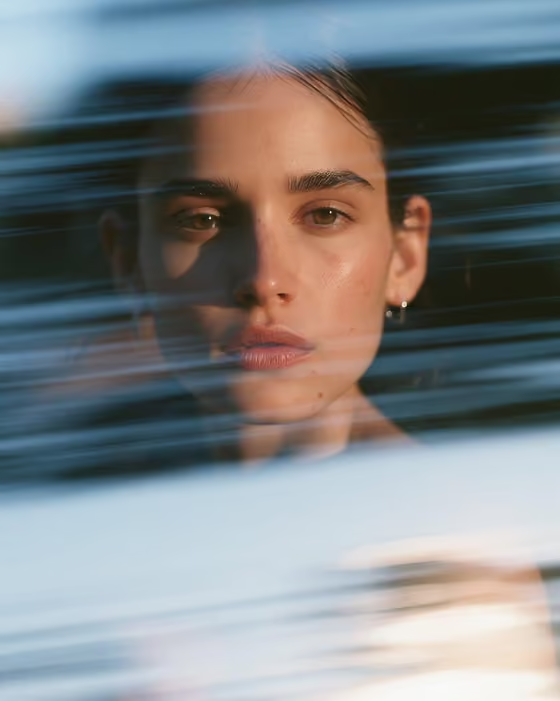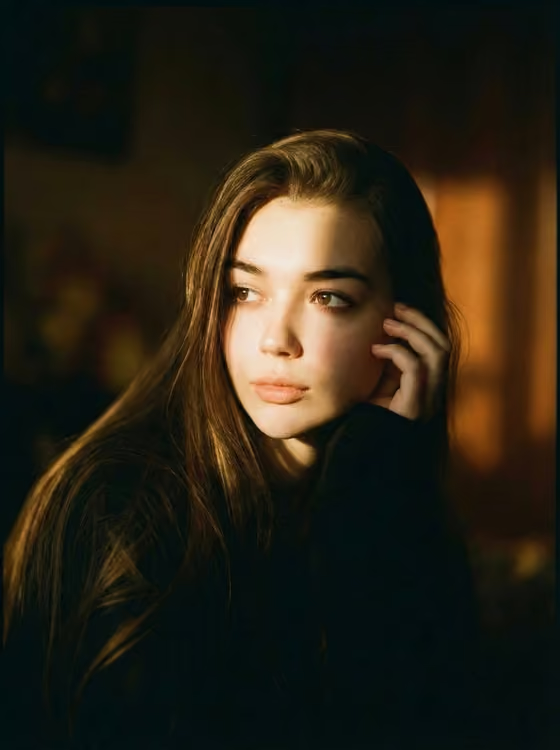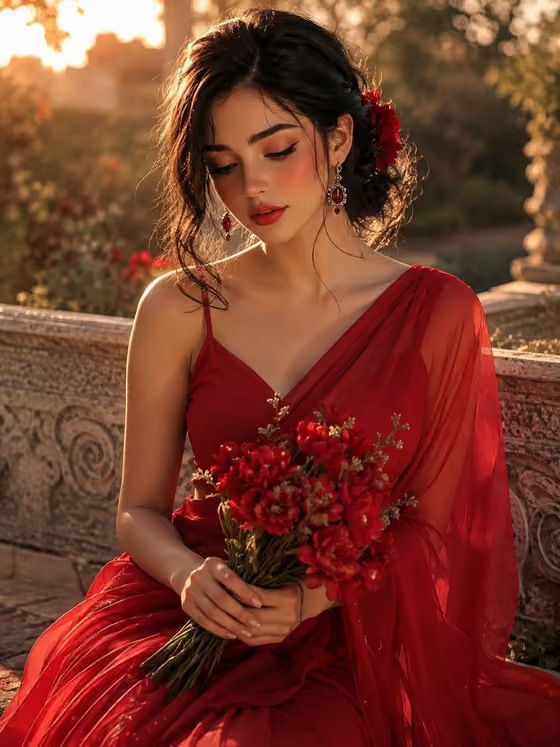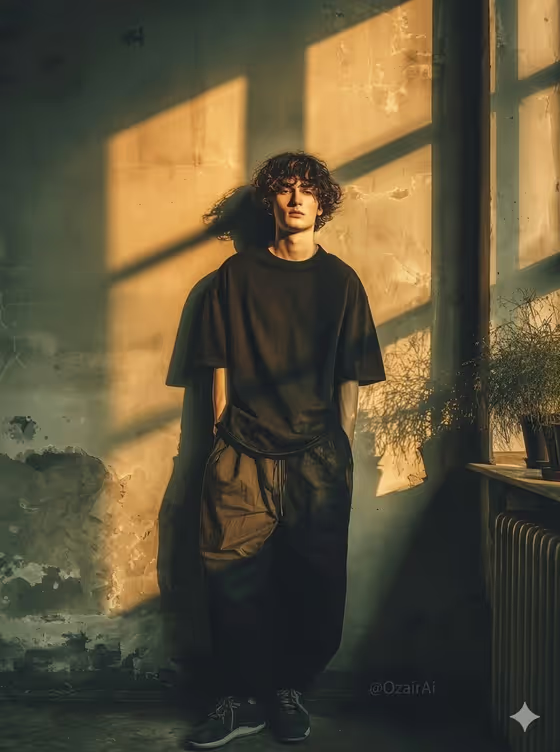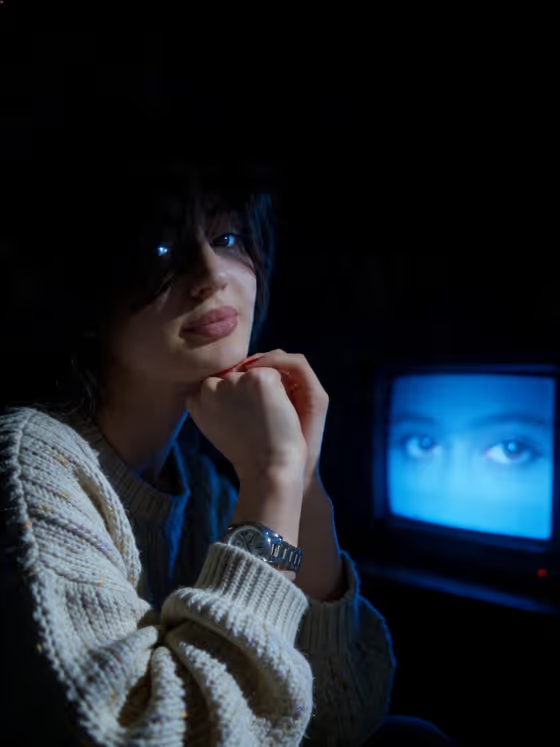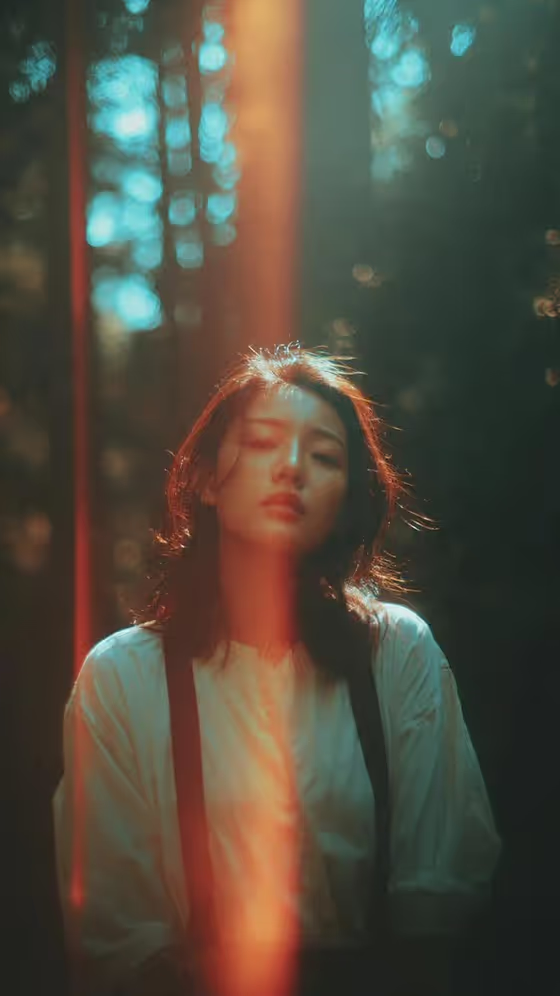
Forest Light Leak turns a portrait into a moody 35mm-style film still. The subject stands in a quiet forest, caught as if turning back toward the camera, with sunlight breaking through tall trees and a vertical analog light leak running across the frame.
It suits anyone who wants a poetic, cinematic portrait with teal shadows, warm orange highlights, visible grain and soft haze. The output is a 3:4 image, a good fit for profile pictures, mood boards and portrait-style posts.
What works best as input
- Start with one clear photo of the person. The Portrait subject field accepts a photo, and the default phrase "an adult woman matching my reference" tells the template to follow your reference.
- Pick a photo where the face is well lit, in focus and not hidden by sunglasses, a hat brim or heavy shadow, so the likeness has something solid to work from.
- A head-and-shoulders or half-body shot works well, since the template frames the subject with trees and bokeh around her.
- If you describe the subject in words instead, keep it simple and about an adult, for example "an adult man with a distinctive presence" or "an expressive adult creative".
- Only use photos of yourself or people who have agreed to be portrayed.
How to use it
- Open the Forest Light Leak template in Phosphene.
- In Portrait subject, upload your photo or choose or type a short description of the person.
- In Pose or expression, pick one of the options, such as "calm direct gaze" or "quiet introspection", or write your own. Leave it as "the source gaze and expression" to keep the look from your photo.
- Generate the image, then review the face, the light leak and the overall mood. Adjust the two fields and run it again if you want a different feel.
Tips for a better result
- Try "quiet introspection" for a softer, dreamier result, or "intense focused gaze" for a more dramatic one. The template already leans calm and slightly distant, so these choices shift the emotion noticeably.
- Keep the Portrait subject text short. The scene, wardrobe, lighting and color grading are already set by the template, so extra detail can compete with them.
- Run the same photo with different Pose or expression options and compare the results to find the mood you like best.
- Choose a source photo with clear, even lighting. The template adds the dramatic patches of light and shadow itself.
Common mistakes
- Uploading a blurry, tiny or heavily filtered photo. The face has less to work from and the likeness can drift.
- Writing a long scene description in the subject field. The forest, blouse with dark suspenders, and teal-and-orange grade are fixed, so extra scene details mostly add confusion.
- Expecting a bright, clean, sharp portrait. This template is built for grain, haze, slight blur and a light leak, so those film imperfections are intentional.
FAQ
Do I have to upload a photo?
No. The Portrait subject field accepts a photo, but you can also choose or type a short description of the person instead.
Can I change the outfit or the forest setting?
Not through the fields. The wardrobe, forest setting and color grading are part of the template's fixed direction. You control the subject and the pose or expression.
What does the Pose or expression field do?
It sets the gaze and mood, with options like "calm direct gaze", "quiet introspection" and "intense focused gaze". The default keeps the gaze and expression from your source.
What size is the result?
The template outputs a single image in a 3:4 aspect ratio.