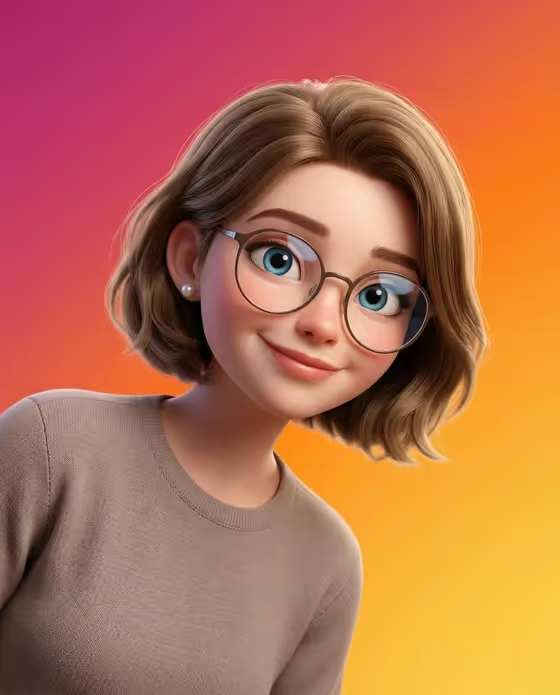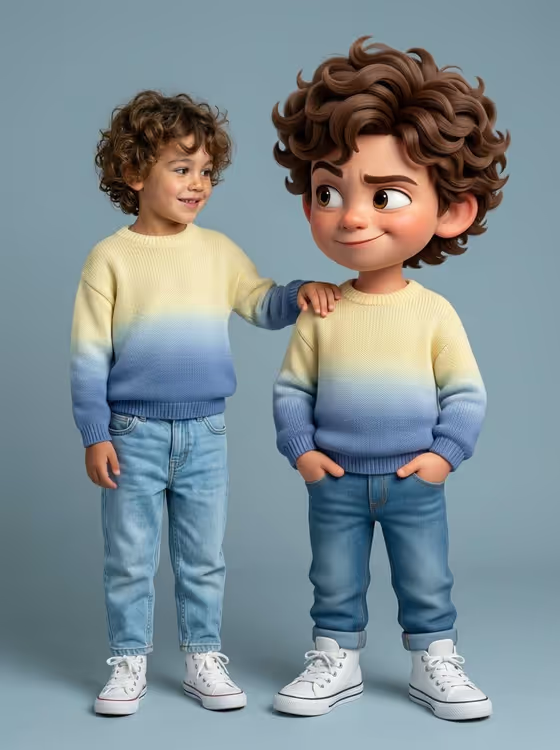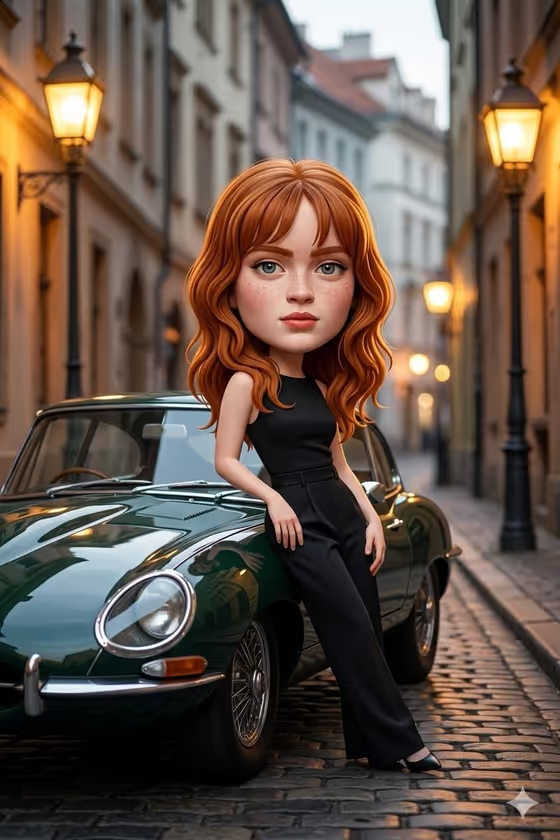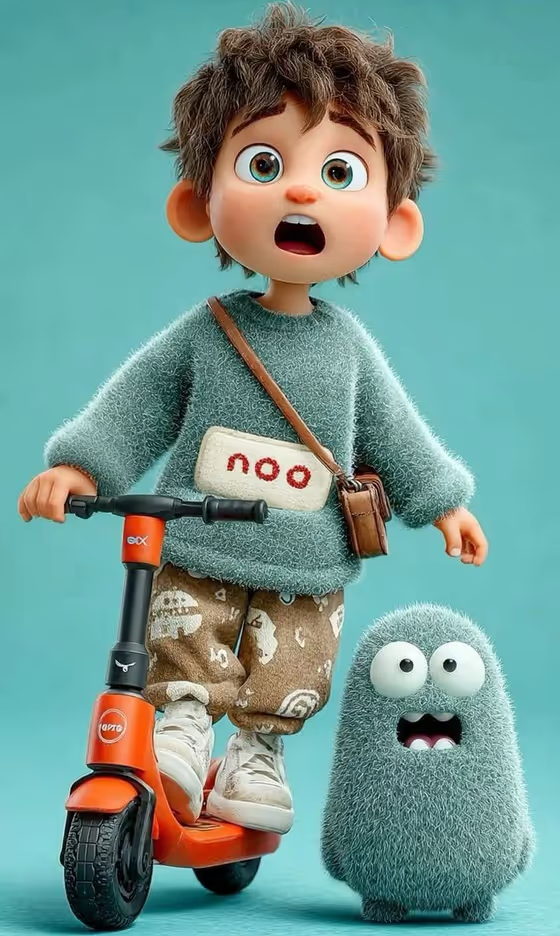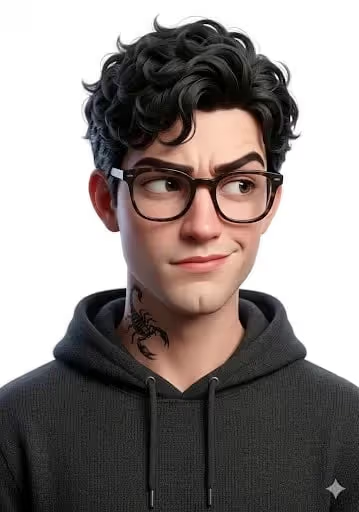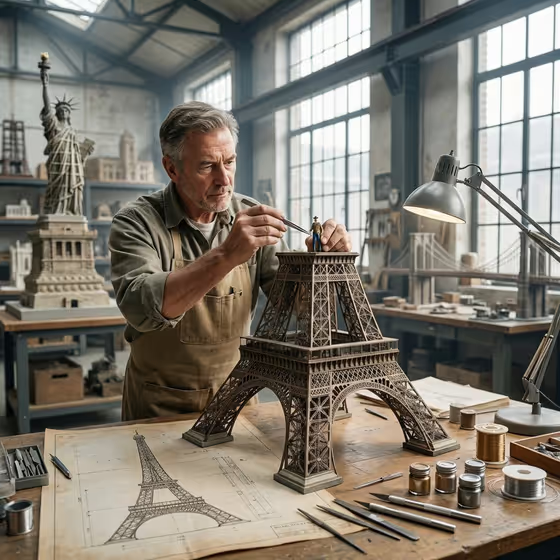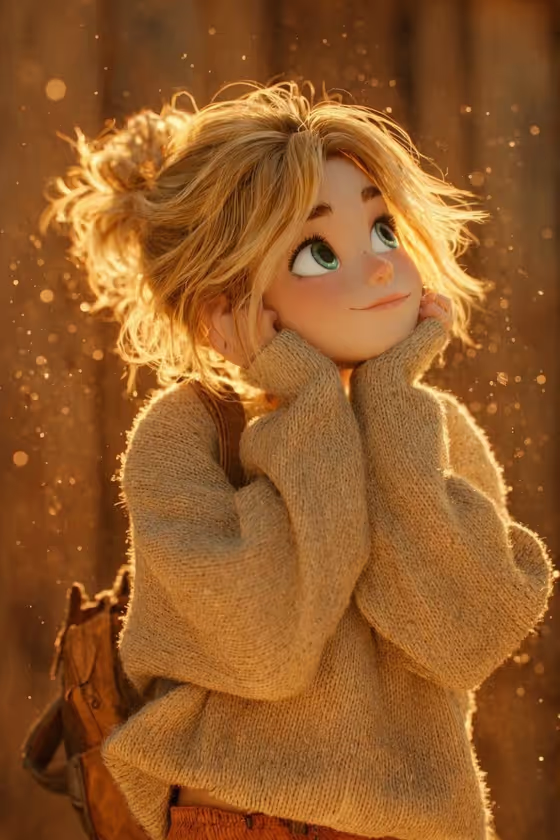
This template turns a subject into a warm, animated 3D scene set in a cozy wooden village at golden hour. The result is a 3:4 portrait image with low sun, soft rim light, floating particles and a gently blurred village behind your character.
It suits anyone who wants a storybook or animated-film look for a character portrait, a profile picture, a gift, or a piece of cozy fan-style artwork. You can describe a character in words or upload a matching reference photo, then pick the magical moment that fills the air around them.
What works best as input
- If you upload a photo for the Scene subject or character field, choose one clear shot of a single subject so the template has one character to stage.
- Pick a picture where the face and hair are easy to see. The cover look relies on soft rim light around hair and clothing, so visible shape and texture help.
- Avoid busy or cluttered backgrounds in the reference. The template builds its own blurred wooden village, so a plain background keeps the focus on the subject.
- If you would rather type, describe the character in a short phrase such as 'a curious village child' or 'a gentle woodland animal', and add one detail like an outfit or pose.
- Only upload photos of people you have permission to use, and keep descriptions respectful.
How to use it
- Open the Golden Village Storybook Scene template in Phosphene.
- In Scene subject or character, type a short description of your character or upload a matching reference photo.
- In Magical moment, choose the atmosphere you want, for example dust motes at golden hour, glowing petals drifting past, fireflies gathering nearby, or sunbeams revealing a secret path.
- Generate the image, then review the 3:4 result and adjust your subject description or magical moment if you want a different feel.
Tips for a better result
- Keep the subject description short and concrete. One clear character with a single standout detail tends to read better than a long list.
- Try each Magical moment option with the same subject to compare how petals, fireflies, dust motes or sunbeams change the mood.
- Use the subject examples as starting points, such as 'a tiny traveling artisan', then swap in your own wording to make the character feel personal.
- If the first result is close but not right, change only one field at a time so you can see what made the difference.
Common mistakes
- Describing several characters in the subject field. The scene is built around one subject, so extra characters can muddy the composition.
- Uploading a dark, blurry or heavily cropped reference photo, which gives the template little to work from.
- Writing a long scene description in the subject field. The village setting, golden light and particles are already set by the template, so focus on who the character is.
FAQ
Do I have to upload a photo?
No. The Scene subject or character field accepts a text description, and it also accepts a matching reference photo if you prefer to upload one.
What does the Magical moment option change?
It sets the atmosphere in the scene, such as dust motes, drifting petals, fireflies or sunbeams on a secret path, while the village and golden-hour lighting stay the same.
What shape is the finished image?
The template outputs a single image in a 3:4 portrait ratio.
Can I use it for something other than a person?
Yes. The subject examples include a gentle woodland animal and a tiny traveling artisan, so you can describe other kinds of characters too.