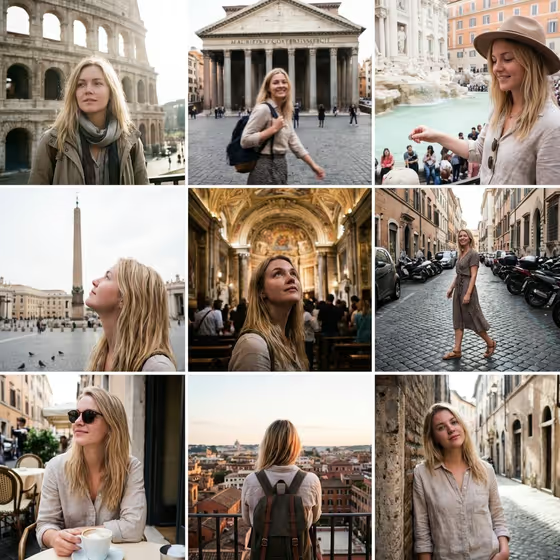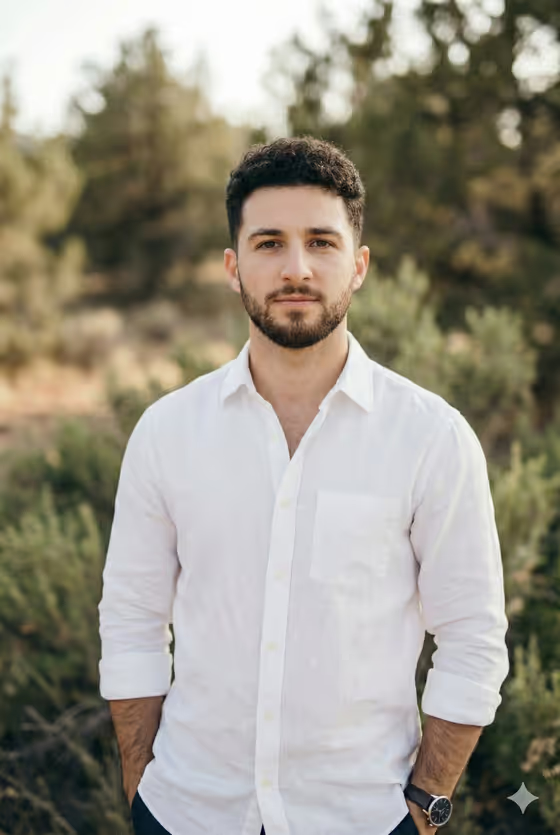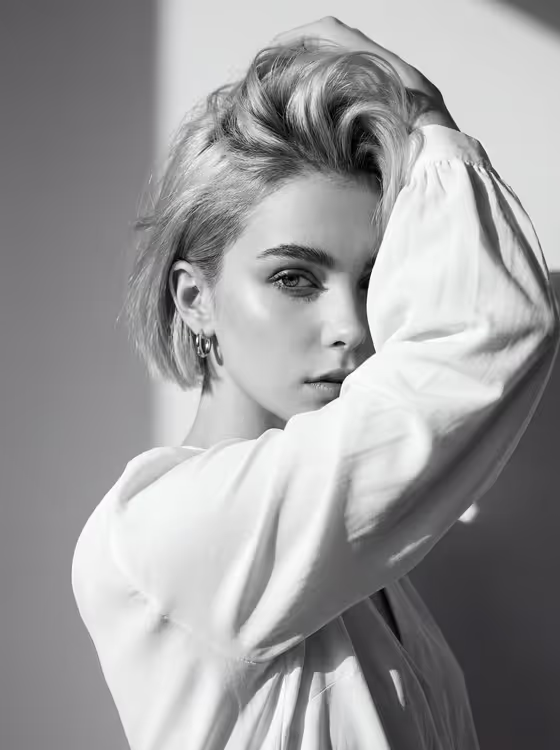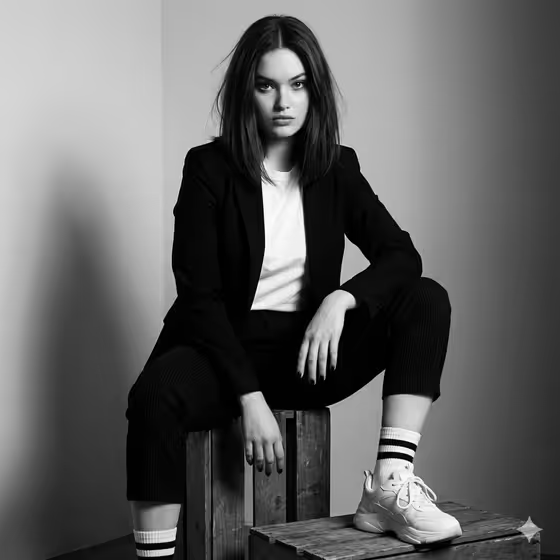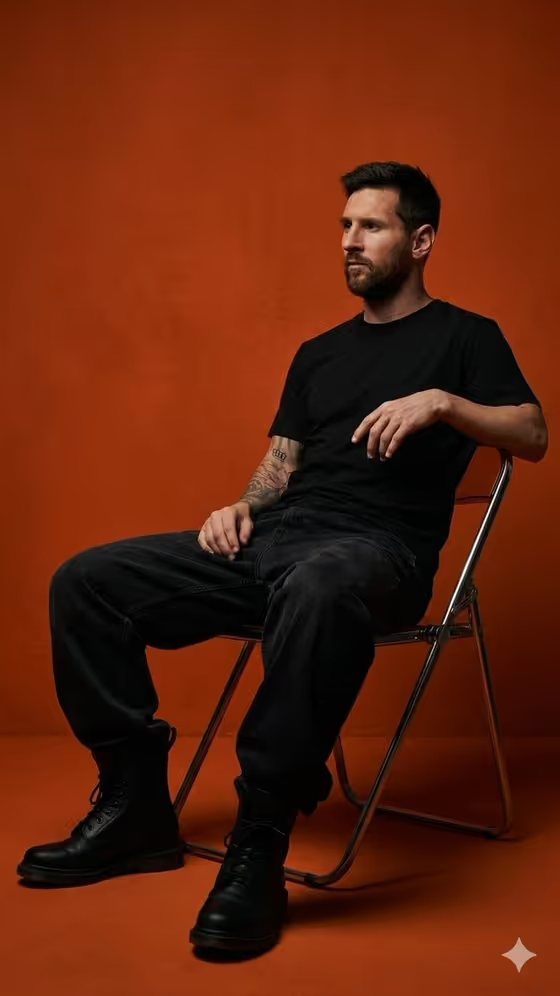
Orange Studio Chair makes a seated studio portrait in a 3:4 frame. The scene is a dark orange backdrop and floor, a metal folding chair, and a subject dressed in black (t-shirt, baggy dark jeans, lace-up boots) with sharp, minimal shadows and a moody feel.
It suits anyone who wants an editorial-style portrait without booking a studio: creatives building a profile image, people making a styled shot for a bio or portfolio, or anyone who likes the look of a casual, turned-away pose against a bold single-color background.
What works best as input
- Use a clear photo of one adult where the face is sharp and evenly visible. The template matches the person in your reference, so a blurry or heavily shadowed face gives it less to work with.
- A photo that already shows a seated or half-body pose helps, since the default pose option is 'the source seated pose'.
- Avoid sunglasses, hats pulled low, or anything that hides the face, because the final image turns the head to the side and still needs to read as you.
- In the 'Portrait subject' field you can keep the placeholder idea ('an adult man matching my reference') or write a short description of the person to guide the result alongside your photo.
How to use it
- Open the Orange Studio Chair template in Phosphene and add your reference photo.
- Fill in 'Portrait subject' with a short description such as 'an adult man matching my reference', or pick one of the suggested examples.
- Set 'Pose or expression' to the source seated pose, or choose another option like relaxed seated posture or upright composed pose.
- Generate the image, then check the face likeness, the chair, and the orange backdrop, and run it again if something is off.
Tips for a better result
- Try the different 'Pose or expression' options to change the mood. 'Upright composed pose' reads more formal, while 'candid mid-action posture' feels looser.
- Keep the subject description short and concrete. Extra detail that conflicts with the fixed styling (black outfit, orange studio) may fight the template's look.
- If the first result misses the likeness, try a different reference photo with better, more even lighting on the face.
- Generate a few versions and compare them, since small changes in pose wording can shift the angle of the head and hands.
Common mistakes
- Uploading a group photo or an image where the person is small or far away, which makes the portrait hard to match.
- Writing a long, detailed description that asks for a different outfit or backdrop. The template is built around the dark orange studio and black clothing.
- Using a very dark or low-resolution photo and expecting the sharp, defined face the final style depends on.
FAQ
Do I have to upload a photo?
The template is set up around a reference photo, and the 'Portrait subject' field accepts one. Use a clear picture of the person you want in the portrait.
Can I change the outfit or background color?
Not through this template. The black t-shirt, baggy dark jeans, boots, and dark orange studio are part of the design, so you only adjust the subject and the pose.
What does the 'Pose or expression' field control?
It sets how the person sits and carries themselves. You can choose a suggested option like the source seated pose or relaxed seated posture, or describe your own.
What shape is the final image?
It is a 3:4 portrait-format image, suited to profile shots and vertical layouts.