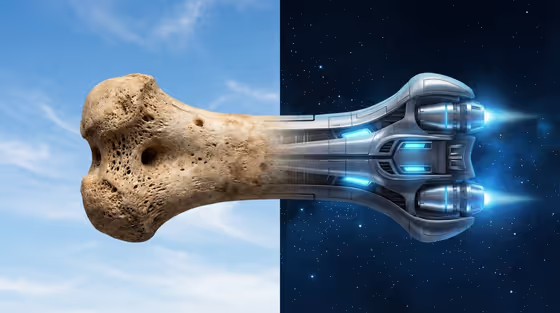
Organic-to-Machine Split makes a single photoreal image divided down the middle. On one side your chosen object sits in a natural setting, and on the other it becomes a machine, with the outline carrying straight across the divider so it reads as one continuous object. The cover shows a bone on a clear sky side turning into a spacecraft against a star field.
It suits anyone who wants a striking concept visual from a simple idea: designers, educators, social creators, or anyone playing with 'what if this became that' imagery. You pick the starting object and the machine it turns into, and the template handles the split, the matching perspective, and the two environments.
What works best as input
- For the Source object or artifact field, name one clear object, such as a small dog bone, a curved seashell, or a fallen tree branch. A single, simple subject gives the template a clean outline to carry across the divider.
- This field also accepts a matching reference photo, so you can upload a picture of your object instead of describing it. Pick a photo where the whole object is visible and not cropped at the edges.
- Favor objects with a strong, elongated or distinctive silhouette. The template preserves the original line and proportions, so a recognizable shape makes the transformation easier to follow.
- If you type instead of upload, add a little detail about shape or texture (for example, weathered, curved, or porous) so the organic half looks specific rather than generic.
How to use it
- Open the Organic-to-Machine Split template in Phosphene.
- In Source object or artifact, type your object or upload a reference photo of it.
- Choose a Mechanical transformation from the options, such as futuristic spacecraft, high-speed train, precision robot arm, or advanced underwater vessel.
- Generate the image, then check that the object's outline continues across the center divider. If the join or either environment looks off, adjust your inputs and run it again.
Tips for a better result
- Match the machine to the object's shape. A long, tapered object pairs naturally with a spacecraft or train, while a curved or jointed one may suit a robot arm or underwater vessel.
- Try the same object with each mechanical option to compare versions. The template adapts the machine-side environment to the choice, so each result tells a different story.
- Keep the source simple and recognizable. The strongest results come from one object whose proportions are easy to follow from organic to mechanical.
- If you use a reference photo, choose one with even lighting and a plain background so the object's edge is easy to read.
Common mistakes
- Describing several objects or a whole scene in the source field. The split works best when one object touches the center divider.
- Uploading a cropped or cluttered photo. If the object's outline is cut off or hidden, the transformation has less to preserve.
- Expecting the machine field to take a photo. It is a choice from the listed options, not an upload.
FAQ
Can I upload my own photo?
Yes, for the Source object or artifact field, which accepts a matching reference photo. The Mechanical transformation field is a selection, not an upload.
What does the finished image look like?
It is a photoreal image split vertically. Your object sits on a clear sky side and becomes the machine on the other side, which, as in the cover, can be a star-filled space or another environment that fits the machine.
What can the object turn into?
You choose a Mechanical transformation, with examples like a futuristic spacecraft, high-speed train, precision robot arm, or advanced underwater vessel.
Why does the middle of the image matter so much?
The template aligns materials and contours exactly at the midpoint so the change looks like one object. A clear, simple source outline helps that join look convincing.