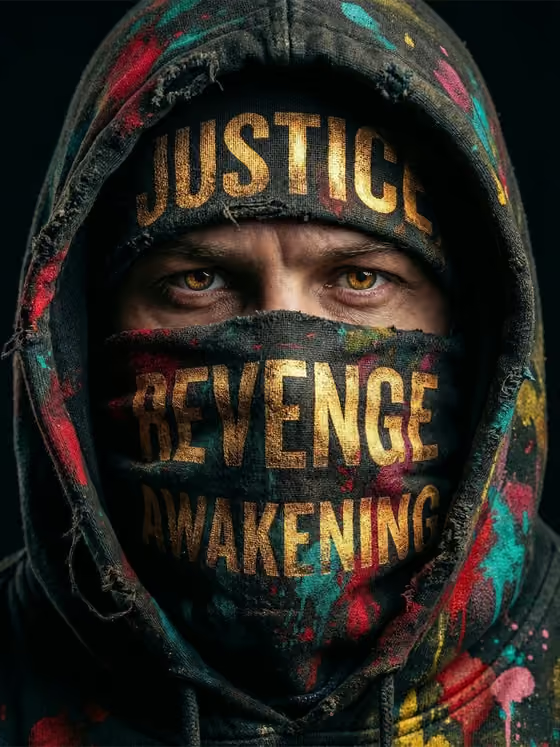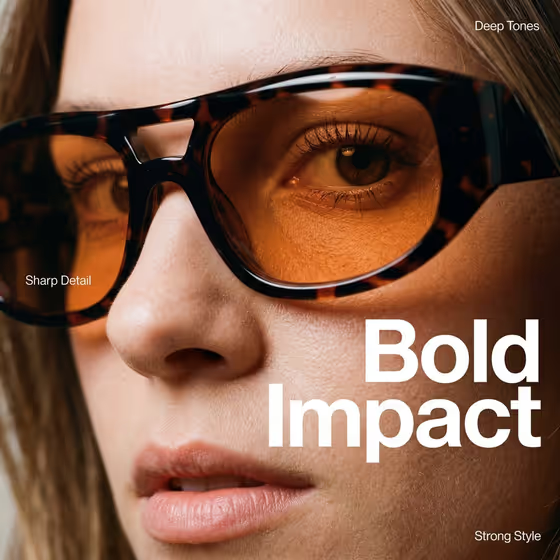
This template builds an extreme close-up fashion portrait: a tight crop on one eye behind amber-tinted lenses, large dark tortoiseshell frames, the bridge of the nose and part of the lips, all with a heavy film-grain look. Your own phrase is set into the image as bold typography, with small supporting labels placed around the frame like a magazine cover.
It suits anyone who wants an editorial-style image for a campaign, a mood board, an eyewear concept or a social post. You choose who is in the shot, what the lettering says, and what material finish the type should have.
What works best as input
- For the Subject field, you can either describe the person in text or add a reference photo. A clear, well-lit, front-facing or three-quarter photo of one person gives the model something concrete to follow.
- If you type instead, keep it short and specific, like the field's own examples ("A poised creative professional" or "A charismatic performer"). Details about age, hair or mood help more than long lists.
- Only use photos of yourself or people who have agreed to be portrayed, and keep the subject a single person so the tight crop has one clear face to work from.
- For the Phrase field, enter the exact words you want rendered. Short phrases of one to three words fit the layout best, since the cover example uses a two-word headline.
How to use it
- Open the Tortoiseshell Sunglasses Close-Up template in Phosphene.
- In Subject, describe the person or add a reference photo. In Phrase, type the exact wording you want shown as the main lettering.
- In Material Finish, type a finish or pick one of the examples, such as "Polished metallic lettering".
- Generate the image, then check the result for spelling of your phrase, the look of the eye and frames, and how the text sits on the face. Adjust a field and run it again if needed.
Tips for a better result
- Try different Material Finish entries to change the character of the type while the portrait stays the same. The examples range from polished metallic to classic, contemporary or playful.
- Keep the phrase brief and in a consistent case. Short words give the lettering room to read clearly against the skin and frames.
- Vary the Subject description (for example an outdoor adventurer versus a performer) to change the person's expression and presence while keeping the same close-up framing.
- Run the same inputs more than once and compare. Small differences in grain, lighting and letter placement can make one version clearly better.
Common mistakes
- Writing a long sentence in Phrase. Long text is harder to fit into a tight crop and is more likely to come out with errors or crowded spacing.
- Describing several people in Subject. The composition is built around one face, so multiple subjects work against the framing.
- Leaving Material Finish vague or contradictory. A clear, single finish gives better-defined lettering than a mix of unrelated styles.
FAQ
Do I have to upload a photo?
No. The Subject field accepts either a text description or a reference photo. The Phrase and Material Finish fields are text only.
Can I change the words that appear in the image?
Yes. Whatever you enter in Phrase is the exact text to render as the main lettering. Always proofread the result, since generated text can contain mistakes.
What does Material Finish control?
It sets the material look of the lettering. The default suggestion is polished metallic lettering, and you can try the other examples or write your own.
What shape will the image be?
This template outputs a single image in a 3:4 portrait ratio.