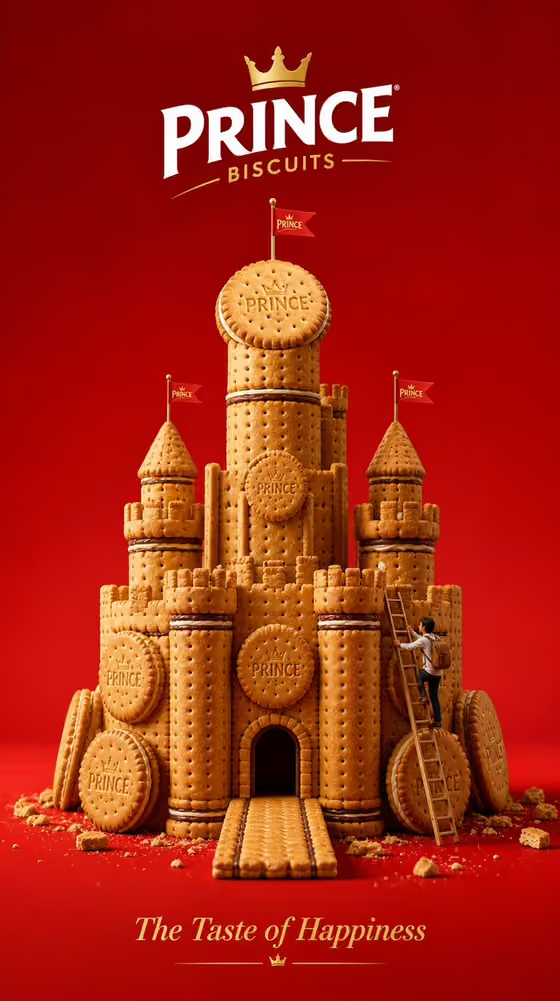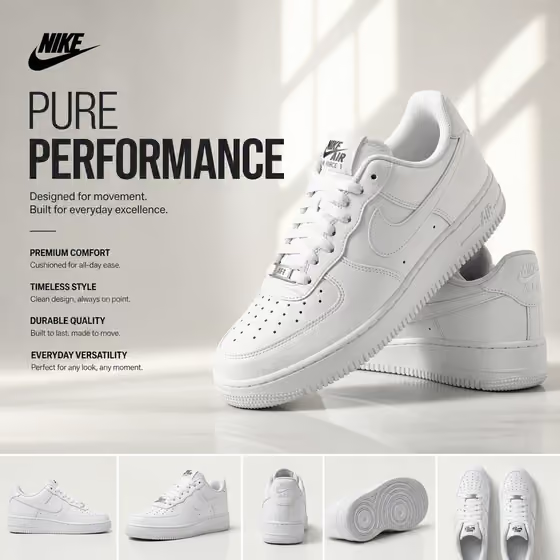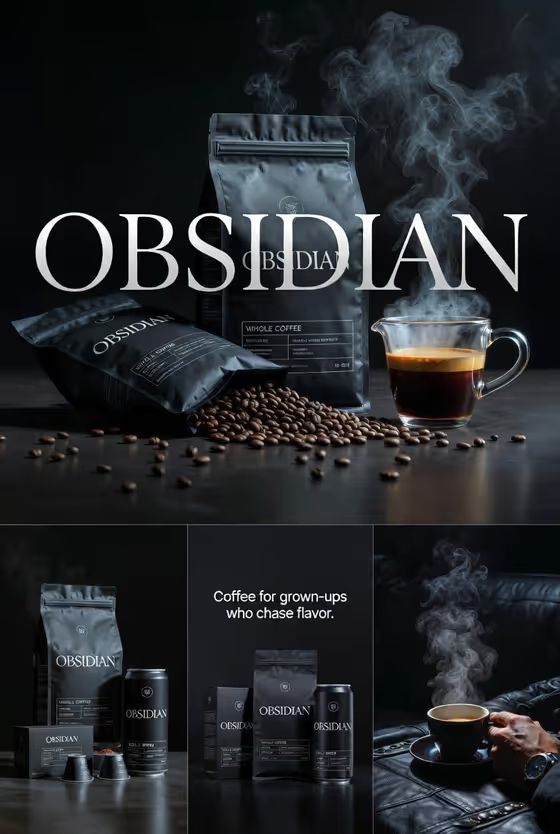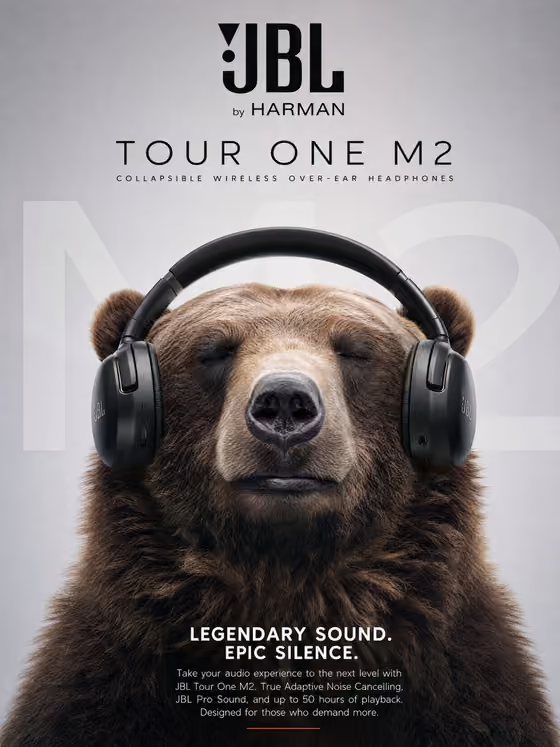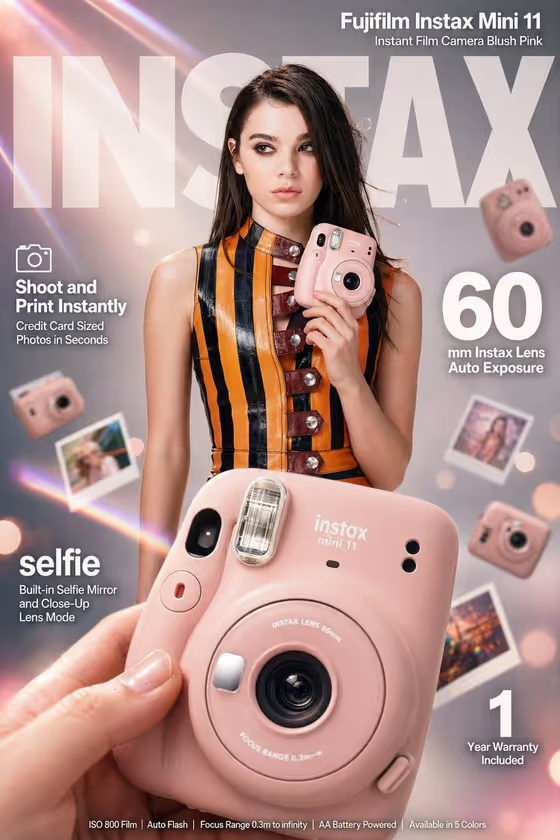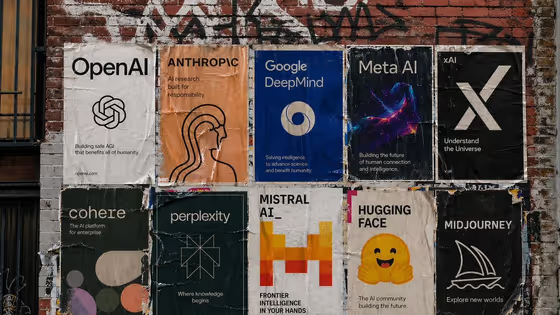
Wheatpaste Lab Wall turns a subject or product into a set of poster designs pasted onto a weathered brick wall, arranged like a real street wheatpaste setup. The cover shows the idea: a grid of ten separate posters, each with its own color scheme, logo and short tagline, with creased paper, torn edges and graffiti above.
It suits designers, marketers and founders who want a gritty street-poster mockup for a campaign, a brand concept or a group of related names. You get one 3:4 image of the finished wall.
What works best as input
- In the poster subject or product field, describe what the posters are about, for example a group, a product line or a campaign idea. The field's own example is "posters for independent AI labs", which is the kind of phrasing that produces a themed set like the cover.
- The field also accepts a photo, so if you have an exact visual reference for your subject, upload it so the posters stay faithful to it.
- Be specific about the group or concept. A clear category (several brands, one product in different styles) gives the set a coherent look, with each poster distinct but clearly related.
- Only use subjects, names and visuals that you own or have the right to use, such as an original campaign subject or a personal campaign concept.
How to use it
- Open the Wheatpaste Lab Wall template in Phosphene.
- In the poster subject or product field, type a description of what the posters should feature, or upload a photo reference of your subject.
- Pick an option in Poster layout, such as single hero with title, modular editorial grid or layered cinematic collage.
- Generate the image, then review the wall and adjust your subject text or layout if the result is not what you pictured.
Tips for a better result
- Try the same subject with different Poster layout choices. A modular editorial grid gives a multi-poster wall like the cover, while single hero with title focuses on one design.
- Include a short phrase or name in your subject text if you want it to appear as poster copy, since the posters feature the text you give them.
- If a result feels crowded, simplify the subject to one clear idea and run it again.
- Use a photo reference when you need exact visual details to carry over, and a text description when you want the template to invent the poster designs.
Common mistakes
- Writing a vague subject such as "cool posters". Without a clear theme the posters have little to build on.
- Uploading a low-quality or cluttered reference photo, which makes the poster artwork less clear.
- Expecting a different setting. The template is built around a weathered brick wall with pasted posters, so the street-wall look stays fixed.
FAQ
Do I have to upload a photo?
No. The subject field accepts either a typed description or a photo reference, and the Poster layout field is a simple choice.
What does the output look like?
A single 3:4 image of poster designs pasted on a textured brick wall, in the style of a street wheatpaste arrangement.
What can I put in the subject field?
A person, character, product, object, name or phrase that you own or have the right to use, described in text or shown with a reference photo. Examples include an original campaign subject or a personal campaign concept.
Can I change how the posters are arranged?
Yes. Use the Poster layout field to choose options like single hero with title, modular editorial grid or layered cinematic collage.