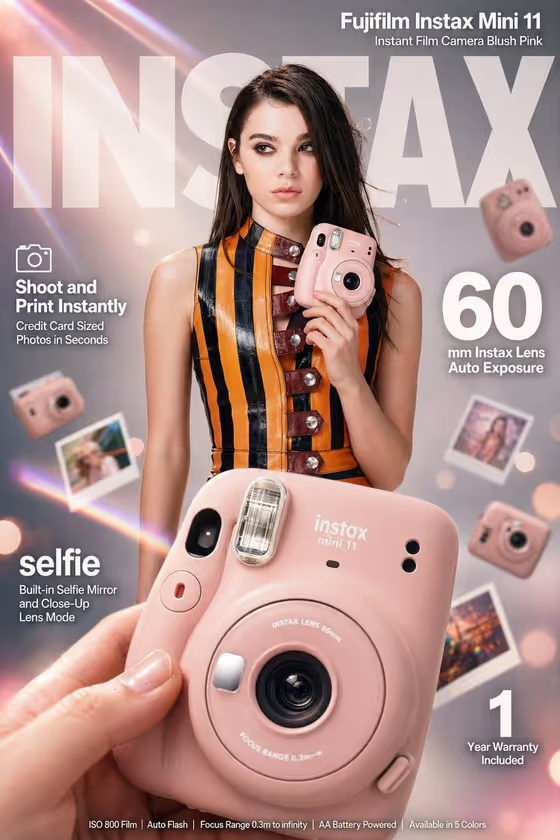
This template builds a high-impact e-commerce ad in a 3:4 portrait frame. A close-up hand holds your camera product at an angle, sharp on the lens ring, with a confident portrait subject standing behind it and a large title spelled out across the top of the layout.
It suits sellers, small brands and marketers who want a product-led ad visual with an infographic feel. The cover shows the idea: a pink instant camera in the foreground, a model behind it, floating prints, and callout text around the edges.
What works best as input
- For Portrait subject, you can upload a photo or type a short description such as "a joyful young woman". If you upload, pick a clear, well-lit photo of one person facing the camera, and only use photos of people who are fine with being featured.
- For Featured product or prop, a photo of the actual item works best. Choose a sharp image where the lens, buttons and branding are visible, since the hand-held close-up is built around the product's details.
- Because the template asks for 2 or more photos, plan to provide both a portrait and a product photo rather than relying on text alone for each.
- If you describe instead of upload, be specific about the object, for example "a compact consumer device" is better with a color and material added.
- Rendered name or title is text only. Keep it short and in capitals, like AURORA or YOUR NAME, so it reads clearly as the big background word.
How to use it
- Open the High-Impact E-Commerce Infographic Advertisement template in Phosphene.
- Fill Portrait subject and Featured product or prop by uploading a photo or typing a description for each.
- Type your Rendered name or title in the text field, using a short word or phrase.
- Generate the image, then check that the product is sharp in the foreground, the person looks right behind it, and the title text is spelled correctly.
Tips for a better result
- Use a product photo taken from the front at a slight angle, since the result is framed with the product tilted toward the viewer.
- Try different title words to change the look of the large background lettering. Short single words tend to fill the top of the frame cleanly.
- Pick a portrait with clothing or colors that contrast with your product so the product stands out, as the striped outfit does against the pink camera in the cover.
- Run it again with a different portrait subject to produce several ad variations for the same product.
Common mistakes
- Uploading a blurry or heavily cropped product photo, which makes it harder to keep the lens ring and branding crisp.
- Writing a long sentence in Rendered name or title. It is meant to be a short name or headline, and long text is more likely to be misspelled.
- Giving vague descriptions like "a product" instead of naming the item, which leaves the close-up with little to hold onto.
FAQ
Do I have to upload photos?
The portrait and product fields accept either a photo or a typed description, but the template is set up for 2 or more photos, so uploading both usually gives you the closest match to your own subject and product.
Can I change the big text in the background?
Yes. The Rendered name or title field controls it. Type your own short name or headline in place of the placeholder.
What shape is the output?
A 3:4 portrait image, like the cover example.
Will the result copy the cover image exactly?
No. The cover shows one example. Your result is built from your own portrait subject, product and title.