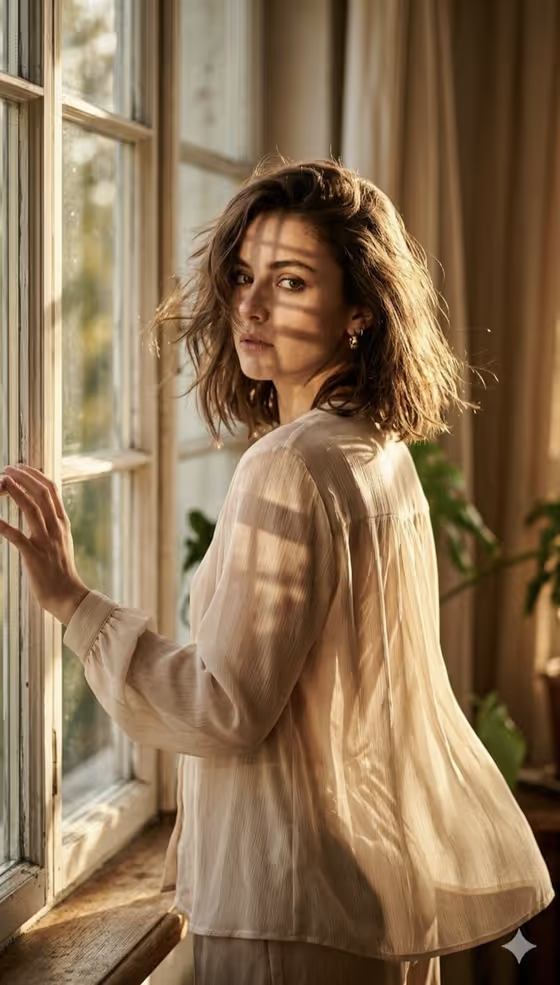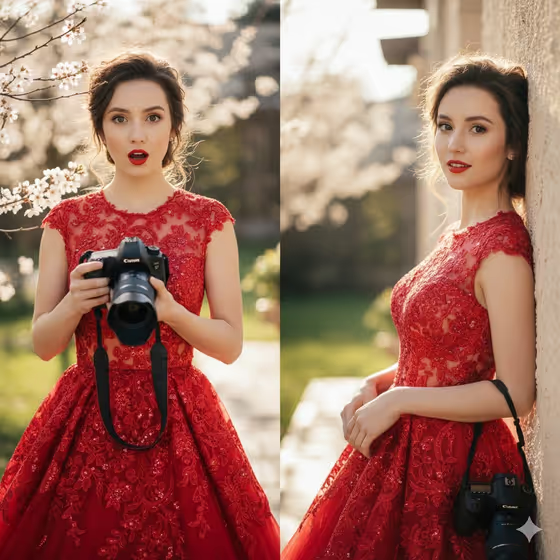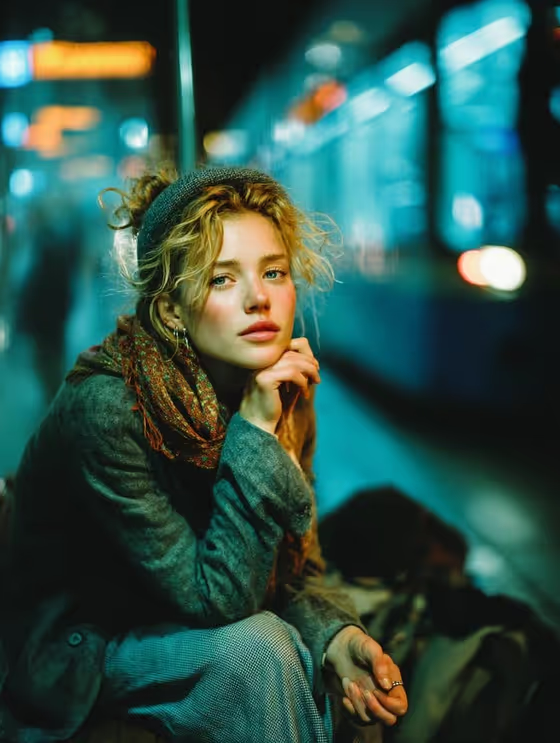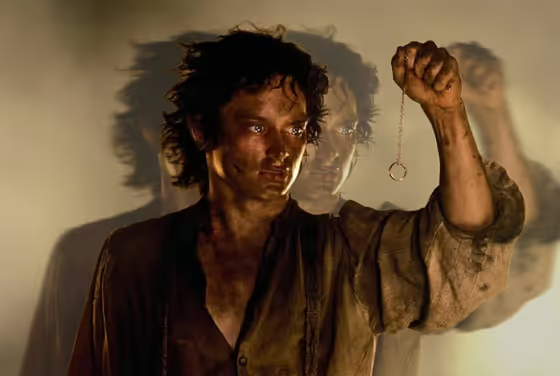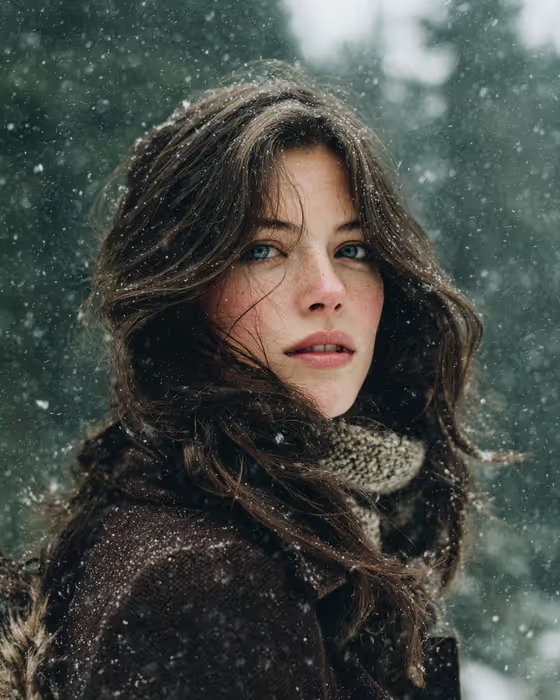
Winter Forest Wool Portrait turns your subject into a quiet, cinematic portrait set in falling snow. The scene shows a figure looking back over the shoulder, with soft-focus evergreen trees behind and cool, overcast light across the face.
It is meant for people who want a moody winter portrait with natural skin and fabric texture. You choose who appears and what they wear, and the template supplies the snowy forest, the muted palette, and the wistful atmosphere.
What works best as input
- This template asks for 2 or more photos, so gather a few clear shots of the same person from slightly different angles. Consistent, well-lit images help the likeness stay recognizable.
- Pick photos where the face is sharp and unobstructed. Avoid heavy filters, sunglasses, or hats that hide the hair and features.
- Use photos of yourself or of someone who has agreed to be pictured. Do not use images of public figures.
- In the Subject field you can also type a short description, such as the placeholder 'A confident adult', to complement the photos.
- For the Outfit field, either describe the clothing in words or add a clear reference photo of the garment so the details carry over.
How to use it
- Open the Winter Forest Wool Portrait template in Phosphene and add your 2 or more photos of the subject.
- Fill in the Subject field with a short description or a visual reference, then fill in the Outfit field with the clothing you want to see.
- Generate the image and wait for the 2:3 portrait to appear.
- Review the result, checking the face, outfit, and snow details, then adjust your Subject or Outfit text and generate again if you want a different take.
Tips for a better result
- Be specific in the Outfit field about fabric and color, for example a heavy wool coat in a muted tone, since the scene favors cool greens, soft whites, and earth tones.
- Choose outfits that suit cold weather. Layers, scarves, and textured knits sit naturally in the snowy setting and match the template's wool theme.
- Keep the Subject description short and let your photos carry the likeness, so the text does not fight with what the images show.
- Try a few different outfit descriptions while keeping the same subject photos to compare how the same portrait feels in different clothing.
Common mistakes
- Uploading only one photo or very low-quality photos. The template expects 2 or more, and blurry or dark images make the likeness less reliable.
- Writing an outfit that clashes with the scene, such as summer clothing, which fights the snowy forest setting.
- Packing the Subject field with long, conflicting descriptions that contradict the photos you uploaded.
FAQ
How many photos do I need?
The template asks for 2 or more photos, so add at least two clear images of your subject.
Do I have to upload a photo for the Outfit field?
No. The Outfit field accepts either a written description or a visual reference, so you can type what you want.
What shape is the final image?
The result is a single image in a 2:3 portrait format.
Can I change the winter forest setting?
The snowy forest, overcast light, and falling snow are built into the template. You control the Subject and Outfit fields.