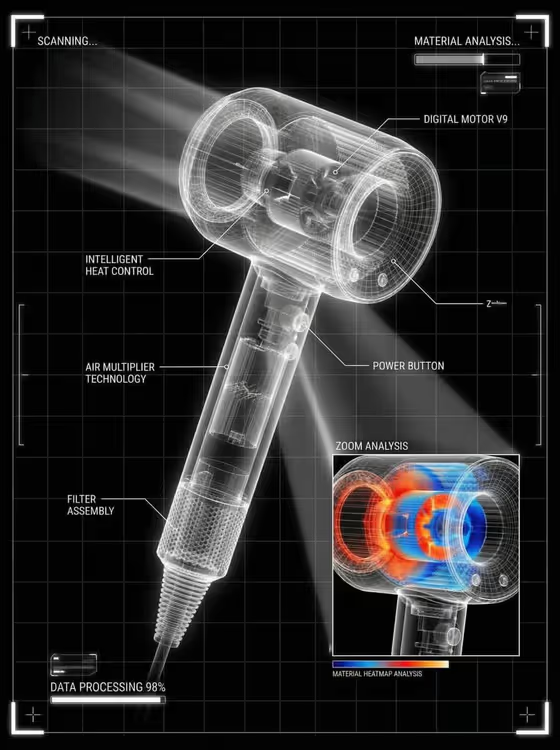
X-Ray Product Diagnostic turns a product into a lab-style technical screen. Your device appears as a glowing, translucent white wireframe on black, set over a fine grid, with thin pointer lines naming its parts, a magnified zoom panel with a colored analysis overlay, and a small status readout.
It suits product designers, hardware makers, and sellers who want an engineering-style visual for a launch post, a product page, or a presentation slide. The output is a 3:4 image, so it works well as a vertical poster or story format.
What works best as input
- In the Product or device field you can either describe the item in text or upload a reference photo. If you upload, use a clear shot of the exact product so the wireframe follows its real shape.
- Pick a photo where the whole product is visible, well lit, and not cropped. A clean side or three-quarter angle gives the scan a readable silhouette.
- If you type instead, be specific about the object, for example a mechanical watch or a wireless headphone, rather than a vague word like gadget.
- Only the Product or device field accepts a photo. Heat-map, callouts, and status are filled in with text or a choice.
- Avoid busy backgrounds and heavy reflections in your reference, since the template redraws the product as a see-through frame and clutter can confuse the outline.
How to use it
- Open the X-Ray Product Diagnostic template in Phosphene and start a new generation.
- In Product or device, describe your item or upload its reference photo. Then choose an Analysis heat-map style for the zoom panel.
- Fill in Component callouts with the parts you want labeled (for example battery, drivers, and hinges) and set the Diagnostic status text for the readout.
- Generate the image, then check that the callouts, status wording, and zoom panel look right. Adjust the fields and run it again if something is off.
Tips for a better result
- Name three or so components in Component callouts. A short list keeps the pointer labels readable, and the template is designed to avoid cluttering the product.
- Try different heat-map options on the same product, such as a red-orange stress map versus a cyan and amber material map, to see which fits your brand mood.
- Keep the Diagnostic status short and in capitals, like STRUCTURE SCAN COMPLETE, so it reads cleanly as a small interface element.
- Use real part names for your product. Labels that match what the object actually contains make the diagram feel believable.
Common mistakes
- Typing a very long list in Component callouts. Too many labels crowd the wireframe and work against the clean look.
- Uploading a cropped, blurry, or heavily shadowed photo, which gives the wireframe a weak outline to follow.
- Writing a long sentence in Diagnostic status. It is meant to be a compact readout, so keep it to a few words.
FAQ
Do I have to upload a photo?
No. The Product or device field accepts either a text description or an uploaded reference. Uploading helps the wireframe match your exact product.
Can I choose the color of the analysis overlay?
Yes. The Analysis heat-map field sets the colored overlay inside the zoom panel. The rest of the image stays mostly black and white.
What does the image include besides the product?
You get pointer labels for your chosen components, one corner zoom panel with the heat-map, angular scan markers, loading modules, a soft scan beam, and your status text.
What shape is the result?
It is a single image in a 3:4 vertical format.