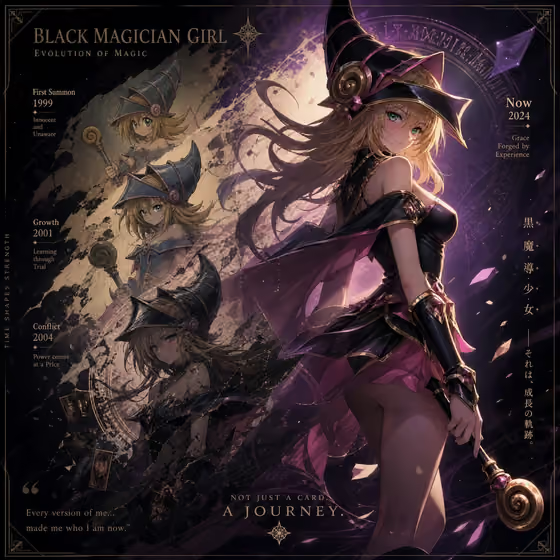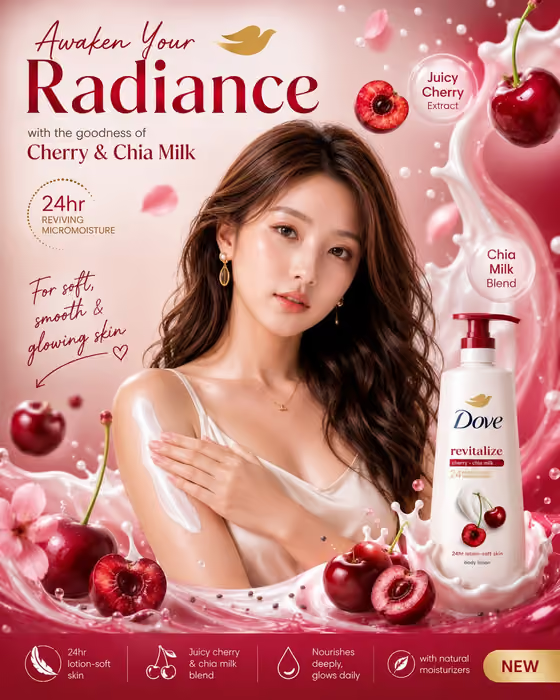
Athlete Journey Poster turns a short description or reference photo of an athlete into a cinematic, poster-style portrait with bold career-milestone text laid over it. The cover shows the idea well: a dramatic hero portrait, supporting action scenes, and clearly set blocks of text for goals, titles and records.
It suits fans making tribute art, coaches and clubs marking a player's story, and anyone creating motivational or marketing visuals for a sports project. The output is a 3:4 image, so it fits a portrait-format print or social post.
What works best as input
- In the Subject field, describe the athlete or add an exact visual reference. The slot accepts a photo, so a clear picture works well if you want a specific look.
- If you use a photo, choose one with a sharp, well-lit face and a clear view of the person, without heavy filters or sunglasses hiding the eyes.
- If you describe instead, be concrete about pose, expression and kit, for example a determined championship athlete in a team jersey, rather than a vague word like 'sporty'.
- In Achievements, write the real milestones you want shown as text, such as titles won, records held or career totals. This field is text only, so type them out rather than uploading anything.
- Keep achievements short and scannable. Short phrases tend to read better as poster text than long sentences.
How to use it
- Open the Athlete Journey Poster template in Phosphene.
- Fill in the Subject field with a description of the athlete, or add a photo as your visual reference.
- Type your career milestones into the Achievements field, using the placeholder 'Career milestones and best performances' as a model for the style of content.
- Generate the poster, then review the portrait and the text, and adjust your inputs and run it again if something is off.
Tips for a better result
- Put the most important achievements first in the Achievements field so they are more likely to get prominent placement in the layout.
- Try the example styles in the Achievements field, such as a refined classic or a bold contemporary variation, to see different moods from the same athlete.
- Mention a sport, jersey colors or setting in the Subject field to guide the atmosphere, like stadium lights or an outdoor adventure backdrop.
- Generate a few versions with small wording changes and compare which text hierarchy looks cleanest.
Common mistakes
- Writing a very long list of achievements. Too much text can crowd the poster and make it harder to read.
- Using a blurry, dark or heavily cropped photo as the Subject reference, which gives the portrait less to work with.
- Leaving the Subject vague. A generic description gives a generic portrait, so add details about pose, expression and outfit.
FAQ
Do I have to upload a photo?
No. The Subject field accepts either a text description or a photo reference, so you can type a description if you prefer.
Can I upload a photo for the Achievements field?
No. Achievements is a text-only field, so type out the milestones you want shown.
What shape is the finished poster?
The output is a 3:4 portrait image.
Should I check the text on the result?
Yes. Always read the generated text carefully and regenerate with simpler wording if anything looks wrong or unclear.