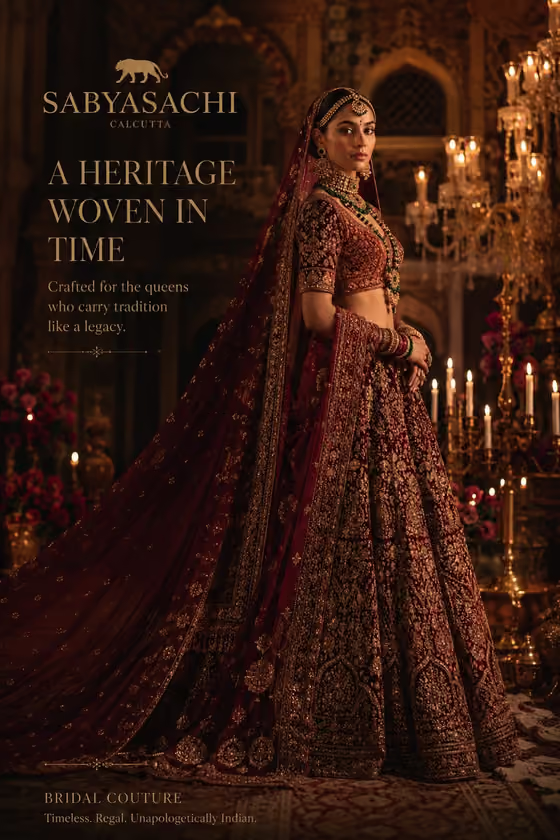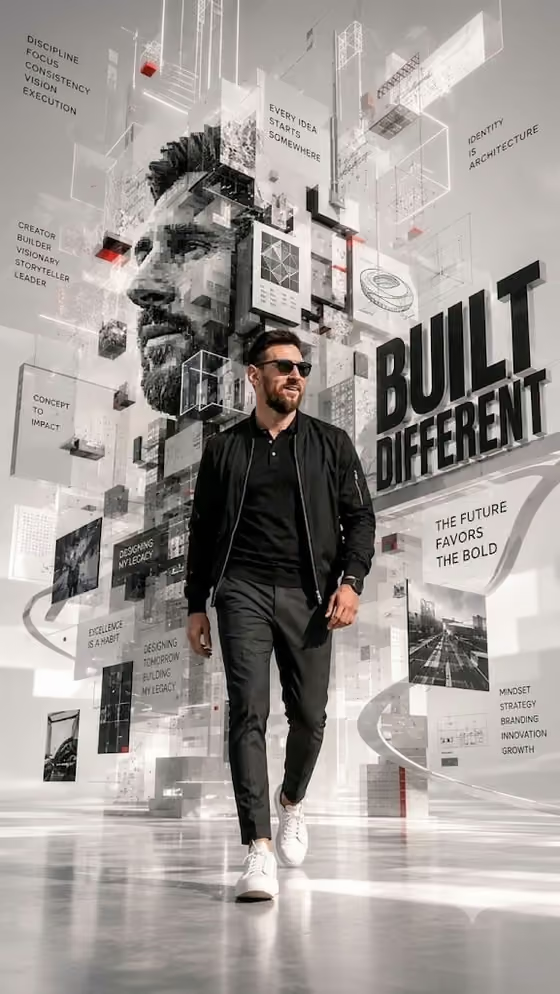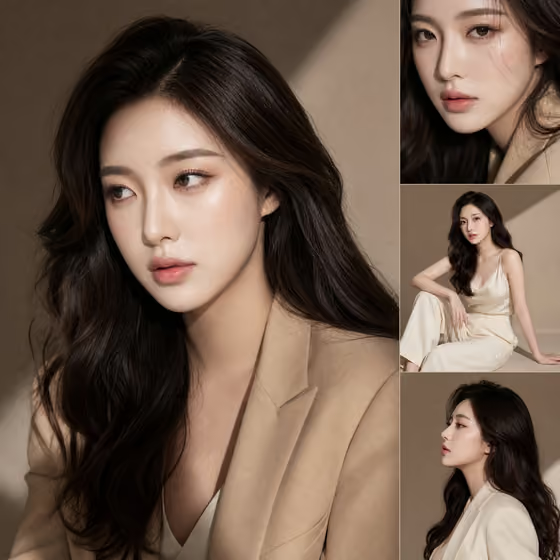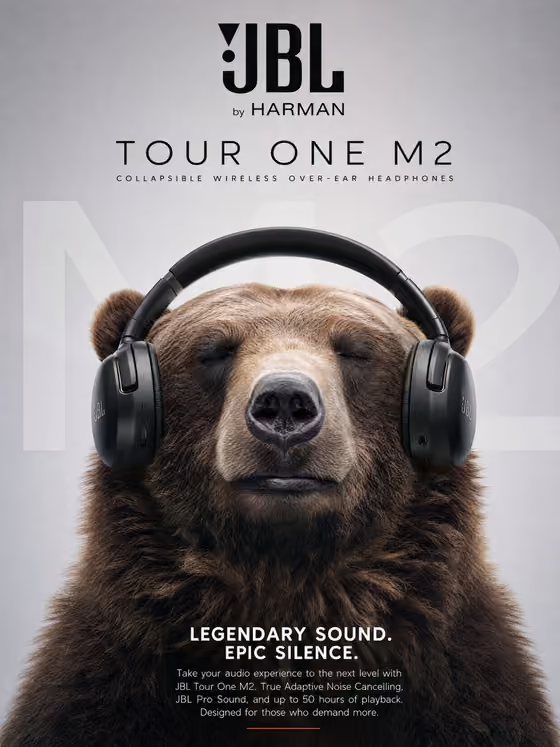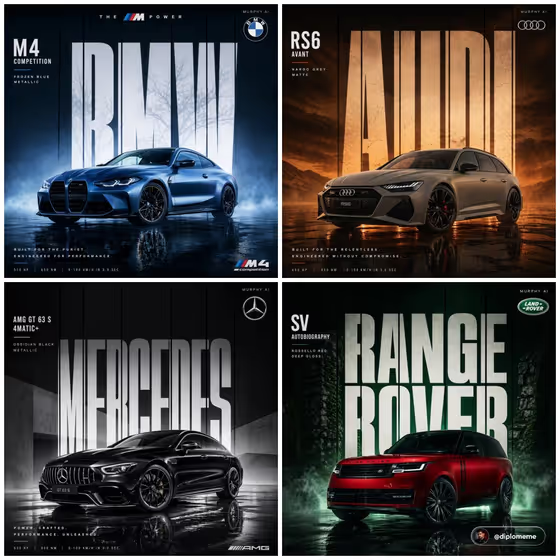
Automotive Billboard turns a car and a brand name into a square, poster-style advertisement. The car sits center-frame in dramatic studio lighting while huge condensed lettering spells out the brand across the whole background wall, with thin vertical lines slicing through each letter, as in the cover collage.
It suits marketers, designers, car enthusiasts, and small brands who want a bold automotive concept without a photoshoot. You describe or show the subject, name the brand, add a logo reference, and pick a color palette. The template handles the layout, lighting, and reflections.
What works best as input
- The Subject field accepts text or a photo. For the most accurate car, add a clear reference photo with the whole vehicle visible, shot from a front three-quarter angle with minimal clutter around it.
- This template asks for two or more photos in total, so plan a Subject reference plus a logo reference. Photos of the logo should be flat, sharp, and uncropped so the shape reads clearly.
- In Brand Identity, keep the wording short and exact, since the brand name becomes the giant background lettering. A single clean word like the ones in the cover examples will read better than a long phrase.
- In Brand Logo Description, either upload the logo or describe it plainly (shape, letters, colors). The logo appears small in the top right corner, so simple marks work best.
- If you describe the Subject in text instead, name the model, body style, and finish, for example a matte grey estate or a deep red SUV, so the car is not left to guesswork.
How to use it
- Open the Automotive Billboard template in Phosphene and read the four fields: Subject, Brand Identity, Brand Logo Description, and Color Palette.
- Fill in Subject with a description or a car photo, then enter the brand name in Brand Identity and add your logo reference or description.
- Choose a Color Palette, since it drives both the car's color treatment and the lighting tones.
- Generate the square image, then check that the brand lettering, the corner logo, and the car's shape match what you intended before saving or trying again.
Tips for a better result
- Pick a palette that contrasts with the car's paint so the silhouette stays defined under the rim lighting.
- Try the same car with different palettes to build a set of posters in matching layouts, similar to the four-panel cover.
- Use a short, bold brand word for Brand Identity. Fewer letters means larger, cleaner type across the wall.
- If the car looks off, swap a text description for a clear reference photo in Subject, or the other way around, and compare the results.
Common mistakes
- Typing a long slogan into Brand Identity. The field becomes the background lettering, so a long line gets cramped and hard to read.
- Uploading a cluttered or low-resolution logo, which makes the small corner mark messy.
- Using a vague Subject like a nice car, which leaves the model and finish to chance.
FAQ
Do I have to upload photos?
The template expects two or more photos in total. Subject, Brand Identity, and Brand Logo Description each accept a photo or a text description, and Color Palette is a choice.
What size is the result?
The output is a 1:1 square image.
Where does the logo appear?
The logo sits small in the top right corner, next to a minimal uppercase line of text.
Can I add taglines or performance specs?
The template is set up for a clean billboard look with no extra taglines or spec text, so the focus stays on the car and the brand lettering.