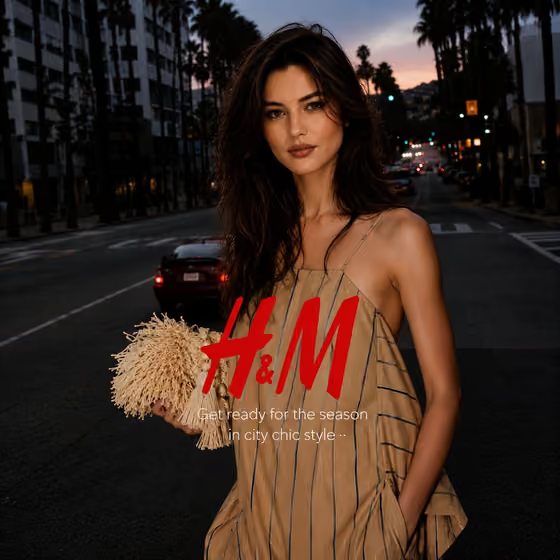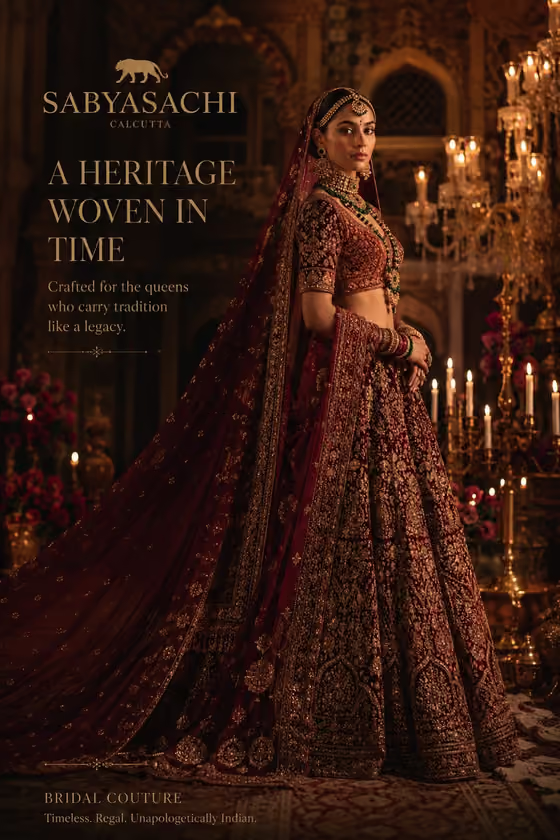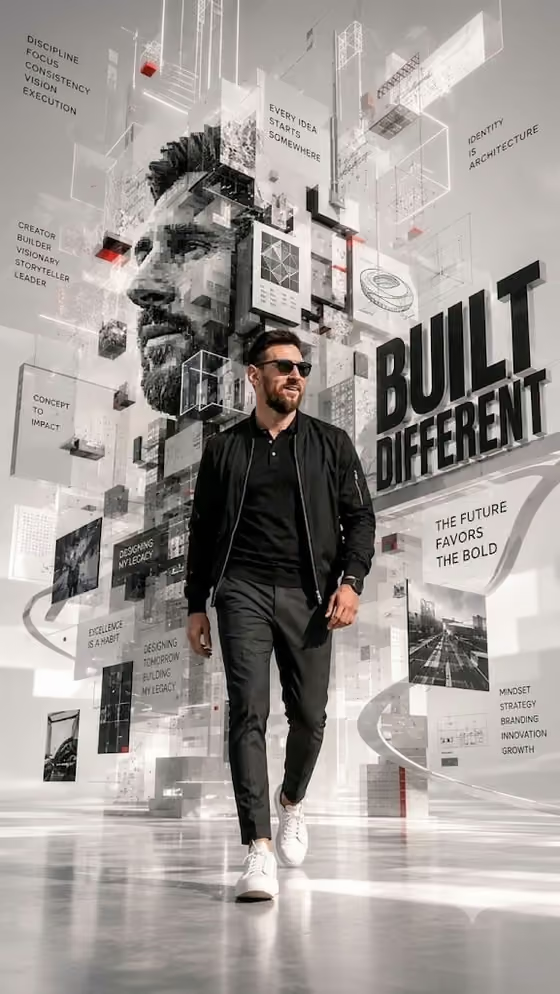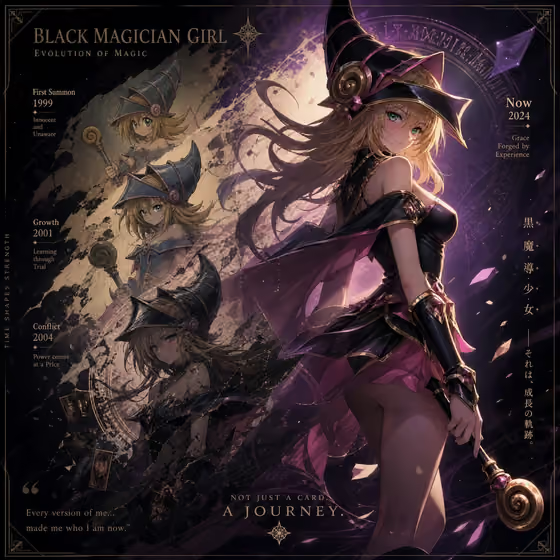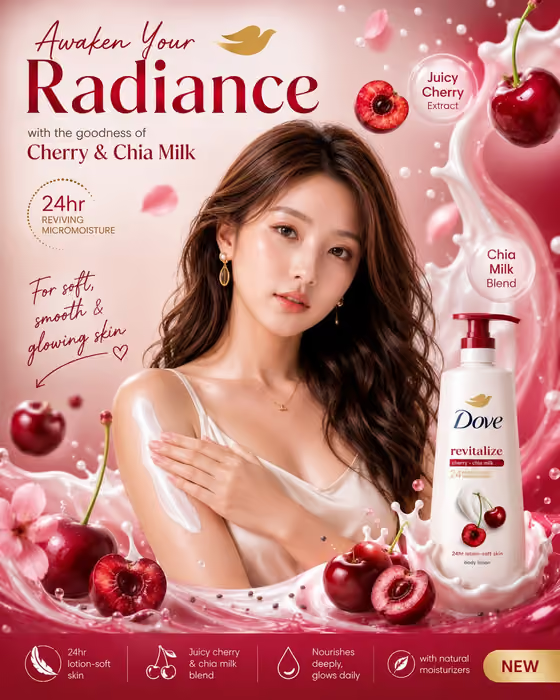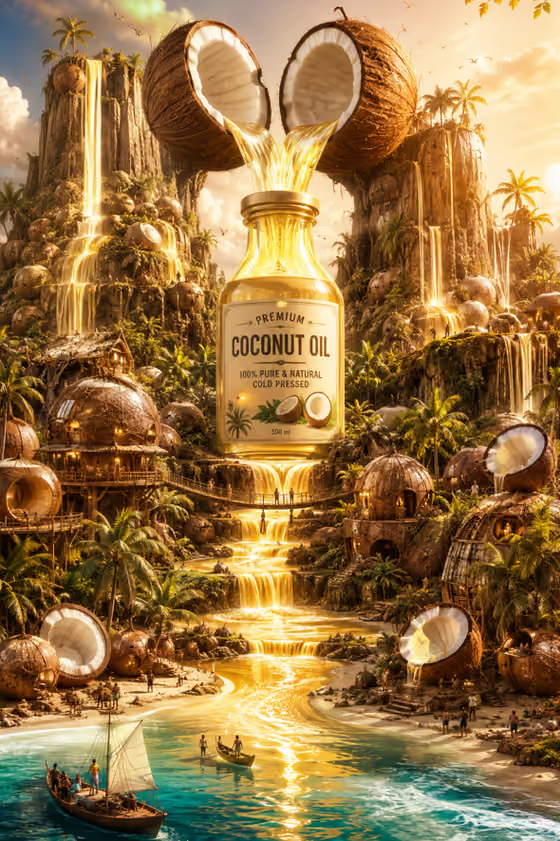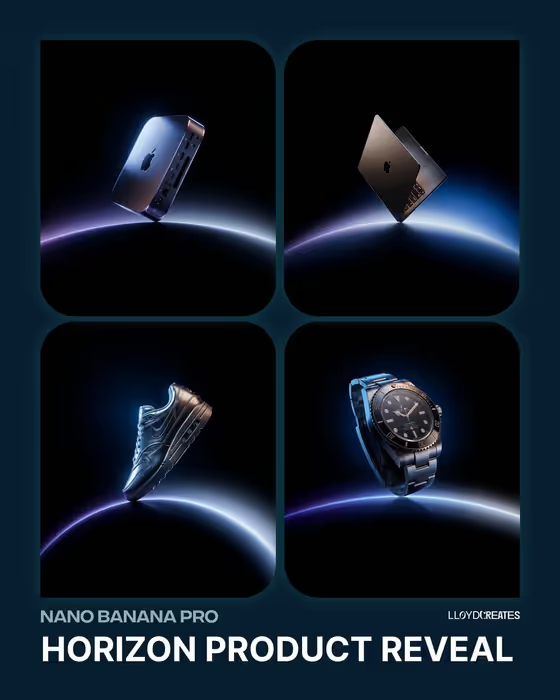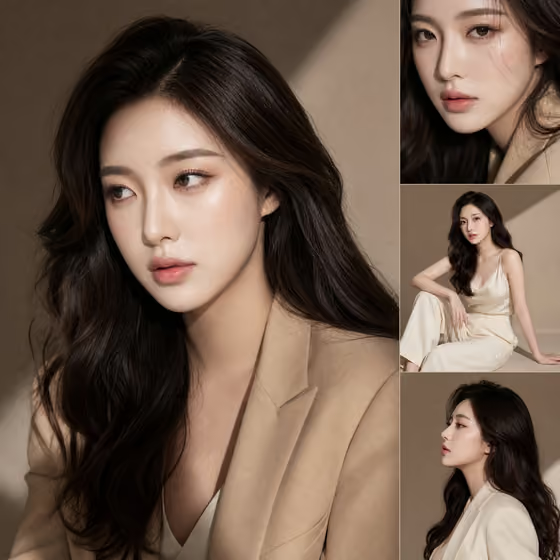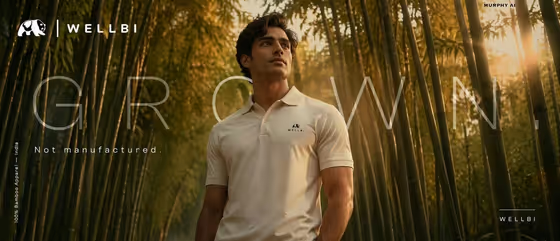
This template turns an apparel product into a cinematic campaign poster. Your item is placed in a golden-hour bamboo forest, and a phrase of your choosing is rendered as large metallic lettering across the scene, in the style of the cover image's editorial brand poster.
It suits sustainable fashion labels, small apparel brands and marketers who need a premium-looking campaign visual. You supply the product, the exact wording and a material finish, and the template handles the lighting, framing and typography.
What works best as input
- In the Product field you can either describe the garment in words or add a reference photo. A clear, well-lit shot of the item on a plain background gives the most faithful result.
- If you describe it instead, be specific about the garment type, color and any visible details, such as a collared polo in ivory with a small chest logo.
- Keep the Phrase short. One to three words works best for large lettering, and the cover example uses a single bold word. Type it exactly as you want it spelled and capitalized.
- For Material Finish, name a real surface such as polished metallic lettering, rather than a vague mood. The examples in the field are a good starting point.
How to use it
- Open the Bamboo Apparel Campaign template in Phosphene.
- Fill in Product by describing your apparel item or adding a reference photo of it.
- Type your exact wording into Phrase, then enter or pick a Material Finish such as polished metallic lettering.
- Generate the poster, then check that the garment looks right and the phrase is spelled correctly. Adjust your fields and run it again if needed.
Tips for a better result
- Try different Material Finish values to change the lettering character while keeping the same scene, for example a bold contemporary variation versus a refined classic one.
- Add small garment details to Product, like fabric color or collar style, so the item reads clearly against the green and amber background.
- Pick a phrase with a strong rhythm. Short, confident words suit the large architectural lettering shown in the cover.
- Run the same product with two or three different phrases to compare which one makes the better campaign line.
Common mistakes
- Writing a long sentence in Phrase. Lettering at poster scale gets crowded and harder to read with too many words.
- Leaving Product vague, such as just 'clothing'. The garment becomes a guess, so name the item and its color.
- Skipping a proofread. Check the rendered phrase for spelling and capitalization before using the poster anywhere.
FAQ
Can I upload a photo of my product?
Yes. The Product field accepts a photo reference as well as a text description. The Phrase and Material Finish fields are text only.
What does the Phrase field do?
It sets the exact words rendered as large lettering across the poster. Enter it exactly as you want it to appear.
What is Material Finish for?
It controls how the lettering looks, for example polished metallic lettering. Use the suggested examples or write your own.
What shape is the output?
The template produces a single image in a 3:4 aspect ratio.