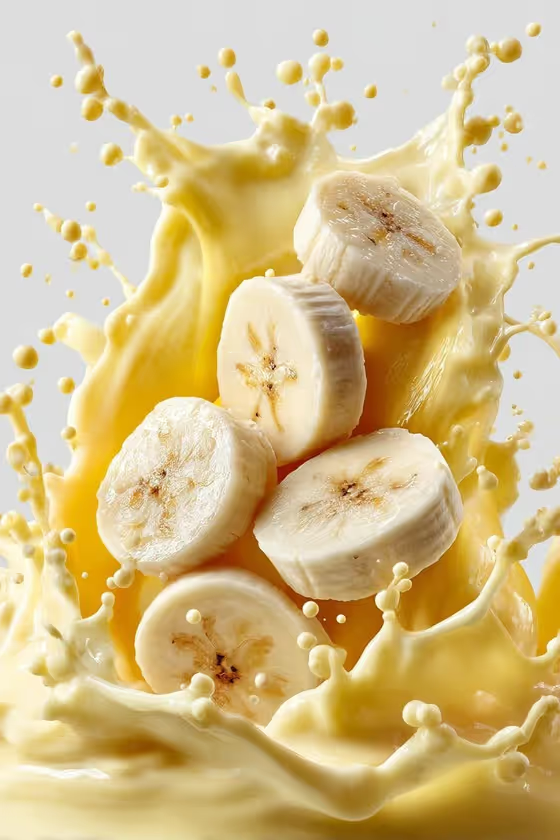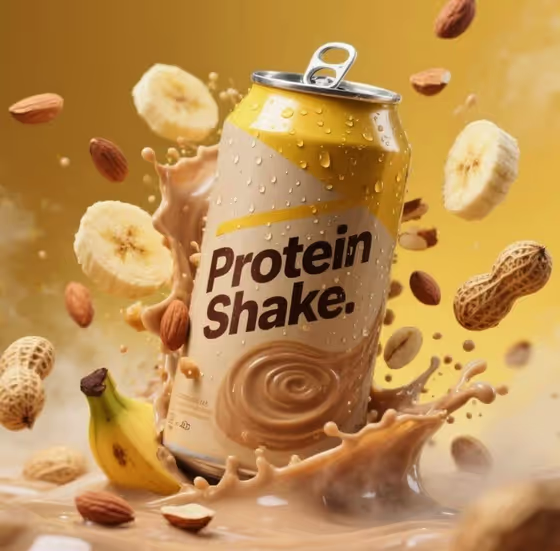
Banana Protein Shake turns a single shake can into a high-energy product ad. The can sits at the center while banana slices, almonds and peanuts float around it, and a burst of milk splashes up against a warm yellow backdrop. Glossy condensation droplets on the can add to the fresh, cold look.
It suits anyone who wants a commercial food-photography style visual for a protein drink, a snack-brand mockup, or a concept design. You describe the can or supply a reference, pick how the product is presented, and the template handles the splash, ingredients and lighting.
What works best as input
- For the first field (banana protein shake can product or object), you can either type a description or upload a reference image of your can. Use whichever shows your product most clearly.
- If you upload a photo, choose one where the whole can is visible, in focus, and evenly lit so its shape and label colors read correctly.
- If you type instead, be specific about the can: colors, label style, and any words you want on it. The default example is simply 'a banana protein shake can'.
- The cover shows a yellow and cream can, so designs that sit well with warm yellow and cream tones tend to blend naturally with the backdrop.
- Use only products, names and designs that are yours to use. The field help describes this as a source-owned subject, so avoid borrowing someone else's brand.
How to use it
- Open the Banana Protein Shake template in Phosphene.
- In the 'banana protein shake can product or object' field, describe your can or upload a visual reference of it.
- Set 'Product presentation' to choose how the finished image is framed, for example clean studio hero or dynamic material interaction.
- Generate the image, then check the can, the floating ingredients and the milk splash in the 3:4 result, and adjust your inputs if something is off.
Tips for a better result
- Try different 'Product presentation' options to change the framing while the splash, fruit and nuts stay the same. The examples include clean studio hero, dynamic material interaction and annotated product breakdown.
- Describe your can in concrete terms (color, finish, label layout) so the generated product matches what you have in mind.
- If you do not have a real product yet, try the 'a personal product design' or 'a premium unbranded alternative' style of description to explore a concept.
- Run the template more than once with small wording changes in the can description and compare how the splash and ingredient arrangement shift.
Common mistakes
- Leaving the can description vague. A short, generic entry gives the template little to work with, so the can may not look like your product.
- Uploading a cluttered, dark or heavily angled photo, which makes the can's shape and label harder to reproduce.
- Expecting readable small print on the label. Fine text on a can can come out imperfect, so keep your key branding bold and simple.
FAQ
Do I have to upload a photo?
No. The can field accepts either a typed description or an uploaded reference, so you can use whichever you have.
What aspect ratio does it produce?
The template outputs an image in 3:4 portrait format.
Can I change the banana, nuts and splash?
Those elements are part of the template's fixed direction. What you control is the product itself and the presentation style.
Can I use it for a flavor other than banana?
The scene is built around banana slices, almonds, peanuts and milk, so it fits banana or similar nutty shakes best. You can still describe your own can design in the product field.