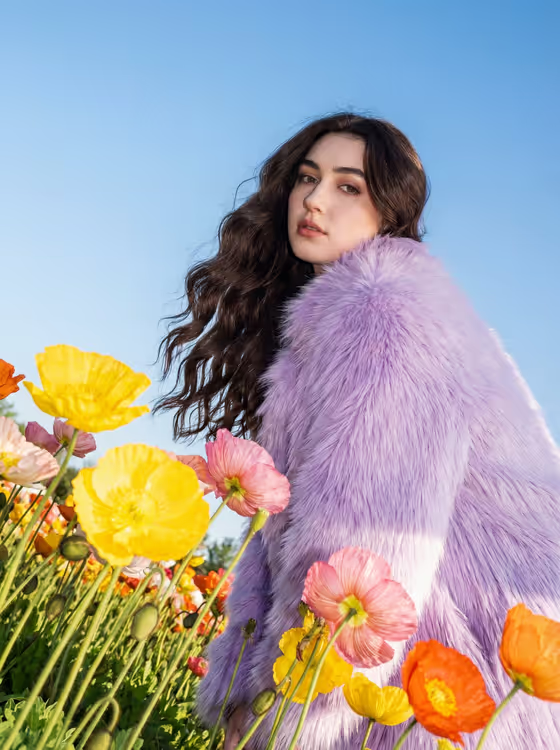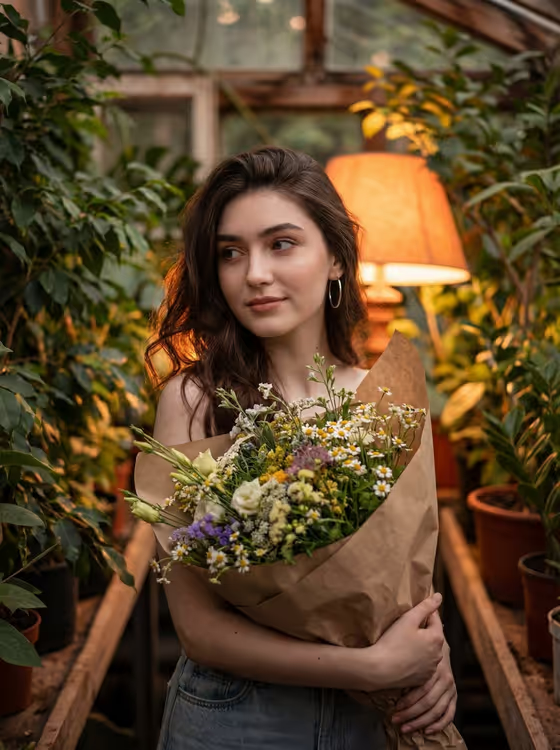
Bouquet in Green turns a portrait into an atmospheric botanical photo. Your subject is shown cradling a large, kraft-wrapped wildflower bouquet among dense leaves, with warm, soft light and a quiet, dreamy mood like the cover image's greenhouse setting.
It suits anyone who wants a gentle, editorial-style flower portrait: personal profile pictures, florist or plant-shop branding, seasonal posts, or a keepsake image of a friend or yourself. The output is a 3:4 image, so it fits vertical portrait formats well.
What works best as input
- The Portrait Subject field accepts a photo, so upload a clear picture of one adult. A single person, face visible, works best since the template keeps identity and a relaxed posture.
- Pick a photo with natural, even light and a face that is not heavily blurred, cropped or hidden by sunglasses or a hat. A head-and-shoulders or half-length shot gives the bouquet room to appear in the result.
- If you describe instead of (or in addition to) uploading, keep it simple and respectful, like the examples: "the uploaded adult woman" or "a gentle young adult florist".
- In Bouquet Style, type a short description of the flowers and wrapping, for example "large kraft-wrapped wildflowers" or "textural dried flowers and grasses". This field is text only, so do not expect to attach a photo here.
How to use it
- Open the Bouquet in Green template from the Portraits category in Phosphene.
- In Portrait Subject, upload your photo or use the suggested description, such as "the uploaded adult woman".
- In Bouquet Style, type the bouquet you want, or start from one of the examples like "colorful meadow bouquet in brown paper".
- Generate the image, then review the 3:4 result for the face, hands, bouquet and leaf depth. Adjust the Bouquet Style wording and generate again if you want a different look.
Tips for a better result
- Be specific about flower character in Bouquet Style, such as "oversized white and green blooms" versus "textural dried flowers and grasses". The template builds the mood from this wording.
- Try the same portrait with different bouquet styles to compare a colorful meadow feel against a muted, airy one.
- Keep the bouquet description to one clear idea rather than a long list of flowers, so the result stays tactile and uncluttered.
- Choose a source photo with a calm expression and relaxed shoulders, since the template aims for a languid, quiet posture.
Common mistakes
- Uploading a group photo or an image with several people. The template is built for one adult subject, so extra people can confuse the result.
- Writing a vague Bouquet Style like "flowers". Without detail on type, color or wrapping, you lose the kraft-paper wildflower character.
- Using a very dark, heavily filtered or low-resolution portrait, which gives the generator less to preserve about the face and clothing.
FAQ
Do I have to upload a photo?
The Portrait Subject field accepts a photo, and the template is described as an upload-a-portrait experience. You can also guide it with a short text description, but a clear photo is the best way to keep the person recognizable.
Can I change the flowers?
Yes. The Bouquet Style field takes your own text, so you can describe different flowers, colors or wrapping, such as dried grasses or a colorful meadow bouquet in brown paper.
What shape is the final image?
The template outputs a still image in 3:4 aspect ratio, a vertical portrait format.
Will it keep my face and pose?
The template is written to preserve identity, natural body and a relaxed posture, but results can vary, so review the image and regenerate with a clearer photo if something looks off.