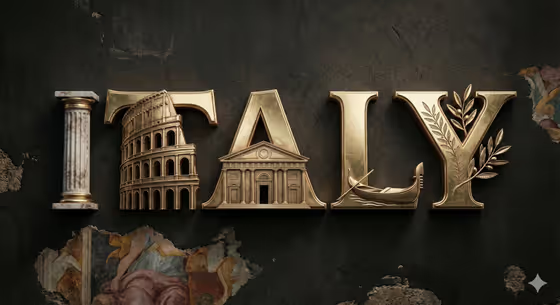
Cinematic Letter Worlds turns a title into a metallic 3D typography piece where each letter is sculpted as its own small scene. The cover shows how it works: polished, engraved letters set against a dark, mossy rock backdrop, with props, figures and glowing details folded into the shapes of the characters.
It is built for anyone who wants a title-card style artwork for a movie, series or story they care about. You only fill 2 fields, the Title and the Color Palette, and the template handles the lighting, materials and letter-by-letter scene design.
What works best as input
- This template has no photo slot, so everything comes from the two fields. Do not look for an upload button, just type your values.
- In the Title field, enter the exact title you want rendered, spelled and capitalized the way it should appear. The help text asks for the exact title, so double-check spelling before generating.
- Pick a title tied to a recognizable movie, series or story world. The template draws on the tone and iconic moments of that story, so a well-known or clearly themed title gives it more to work with.
- For Color Palette, choose from the examples such as Cobalt blue and warm cream, Burgundy and blush, Forest green and sand, or Monochrome black and white. Match the palette to the mood of the story, for example cool tones for sci-fi, warm tones for drama.
How to use it
- Open the Cinematic Letter Worlds template in Phosphene.
- Type your title into the Title field, using the exact wording you want on the image.
- Choose a option for the Color Palette field, either one of the listed examples or the palette that fits your story's mood.
- Generate the image, then review the result. Check that the title is spelled correctly and that each letter reads clearly before saving or sharing it.
Tips for a better result
- Try the same title with different palettes. The metallic finish adapts to the palette you pick, so a monochrome version and a colored version can feel like two different title cards.
- Keep the title short. Fewer letters means each one has more room to hold its own scene and stay readable.
- Choose a palette that contrasts with a dark background. Cool blues and warm creams, or bold burgundy against blush, tend to separate the lettering from the dark setting seen on the cover.
- Run the template more than once with the same inputs and compare outputs. Each pass can interpret the letter scenes differently.
Common mistakes
- Misspelling the title or using the wrong capitalization. The template renders what you type, so typos end up in the final lettering.
- Entering a very long phrase. Many words or letters crowd the composition and make each letter's scene harder to read.
- Picking a palette that clashes with the story's mood, such as soft blush tones for a dark, gritty series, which can weaken the cinematic feel.
FAQ
Do I need to upload a photo?
No. This template has no photo slot. You only fill in the Title and Color Palette fields.
What should I put in the Title field?
The exact title you want rendered, such as the name of a movie, series or story. The placeholder shows a short example, Create Boldly.
What are the palette options?
The examples include Cobalt blue and warm cream, Burgundy and blush, Forest green and sand, and Monochrome black and white. Choose the one that suits your story's mood.
Why does each letter look different?
The template is designed so every letter holds a different scene from the story's world, while the whole title still reads as one cohesive artwork.