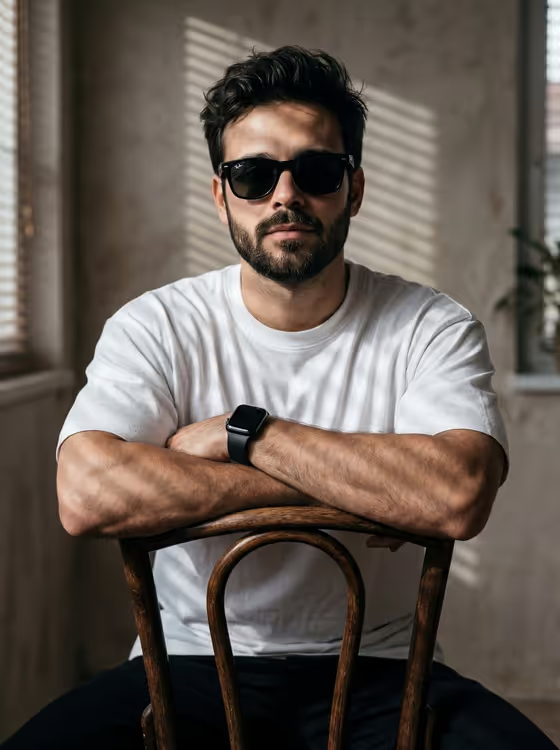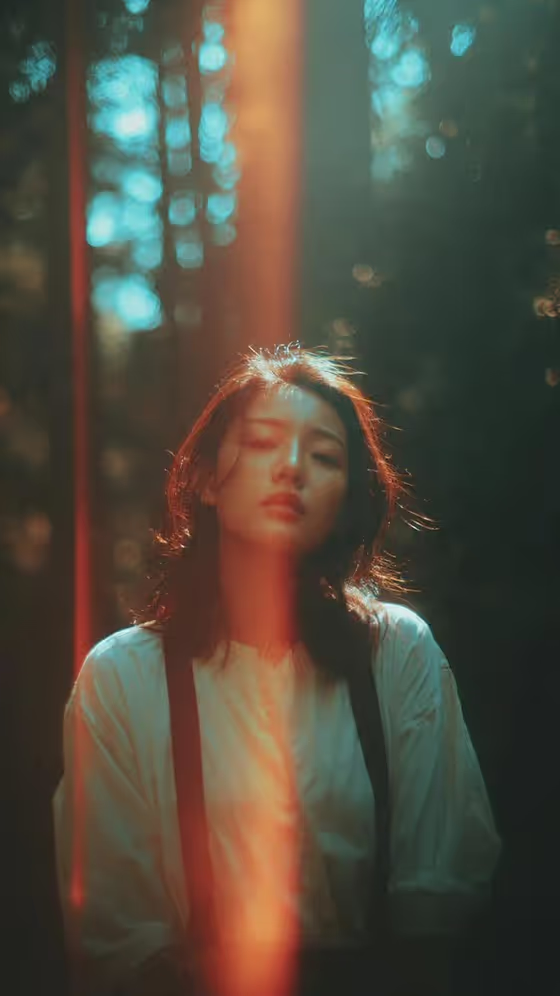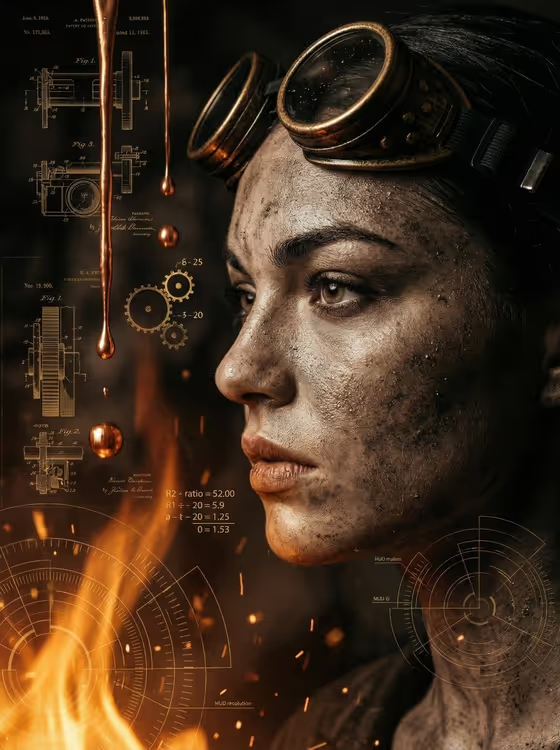
Copper Blueprint Portrait turns a photo of an adult into a close-up profile portrait in an industrial steampunk style. The result shows a weathered, grit-textured face with brass-rimmed goggles pushed up, molten copper droplets, and a heavy amber glow against a dark, soot-stained background.
It suits anyone who wants a dramatic, cinematic character portrait for an avatar, a poster, or a creative project. The output is a 3:4 image, and the scene is layered with vintage patent blueprints, floating gear calculations, and radial overlay graphics.
What works best as input
- Upload a single clear photo of one adult. The template asks for one reference image, and the Portrait subject field accepts a photo.
- A side-on or three-quarter view works well, since the finished image is a profile close-up and your pose can carry through.
- Pick a photo with even, readable lighting on the face so features and expression stay recognizable once the amber glow and grit are added.
- Skip photos with sunglasses, heavy filters, or other people in frame, since they can confuse who the portrait should be about.
How to use it
- Open the Copper Blueprint Portrait template in Phosphene.
- In Portrait subject, upload your photo or describe the subject in text (for example, an adult subject matching my reference).
- In Pose or expression, choose or write a pose, such as calm editorial stillness or confident direct presence.
- Generate the image, then review the profile, goggles, copper droplets, and blueprint details. Adjust your fields and run it again if you want a different feel.
Tips for a better result
- Try different Pose or expression options to change the mood. Calm editorial stillness gives a quieter portrait, while candid spontaneous energy gives a livelier one.
- If you describe the subject in text instead of uploading a photo, add distinctive details such as an adult woman with a distinctive presence so the portrait has character.
- Keep your photo's pose close to a profile angle so the goggles and blueprint overlays sit naturally around the face.
- Run the template a few times with small wording changes in the fields and compare the results.
Common mistakes
- Uploading a group photo or a heavily cropped face, which leaves the template without a clear subject to work from.
- Leaving the Pose or expression field vague or empty, which gives the template less direction than it needs.
- Expecting a clean, smooth portrait. This style is deliberately weathered, gritty, and high contrast.
FAQ
Do I have to upload a photo?
The Portrait subject field accepts a photo, but you can also describe the subject in text. The Pose or expression field is text or choice only.
What size is the image?
The template produces a 3:4 image, which suits portrait-oriented layouts.
Can I change the goggles, the copper glow, or the blueprint background?
Those parts are fixed by the template. You control the subject and the pose or expression.
What kind of subject should I use?
The template is written for an adult subject, so use a photo or description of an adult.