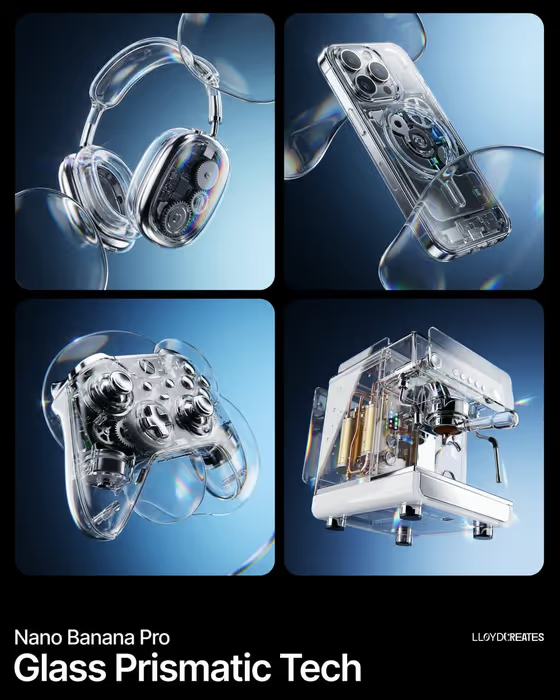
This template turns a product into a clean, glossy hero image: the item floats in refractive glass, chrome and clear acrylic over a two-tone gradient background. The look blends Frutiger Aero clarity with a futuristic commercial finish, as in the cover image where transparent gadgets hover against deep blue fields with bright edge light and soft prismatic flares.
It suits anyone who needs a striking product visual, such as designers, small brand owners, or people making concept art for a gadget, a bottle, or a camera. You describe your hero product, pick an optical effect, and choose a gradient, and the template handles the lighting and materials.
What works best as input
- For the Hero product field, you can either type a short description (for example, a glossy skincare bottle) or upload a reference photo of your real item. Use a photo when you want your exact product to stay recognizable.
- Pick a photo where the product is fully visible, in focus, and not cropped at the edges, so the shape and details can carry through into the floating render.
- A plain or uncluttered background in your reference helps the product read clearly. Busy scenes can make it harder to tell what the hero object is.
- If you describe instead of upload, be specific about the object and one material cue, like translucent, glossy, or compact. The template keeps the product centered and recognizable, so a clear noun works better than a vague idea.
- Use only one main product per run. The layout is built around a single centered hero.
How to use it
- Open the Frutiger Aero Product Float template in Phosphene.
- Fill in Hero product by typing a description or uploading a reference photo of your product.
- Set the Optical effect (for example, floating refractive glass or prismatic acrylic rings) and enter a Dual-tone gradient such as navy to ice blue.
- Generate the image, then review it for product accuracy, glass refraction, and background color. Adjust the fields and run it again if something is off.
Tips for a better result
- Try different Optical effect choices on the same product. Chrome bubbles and lens flares feels very different from distorted transparent panels, so it is a quick way to get several variations.
- Pick gradient pairs with clear contrast, like charcoal to aqua or violet to pale cyan, so the glass edges and rim light stand out against the field.
- Match the gradient to your product's colors. A cool gradient makes clear or silver items pop, while a warmer pairing can set off a colorful hero.
- If you upload a photo and the result drifts from your product, simplify the effect choice so the glass elements do not compete with the hero.
Common mistakes
- Describing the product too vaguely, like a thing or a gadget, which gives the template little to keep recognizable at the center.
- Choosing two gradient colors that are too close in tone, which flattens the background and weakens the refraction and rim light.
- Uploading a cropped, blurry, or cluttered photo, then expecting sharp product fidelity in the final image.
FAQ
Do I have to upload a photo?
No. The Hero product field accepts either a typed description or an uploaded reference. Upload a photo if you want your exact product represented.
What does the Optical effect field control?
It sets the main glass and light treatment around the product, such as floating refractive glass, prismatic acrylic rings, chrome bubbles and lens flares, or distorted transparent panels.
Can I choose my own gradient colors?
Yes. Dual-tone gradient is a text field, so you can enter your own pair, like teal to cloud white, or use one of the example pairings.
What shape will the image be?
The template outputs a single 16:9 image with the product centered over the gradient field.