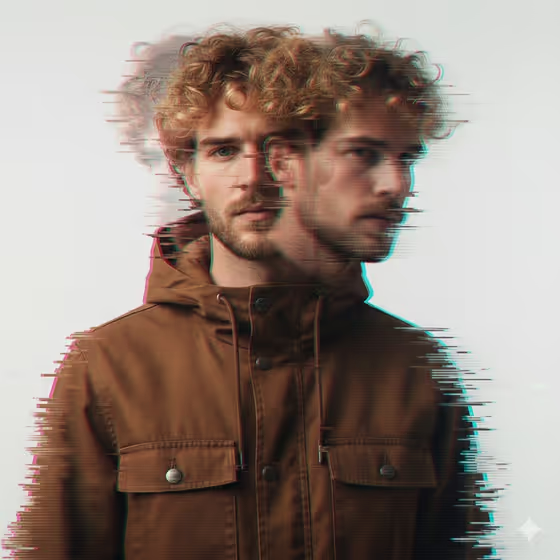
Glitch Double Exposure turns a portrait photo into an editorial image where a second, ghosted copy of your subject trails off to the side. Horizontal scan lines, smeared pixel streaks and cyan and magenta color fringing sit on top of a clean white backdrop, as in the cover image.
It suits anyone who wants a stylized profile picture, album or zine art, or a tech-flavored portrait. The result is a 3:4 image, and your face reference is used to keep the subject recognizable while the glitch effect does the rest.
What works best as input
- Use a clear, well-lit photo where the face is fully visible and in focus. The template uses your image as the face reference, so a sharp shot gives it more to work with.
- Pick a head-and-shoulders or upper-body framing. The cover shows the subject centered from the chest up, with the trails extending sideways.
- Avoid heavy filters, sunglasses or hands covering the face, since these can obscure the features the template needs to match.
- In the Portrait subject field, you can type a short description instead of relying on the photo alone, for example 'an adult man matching my reference'. Keep it to an adult subject and a simple, respectful description.
How to use it
- Open the Glitch Double Exposure template in Phosphene and upload your portrait photo.
- Fill in Portrait subject. The placeholder 'an adult man matching my reference' shows the style of wording that works, or pick one of the examples.
- Fill in Pose or expression. Choose an option like 'the source pose and energy' to keep your photo's pose, or a different direction such as 'calm editorial stillness'.
- Generate the image, then check that the face is sharp and the glitch trails and color fringing look the way you want. Adjust your fields and run it again if not.
Tips for a better result
- Leave Pose or expression on 'the source pose and energy' if you like your original photo's attitude. Try 'confident direct presence' or 'candid spontaneous energy' to change the mood without changing the photo.
- Choose a source photo with a plain or light background. The template is built around a clean white backdrop, so a busy original gives the effect less room to read clearly.
- Try the same photo with different Pose or expression choices and compare the results. Small changes in wording shift how the double-exposure ghost and trails feel.
- If the subject does not look like you want, make the Portrait subject text more specific about the look you are after while still describing the person in your photo.
Common mistakes
- Uploading a small, dark or blurry photo. The face then has little detail to carry through the glitch effect.
- Writing a long, complicated description in Portrait subject. A short, clear phrase works better than a paragraph, and your photo already supplies most of the likeness.
- Expecting the whole image to be distorted. The template keeps the main subject sharp and puts the motion trails and glitch around and beside it.
FAQ
Do I need to upload a photo?
The template is built around a face reference, and its input is described as uploading a photo. Portrait subject also accepts a text description alongside it.
What will the result look like?
A 3:4 portrait with a ghosted second exposure, horizontal scan lines, pixel-sorted streaks and cyan and magenta color fringing, on a clean white background.
What should I put in Pose or expression?
Use one of the suggestions such as 'the source pose and energy', 'calm editorial stillness', 'confident direct presence' or 'candid spontaneous energy', or write your own short direction.
Can I change the clothing or hair?
The template's prompt describes a brown hooded utility jacket and curly blonde hair, as seen in the cover image. Those details come from the template's own direction, not from your fields.