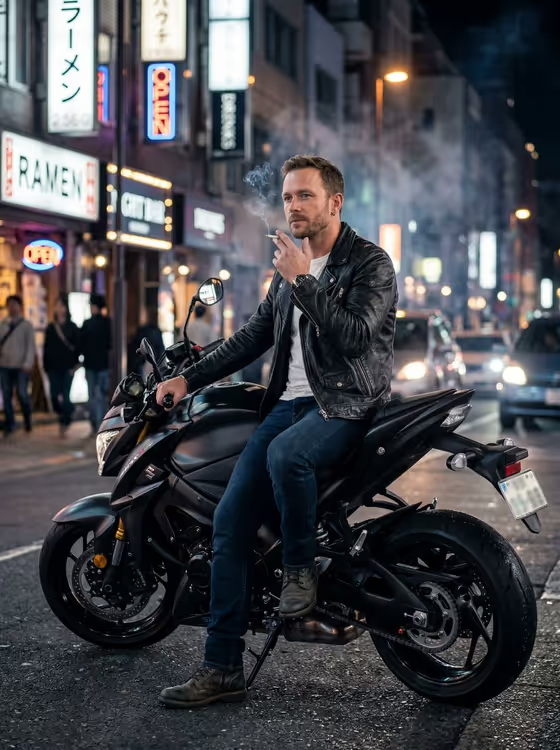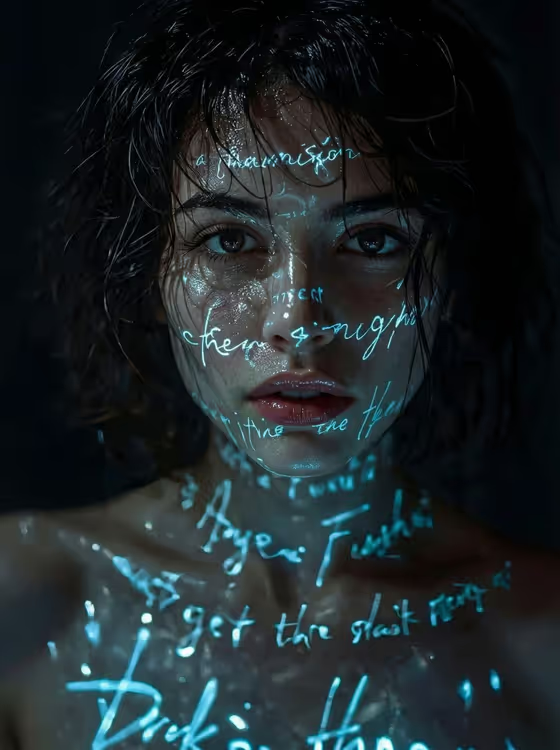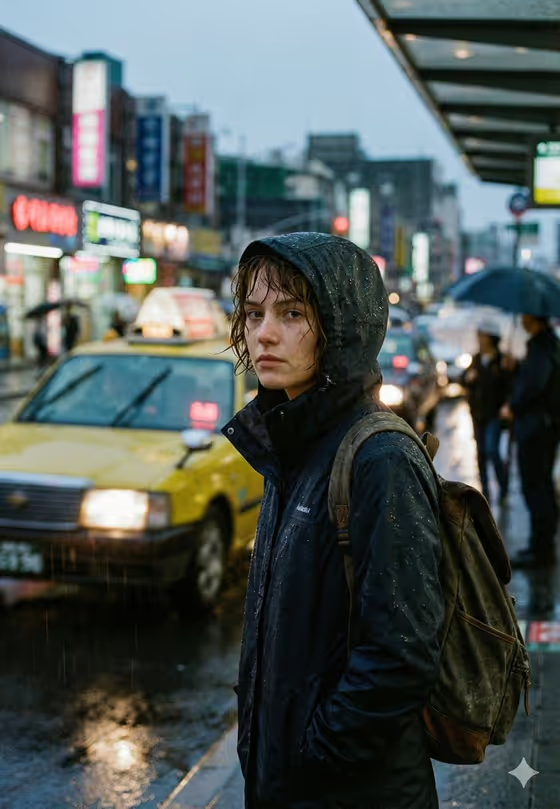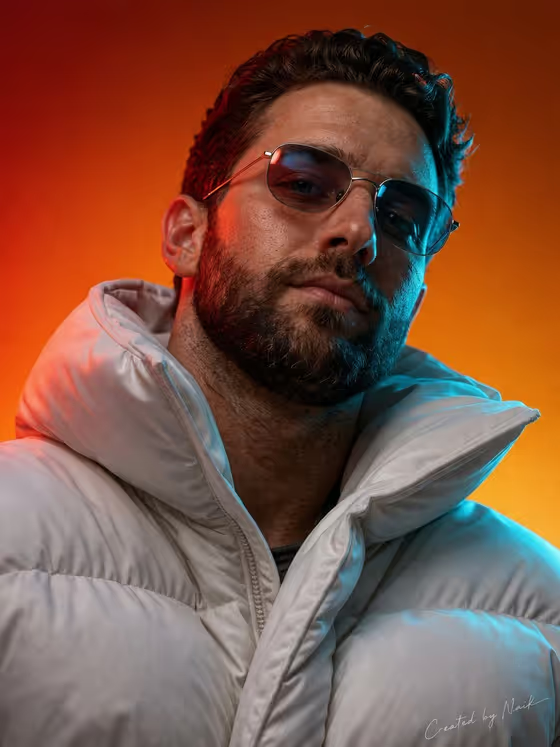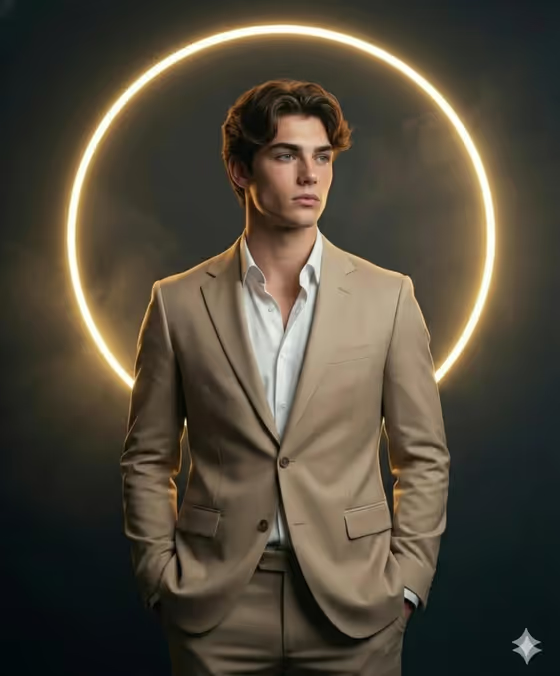
Golden Halo Portrait turns a photo of you into a dark, moody studio portrait. A glowing golden neon ring sits behind the subject like a halo, and the styling is a tailored tan suit over a crisp white shirt, with soft mist in the background.
It suits anyone who wants a polished, cinematic headshot-style image for a profile picture, a creative portfolio or a personal project. The output is a 3:4 image, so it fits vertical portrait layouts well.
What works best as input
- Upload one clear photo of the person you want in the portrait. The Portrait subject field accepts a photo, and the template needs one upload.
- Pick a photo where the face is well lit and in focus, with no sunglasses, heavy filters or objects covering the face.
- A photo that already shows your head and shoulders, or more of your upper body, gives the template a good base for the standing suit portrait.
- If you describe the subject in text instead, keep it short and concrete, for example the style of the sample 'an adult man matching my reference' or 'an adult woman with a distinctive presence'.
- Choose a photo whose pose and mood you like, because the default Pose or expression option keeps the source pose and energy.
How to use it
- Open the Golden Halo Portrait template in Phosphene.
- In Portrait subject, upload your photo or pick or type a short description such as 'an adult man matching my reference'.
- In Pose or expression, choose an option such as 'calm editorial stillness' or 'confident direct presence', or keep 'the source pose and energy' to stay close to your photo.
- Generate the image, then review the face, the suit and the golden ring. If it is not quite right, adjust the subject or pose choice and generate again.
Tips for a better result
- Try different Pose or expression options on the same photo to compare moods, for example 'calm editorial stillness' against 'confident direct presence'.
- Use 'candid spontaneous energy' when you want a looser, less posed look inside the same halo setting.
- Start from a photo with a neutral, relaxed expression if you plan to pick a different pose, so the result has room to change naturally.
- Keep your subject description simple and avoid stacking many details, since the suit, halo and dark misty background are already set by the template.
Common mistakes
- Uploading a small, blurry or heavily filtered photo, which gives the portrait less facial detail to work from.
- Writing a long, detailed subject description that fights the template's fixed look (tan suit, white shirt, golden ring, dark background).
- Leaving the pose on the source setting when your photo has an awkward or cropped pose, instead of choosing a calmer pose option.
FAQ
Do I have to upload a photo?
The Portrait subject field accepts a photo, and the template lists one upload as its requirement. You can also choose or describe the subject in text.
Can I change the suit color or the halo?
No. The tan suit, white shirt, golden neon ring and dark misty background are fixed by the template. You control the subject and the pose or expression.
What shape is the final image?
The output is a 3:4 image, which suits vertical portrait use.
What does the Pose or expression field do?
It sets the energy of the portrait. You can keep the source pose from your photo or choose options like calm editorial stillness, confident direct presence or candid spontaneous energy.