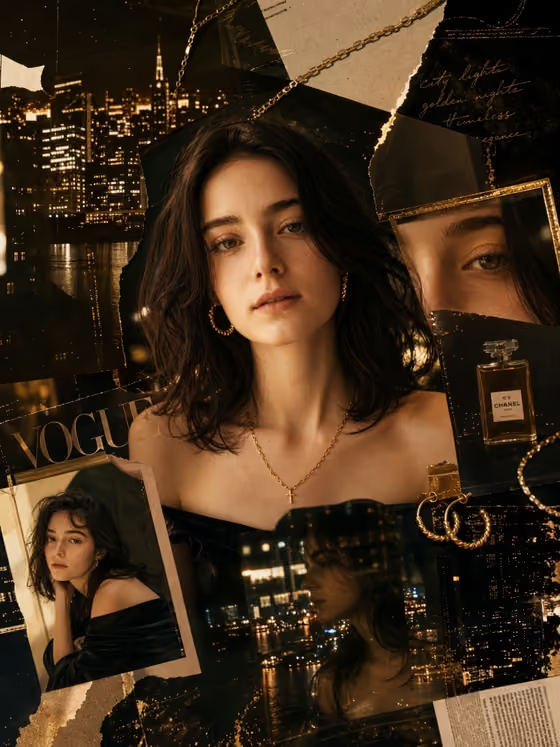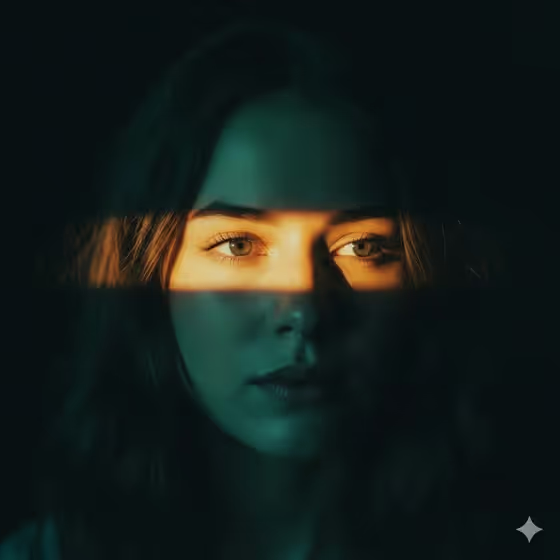
Golden Light Across the Eyes makes a centered, close studio portrait where one narrow horizontal beam of light crosses both eyes and the rest of the face falls into deep shadow. The cover shows the look: a dark, minimal background, a glowing amber band over the eyes, and cool teal tones on the skin below.
It suits anyone who wants a moody, cinematic headshot for a profile image, a creative project or a poster-style portrait. You pick who the subject is, the color of the beam against its shadows, and the expression held inside the light.
What works best as input
- For the Portrait subject person field, you can either describe the person (for example, a woman with soft brown hair) or upload their photo, since this slot accepts both.
- If you upload a photo, choose a clear, front-facing shot where the face is centered and both eyes are visible, because the beam is built to cross both eyes.
- Use a photo of yourself or someone who has agreed to be pictured, and avoid heavy filters, sunglasses or hair covering the eyes.
- If you describe instead of upload, keep it short and visual: hair length and color, a general look, or a style such as an androgynous fashion model.
How to use it
- Open the Golden Light Across the Eyes template in Phosphene.
- In Portrait subject person, type a short description or upload a photo of the subject.
- Set Eye beam color palette and Portrait expression using the choices offered, such as warm gold against teal shadows and intense eye contact.
- Generate the image, then check that the beam sits across both eyes and half the face is in shadow. Adjust your fields and run it again if you want a different mood.
Tips for a better result
- Try a different Eye beam color palette to change the whole feel. Amber against midnight blue or icy white against deep violet gives a very different mood than gold against teal.
- Match the expression to the story you want: quiet mystery feels soft and distant, while intense eye contact makes the beam feel more direct.
- Keep the subject description simple. The template already sets the dark background, shallow depth of field and high-contrast look, so extra detail about the setting is not needed.
- Generate a few versions with the same subject and different palettes to compare, then keep the one where the eyes read most clearly.
Common mistakes
- Uploading a photo where the face is tilted, cropped or turned away, which makes it harder for the beam to cross both eyes cleanly.
- Writing a long, busy description of clothing and scenery. This template is a centered close portrait on a dark minimal background, so extra scene details work against it.
- Choosing a palette and expression that do not fit together, such as a soft rose beam with a very stern expression, then being surprised by a mixed mood.
FAQ
Do I have to upload a photo?
No. The Portrait subject person field accepts a text description or a photo, so you can describe the person instead.
Can I change the color of the light beam?
Yes. Eye beam color palette lets you choose the beam and shadow pairing, for example warm gold against teal shadows or icy white against deep violet.
What shape will the image be?
The template outputs a still image in a 3:4 portrait ratio.
Why is half of the face so dark?
That is part of the design. Only a narrow band over the eyes is lit, and the rest of the face stays in deep sculptural shadow for contrast.