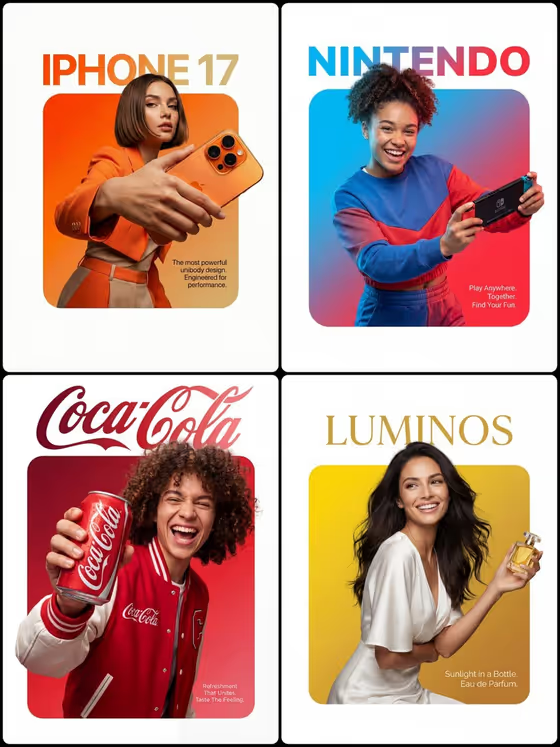
This template builds a 3:4 poster-style advertisement. A person and a product sit inside a bold, solid gradient rounded square on a white page, with their head, hands and the product breaking past the edges of the square. Your brand name sits in the white space above, and a short slogan sits in small type inside the lower-right of the square.
It suits small brands, creators, students and marketers who want a clean campaign visual without setting up a studio shoot. You choose the product, the character, the gradient and the copy, and the template keeps the layout and depth effect consistent from one ad to the next.
The result is built for a single hero subject, so it works best when you want one clear message rather than a busy layout.
What works best as input
- For Hero Product, you can either type a description (like premium beverage bottle or wireless headphones) or upload a visual reference. A clear photo of the product on a plain background gives the model a better shape to follow.
- For Campaign Character, a photo is accepted as well as a written description. If you use a photo, pick a sharp, well-lit one of an adult where the face and hands are easy to see, and only use photos of people who are fine with being featured.
- Use a character description that matches the mood of the ad, such as confident adult athlete or stylish creative professional. The cover examples show expressive, smiling poses, so energy and a clear pose read well.
- Keep the product simple and recognizable. One bottle, one device or one pair of sneakers will hold up better than a bundle of items.
- Brand Name and Slogan Tagline are text only. Short entries fit the layout best, like PULSE and BREAK THE FRAME.
How to use it
- Open the Gradient Breakout Advertisement template in Phosphene.
- Fill in Hero Product and Campaign Character, typing a description or uploading a reference photo for each. The template expects two or more photos, so provide references for both when you can.
- Choose a Gradient Palette (for example, electric blue to violet), then type your Brand Name and Slogan Tagline.
- Generate the image, then check the result: the subject and product should break past the square, the brand name should sit above it, and the slogan should be inside the lower-right. Adjust your inputs and run it again if something is off.
Tips for a better result
- Pick a gradient that contrasts with the product color. In the cover examples, orange tones surround an orange phone and red surrounds a red can, which makes a bold monochrome look, but a contrasting palette will make the product pop more.
- Keep the brand name short and in capitals, as in the examples, so the headline above the square stays clean and readable.
- Write the slogan as a brief phrase of a few words. The slogan text is small and sits in the corner, so long sentences will be hard to read.
- Try the same product and character with different gradient palettes, like lime to deep teal or coral to royal purple, to produce a set of variations for comparison.
Common mistakes
- Writing a long slogan or brand name. The text areas are limited, and extra words make the type small or crowded.
- Using a vague product description or a cluttered reference photo, which can lead to a product that looks different from what you intended.
- Choosing a gradient so close to the product or outfit color that the subject blends into the square and the breakout effect is harder to see.
FAQ
Do I have to upload photos?
The template lists 2+ photos as its input. Hero Product and Campaign Character both accept a photo or a description, so provide references for them to match the template's upload requirement.
What shape is the final image?
It is a 3:4 portrait image, laid out like a poster.
Where do the brand name and slogan appear?
The brand name goes in the white space above the gradient square, and the slogan appears as a small text block inside the lower-right of the square.
Can I use my own gradient colors?
Gradient Palette is a choice field with examples such as orange to hot pink and lime to deep teal. Use the palette options offered in the template to set the look.