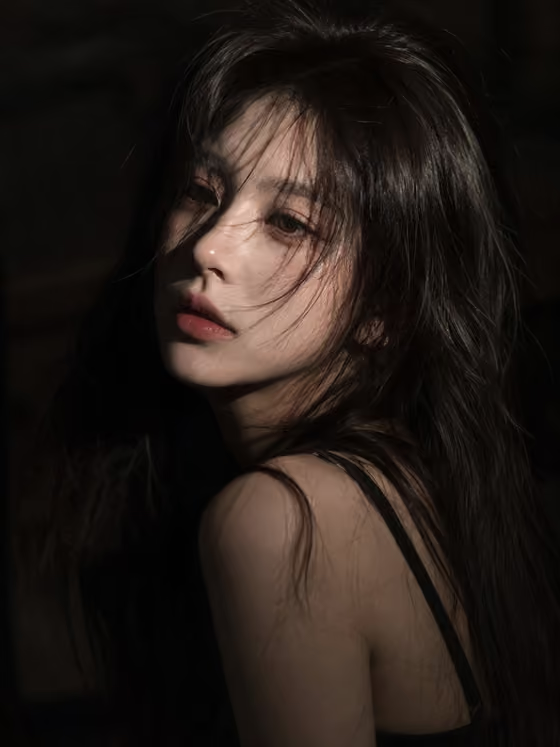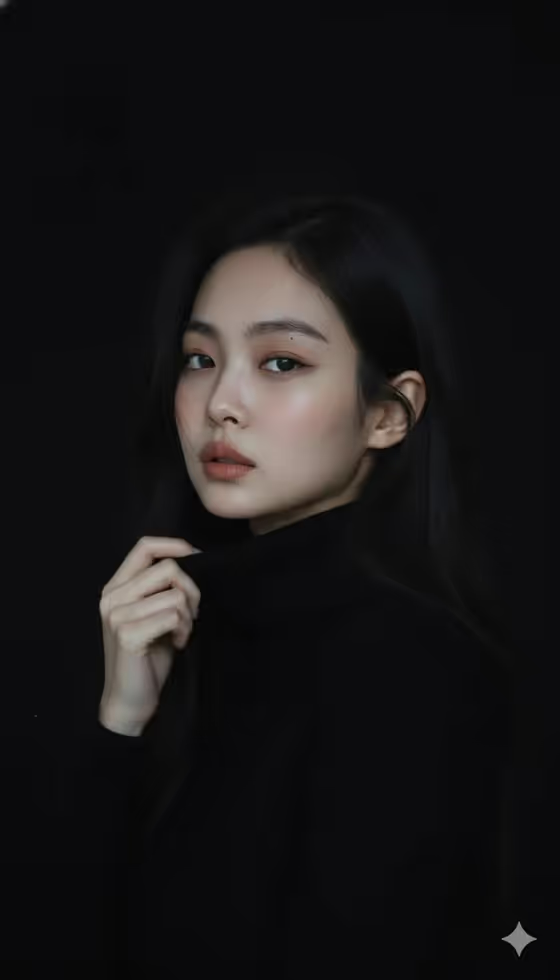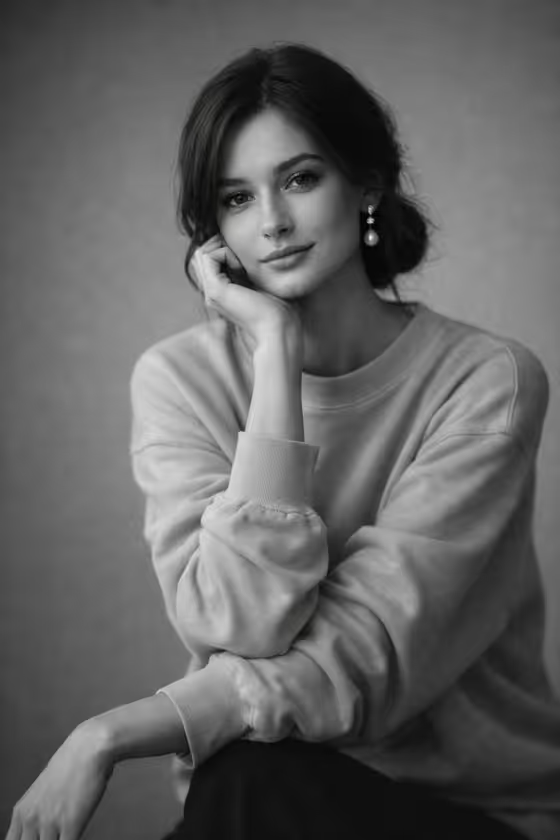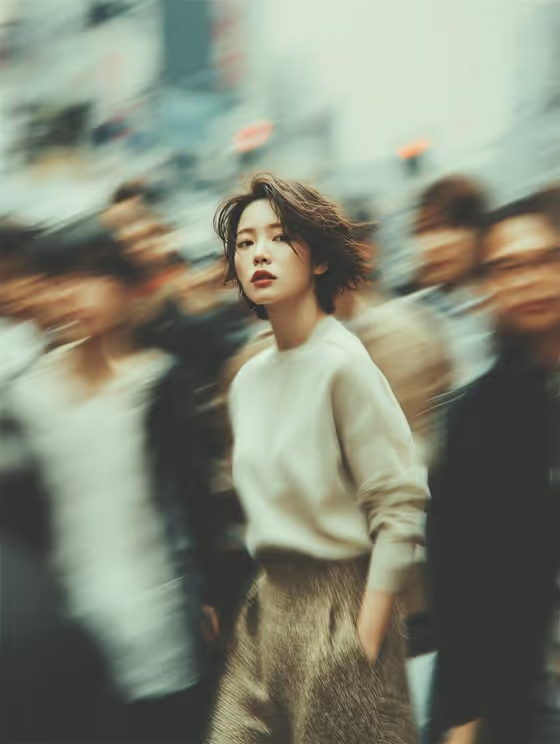
This template makes a still portrait of one person standing sharp and calm while a busy city crowd smears into long-exposure motion around her. The cover shows the look: a short-haired woman in a beige sweater and textured brown skirt, looking straight at the camera, with soft muted tones and a film-photography feel.
It suits anyone who wants an editorial, introspective street portrait without a real crowd or a slow shutter. You can describe a subject in words or upload a reference photo, then choose how the frame is composed. The result is a 3:4 image.
What works best as input
- If you upload a reference, pick a clear photo where the face is well lit and not hidden by sunglasses, a mask, or heavy shadow. The subject is meant to stay sharp, so a sharp source helps.
- Use a photo of one person only. Group shots or crowded backgrounds in the source make it harder to tell who the portrait should be about.
- Only use photos of yourself or people who have agreed to it, and keep the subject a private person rather than a public figure.
- If you would rather type, keep the description short and concrete, like the placeholder "a contemplative woman" or "a candid everyday subject". One simple phrase works better than a long list of traits.
- Remember the template's wardrobe and mood are already set (soft sweater, textured skirt, calm expression), so focus your input on who the subject is, not on outfit details.
How to use it
- Open the Long-Exposure Crowd Portrait template in Phosphene.
- In the "contemplative woman portrait subject" field, either type a short description of your subject or upload a reference photo of them.
- In "Pose and scene", choose a framing such as intimate close portrait, full-body editorial frame, or environmental candid frame.
- Generate the image, then check that the subject is sharp and the crowd is blurred. Adjust your description or framing choice and run it again if needed.
Tips for a better result
- Try each Pose and scene option with the same subject. A close portrait puts the focus on the face, while the full-body frame shows more of the blurred street.
- Use the example subjects as a starting point, like "an editorial portrait subject" or "a candid everyday subject", to shift the overall mood of the shot.
- Keep the subject description simple so the muted palette and long-exposure blur stay the main character of the image.
- If a result misses the likeness you wanted, retry with a clearer, better-lit reference photo.
Common mistakes
- Writing a long, detailed description with clothing, colors, and background. The template already fixes the styling and scene, so extra details can fight the intended look.
- Uploading a blurry, dark, or heavily filtered photo and expecting a crisp subject. A weak source usually gives a weak portrait.
- Choosing a framing without thinking about it. The same subject reads very differently as an intimate close portrait versus a full-body frame.
FAQ
Can I upload a photo of myself?
Yes. The subject field accepts a photo upload as well as typed text, so you can use a reference photo of yourself or of someone who has agreed to it.
Do I have to upload a photo?
No. You can describe the subject in text instead, for example "a contemplative woman" or "a candid everyday subject".
What does the Pose and scene option change?
It sets how the image is framed, with choices like an intimate close portrait, a full-body editorial frame, or an environmental candid frame. The overall look stays the same.
What shape is the output?
The template produces a single image in a 3:4 portrait aspect ratio.