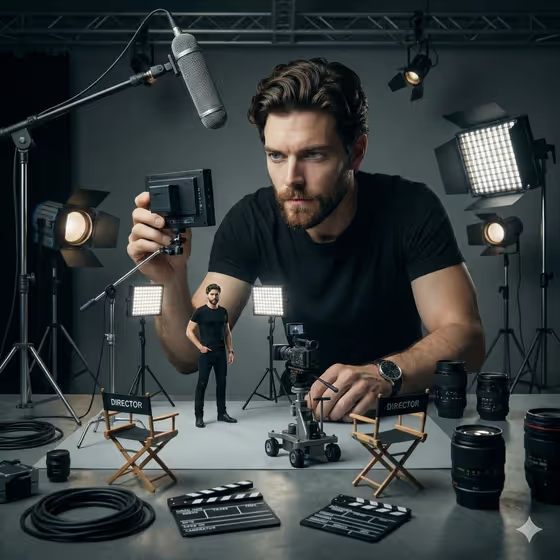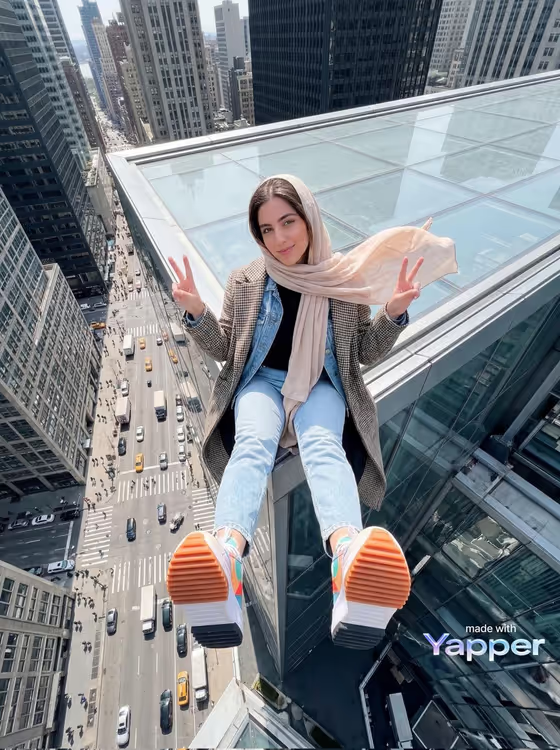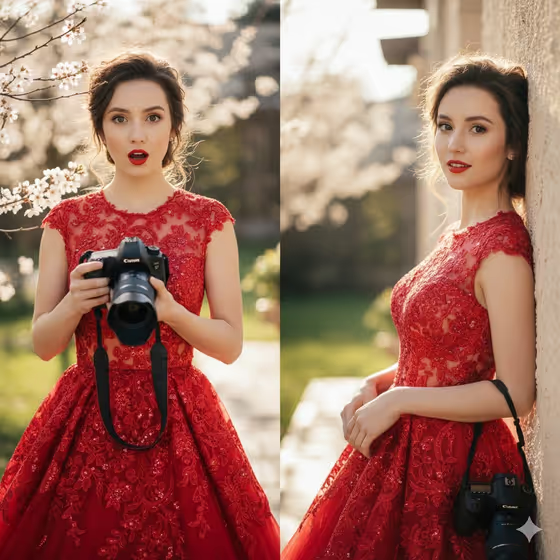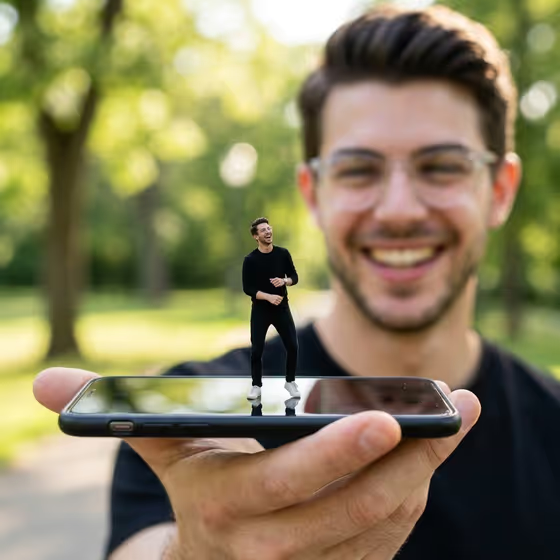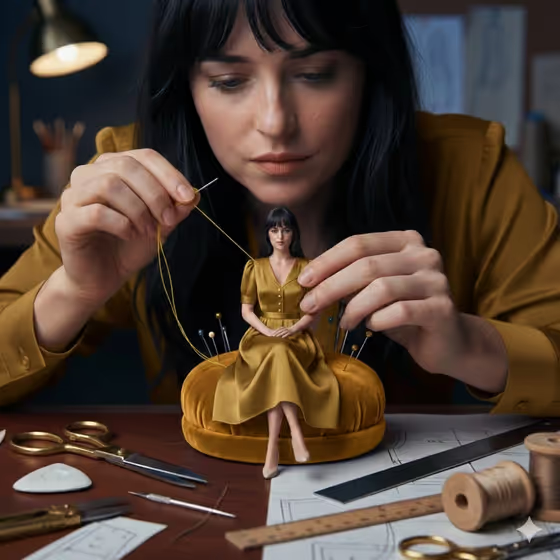
Miniature Dressmaker Studio turns a single portrait into a tailoring scene at two scales. A full-size version of you leans over a workbench and hand-sews a tiny dress, while a miniature version of you sits on a pin cushion wearing it. The cover shows the idea: a large figure with a needle and golden thread, and a small seated figure in a matching mustard dress.
It suits anyone who wants a playful, editorial-style portrait with a story built in, such as creatives, designers, sewing fans, or anyone who likes surreal scale tricks. The output is a 3:4 image with a warm studio look, a cluttered workbench, and shallow depth of field.
What works best as input
- Use a clear, well-lit photo where your face is fully visible and in focus. The template has to carry your likeness into both the large and the miniature figure, so a sharp reference helps.
- The Portrait subject field accepts a photo or a written description. If you upload a photo, the default wording "an adult woman matching my reference" is a good starting point, and you can adjust it to describe the person in your photo.
- Pick a reference where the pose is simple, like a seated or upright posture. The default Pose or expression option, "the source seated pose", works best when your photo already shows that kind of position.
- Avoid photos with heavy obstructions, such as sunglasses, hands covering the face, or extreme angles, since those make the likeness harder to carry across.
How to use it
- Open the Miniature Dressmaker Studio template in Phosphene.
- In Portrait subject, upload your photo or describe the person you want, using the placeholder "an adult woman matching my reference" as a model.
- In Pose or expression, choose one of the options or write your own, for example "relaxed seated posture" or "upright composed pose".
- Generate the image, then look it over. Check that both figures look like the same person, the miniature sits naturally on the pin cushion, and the thread and needle contact looks believable.
Tips for a better result
- Try different pose options. "Candid mid-action posture" can give the miniature a livelier feel, while "upright composed pose" suits a more formal editorial look.
- Describe the subject with a few specific traits (hair, presence, mood) so both figures stay consistent and distinctive.
- If a result feels off, regenerate with a slightly different pose or subject wording. Small changes can shift the scale relationship and the contact between hands, thread, and the tiny figure.
- The scene is built around warm studio lighting and a workbench of scissors, chalk, rulers, pattern papers, and thread reels, so portraits with a calm, focused expression tend to match the mood best.
Common mistakes
- Using a blurry, dark, or heavily cropped photo, which gives the template little to work with for the likeness.
- Leaving the subject description vague or contradicting your photo, which can make the large and miniature figures look like different people.
- Choosing a pose that clashes with your reference, such as an action pose when the photo shows a still seated portrait, which can make the miniature look awkward.
FAQ
Do I have to upload a photo?
The Portrait subject field accepts a photo or a written description, so you can use either. A photo helps the result match your likeness.
Can I use it for a man or a different kind of subject?
Yes. The examples include an adult man and an expressive adult creative, so you can describe the subject you want.
What does the pose field control?
It sets the posture or expression of the subject. The default is the seated pose from your source, and you can pick or write another.
What kind of image does it produce?
A 3:4 photoreal-style image of a large figure sewing a tiny dress worn by a miniature version of the same person, with realistic scale, shadows, and depth.