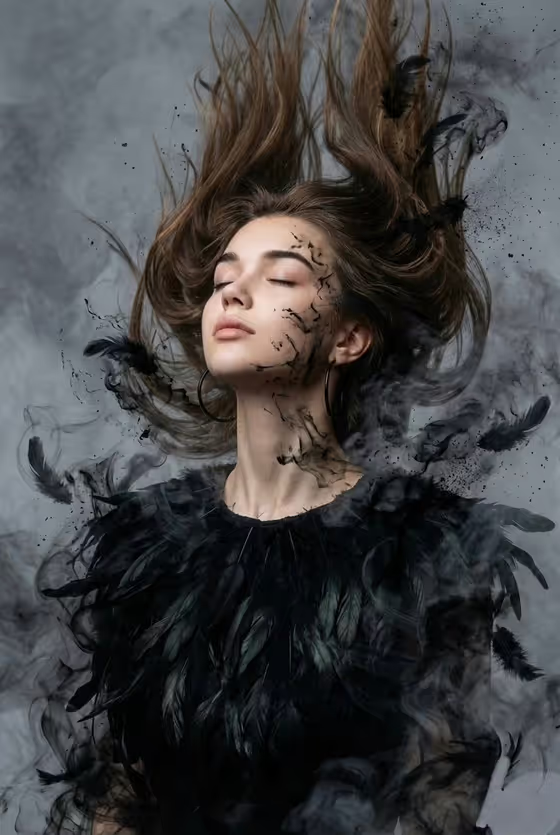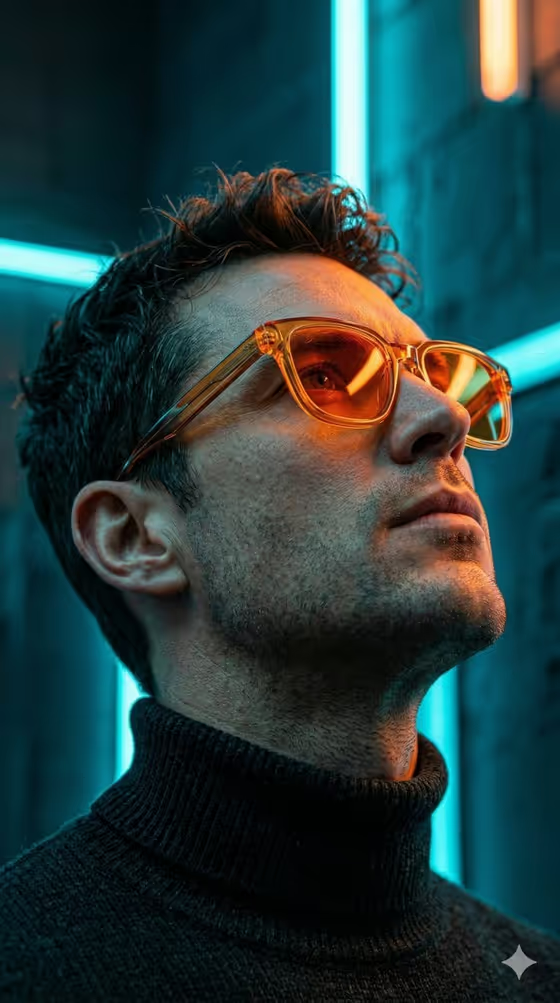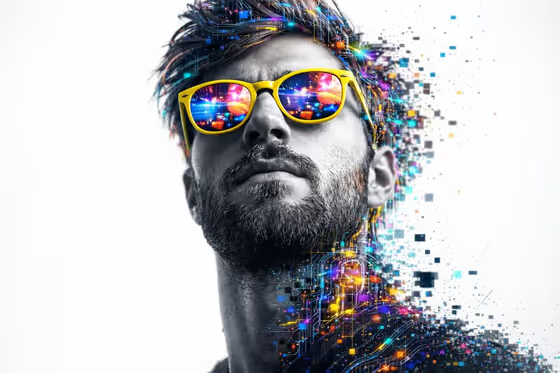
Neon Type Portrait turns a face reference into a grayscale close-up portrait shot from a slightly low angle. The subject wears bright yellow sunglasses whose lenses reflect colorful abstract digital scenes, and the hair, head and neck break apart into glowing circuit patterns, data streams and pixels that fade into a clean white background.
It suits creators, designers and anyone who wants a glitch-art, cyber-style portrait for a profile image, poster, cover or editorial concept. The face is meant to stay an exact match to your reference, while the digital color and fragments carry the style. The result is a single 3:4 image.
What works best as input
- Upload at least two photos of the same person. The template asks for 2 or more, and several clear views give the model a better grip on identity and facial structure.
- Use sharp, well-lit, front-facing or near-front photos where the full face is visible. Because the portrait is shot slightly from below, a clear view of the jawline and chin helps.
- Avoid photos that already have sunglasses, heavy filters, strong shadows across the face or hats covering the hair, since the template adds its own sunglasses and digital hair.
- In the Subject field you can add a photo or describe the person in text, for example a confident adult or a poised creative professional. Use a real photo when you need the face to match exactly.
- For the Product field, either type a short description such as a statement fashion item, or add a visual reference of the item you want featured.
How to use it
- Open the Neon Type Portrait template in Phosphene.
- Fill the Product field by describing the item or adding a reference photo, then fill the Subject field with your face photos or a short description.
- Choose a Setting from the options, such as a clean studio or a cinematic environmental backdrop.
- Generate the image, then check the face against your reference and look at how the digital dissolve and sunglasses reflections turned out.
Tips for a better result
- Pick the clean studio setting if you want the white, minimal look from the cover image to stay as uncluttered as possible.
- Keep the Product description short and concrete, such as a compact smart device, so it does not compete with the portrait as the focal point.
- Try different reference photos of the same person to compare how closely the face matches and how the expression comes through.
- If the first result drifts from your reference, regenerate using your sharpest, most evenly lit photos.
Common mistakes
- Uploading only one low-quality photo or photos of different people, which makes the face reference unreliable.
- Writing a long, busy Product or Subject description that fights with the single clear focal point the template is built around.
- Expecting color on the face. The face is rendered in grayscale by design, and the color lives in the sunglasses, hair and dissolving digital elements.
FAQ
How many photos do I need?
The template asks for 2 or more photos so it has enough to match the face.
Will the face look like me?
The template instructs the model to match the reference face exactly, but results can vary, so always compare the output with your photos.
Can I change the sunglasses color or the grayscale look?
No. The yellow reflective sunglasses, grayscale face and colorful digital head are fixed parts of this template's direction.
What do the Product and Setting fields change?
Product lets you describe or show the item to feature, and Setting lets you choose the backdrop style for that variation.