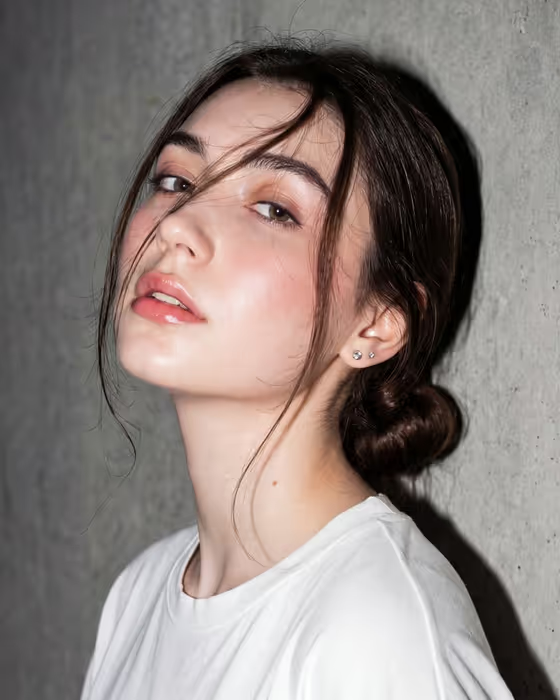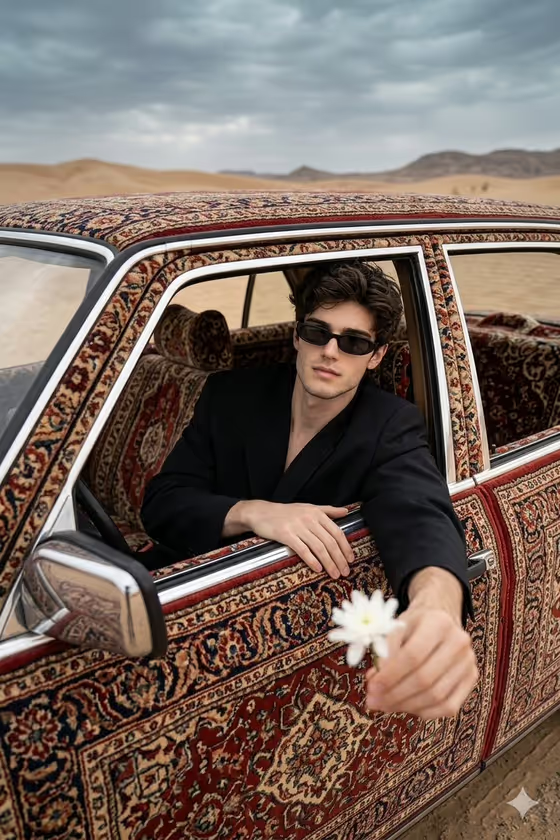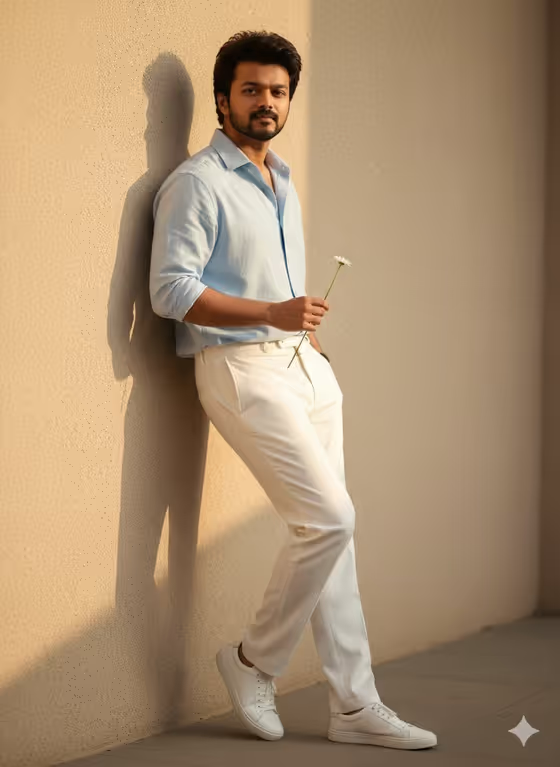
Sunlit Daisy Editorial turns a portrait of an adult into a warm, fashion-style photo. The person leans one shoulder against a textured beige wall, holds a single small white daisy, and keeps one hand in a pocket while soft side sunlight casts a long shadow beside them.
It suits anyone who wants a polished, relaxed editorial look from an ordinary photo: lifestyle profiles, creative portfolios, or a calm styled portrait. You pick the pastel outfit, and the template handles the pose, light, and wall setting in a 3:4 portrait frame.
What works best as input
- Upload at least two photos of the same person, since this template asks for 2 or more. Clear, well-lit shots from slightly different angles give the result more to work from.
- Use photos where the face is fully visible and in focus, without sunglasses, heavy filters, or shadows covering the eyes.
- Include at least one photo that shows the person's usual build and hair so the full-length pose stays consistent with them.
- In the Portrait Subject field, a short plain description works well, such as the placeholder 'the uploaded 30-year-old adult' or 'a relaxed male lifestyle model'.
- For Pastel Styling, name specific garments and colors, like 'blue rolled-sleeve shirt and white trousers', rather than a vague mood.
How to use it
- Open the Sunlit Daisy Editorial template in Phosphene and add your photos (at least two).
- Fill in Portrait Subject with a brief description of who appears in the shot, or keep the suggested wording that refers to the uploaded person.
- Fill in Pastel Styling with the outfit you want, for example 'sage overshirt and cream tailoring' or 'soft pink blouse and pale denim'.
- Generate the image, then check the pose, the daisy, the outfit, and the wall shadow. Adjust the styling text and run it again if you want a different look.
Tips for a better result
- Keep the outfit in a soft, neutral palette. The example styles (blue and white, sage and cream, pink and pale denim, lavender and stone) all pair well with the warm beige wall.
- Mention specific details like rolled sleeves or tailored trousers in Pastel Styling, since the template already builds the pose around that kind of relaxed, minimal outfit.
- Try the same photos with two or three different styling notes to compare looks side by side.
- If you want a different feel for the subject, adjust the Portrait Subject wording, for instance 'an elegant androgynous creative' or 'a calm mature fashion subject'.
Common mistakes
- Uploading only one photo or very low-quality photos. The template expects 2 or more clear images, and blurry or tiny faces make the likeness less reliable.
- Writing a loud or busy styling note. Bold patterns, heavy accessories, or many layers fight with the minimalist, pastel editorial look.
- Leaving Portrait Subject too vague or contradicting the photos, such as describing a different age or look than the person shown.
FAQ
How many photos do I need to upload?
The template asks for 2 or more photos of the person you want in the portrait.
What goes in the Pastel Styling field?
Describe the outfit in a few words, like 'lavender shirt with stone trousers'. You can also add a visual reference if the field allows it.
What will the final image look like?
A full-length, 3:4 editorial portrait of one adult leaning against a textured beige wall, holding a small white daisy with one hand in a pocket, lit by warm side sunlight.
Can I change the pose or the wall?
The pose, daisy, and sunlit wall setting are built into the template. You control the subject description and the outfit through the two fields.