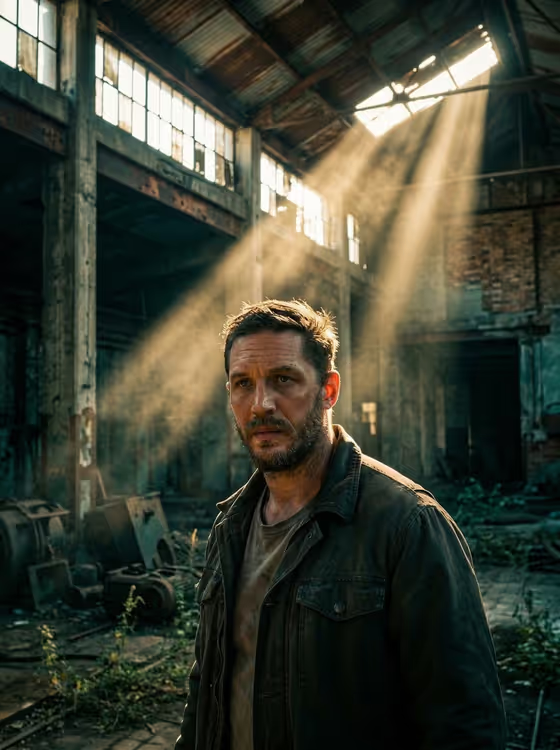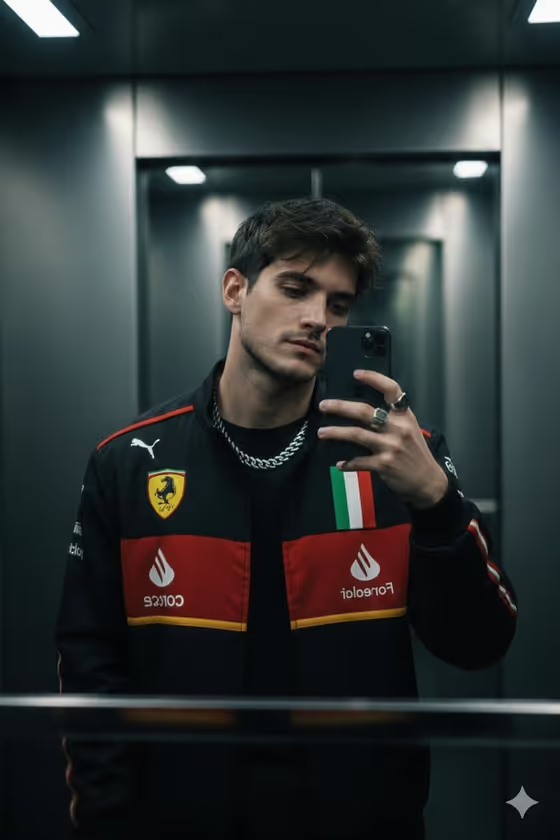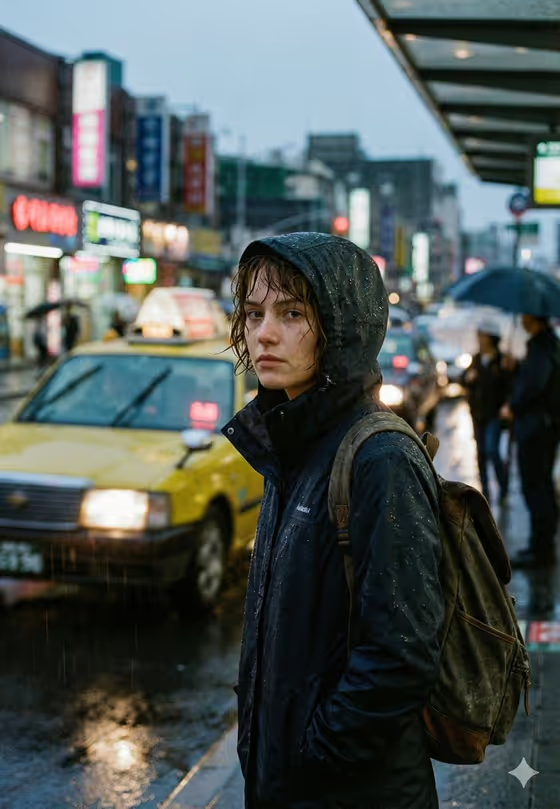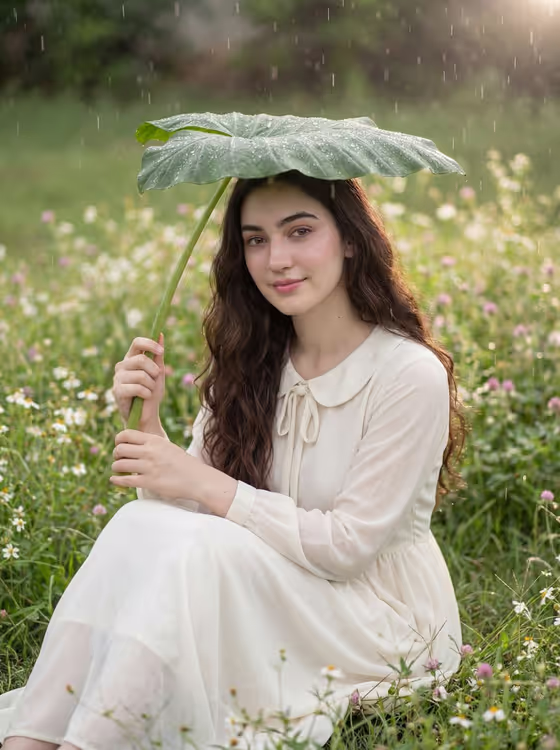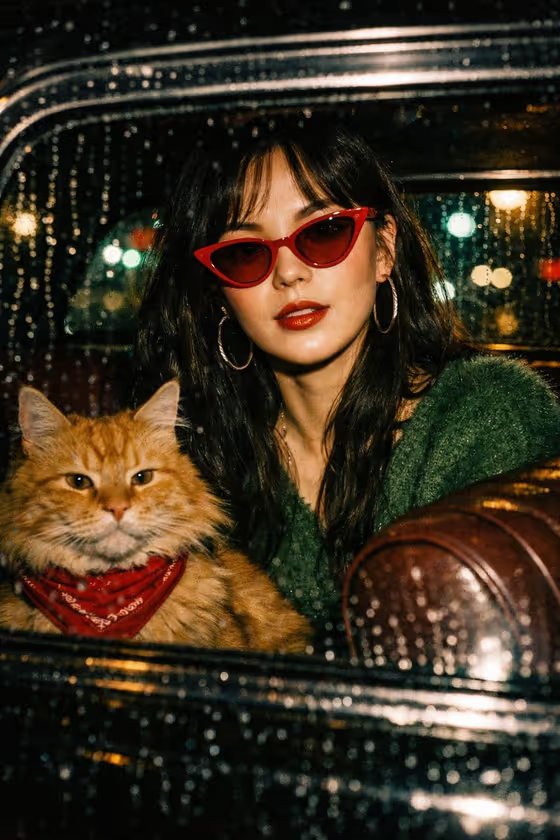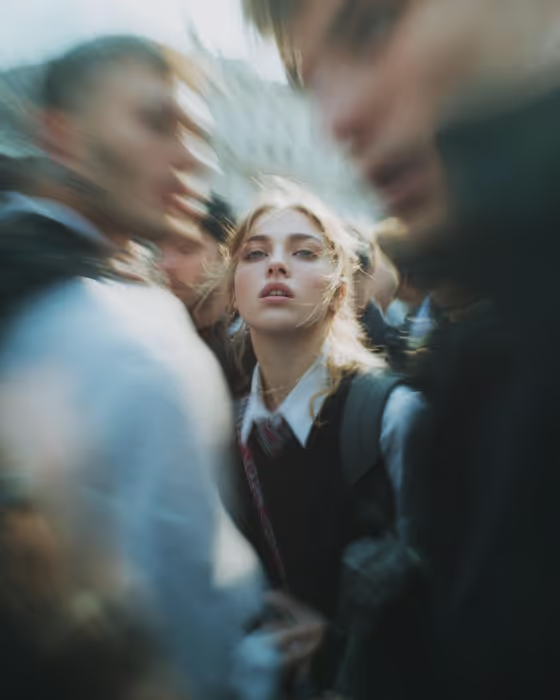
Paparazzi Flash Portrait turns a photo of you or someone you know into a tight, grainy tabloid-style close-up. The subject looks off guard under harsh on-camera flash while a crowd smears into motion blur around them, as in the cover image where one face stays sharp and the people nearby streak past.
It suits anyone who wants a candid, high-fashion street look, such as creators, models, or friends building a moody profile image. The result is a 3:4 portrait image, framed on the face and shoulders from a low angle.
What works best as input
- Use one clear photo of an adult where the face is well lit and unobstructed. The template matches the subject to your reference, so a sharp face gives the model more to work with.
- Pick a photo that already has the head turned slightly toward the camera, since the look is built around being caught mid-turn.
- In the Portrait subject field you can choose or describe the subject instead of relying only on the photo, for example 'an adult woman matching my reference'.
- Avoid heavy filters, sunglasses, or hands covering the face, because the final image keeps the face as the sharp focal point.
How to use it
- Open the Paparazzi Flash Portrait template in Phosphene and upload your photo.
- In Portrait subject, keep the suggested wording or describe the subject, for example 'an adult man with a distinctive presence'.
- In Pose or expression, choose an option such as 'candid spontaneous energy' or 'calm editorial stillness', or type your own.
- Generate the image, then check that the face is sharp, the flash looks harsh, and the crowd behind is streaked. Adjust the two fields and run it again if you want a different feel.
Tips for a better result
- Match the expression to the mood you want. 'Confident direct presence' gives a bold stare, while 'candid spontaneous energy' leans into the caught-off-guard feel.
- Keep 'the source pose and energy' when your photo already has a natural, in-the-moment look, so the result stays close to the original.
- Try the same photo with two or three different pose descriptions and compare. Small wording changes shift the attitude of the shot.
- Describe the subject in a few specific words if the first result drifts, such as an adult with a distinctive presence, rather than adding long lists of details.
Common mistakes
- Uploading a blurry, tiny, or heavily shadowed face. The template wants a sharp face against a blurred crowd, so a weak source photo gives a weaker match.
- Writing a long, busy description in the pose field. Short, clear direction like 'calm editorial stillness' works better than several competing moods.
- Expecting a clean, soft studio look. This template is built for grain, blown flash highlights, and imperfect candid energy, so some roughness is intended.
FAQ
Do I need to upload a photo?
The template is set up around an uploaded photo, and the Portrait subject field can also take a typed description alongside it.
What size and shape is the result?
The output is a single image in a 3:4 portrait ratio, framed tightly on the face and shoulders.
Can I change the outfit or the crowd setting?
Those parts are part of the template's fixed look, so you control the subject and the pose or expression, not the wardrobe or location.
What should I put in Pose or expression?
Use a short phrase such as 'the source pose and energy', 'calm editorial stillness', 'confident direct presence', or 'candid spontaneous energy', or write your own.