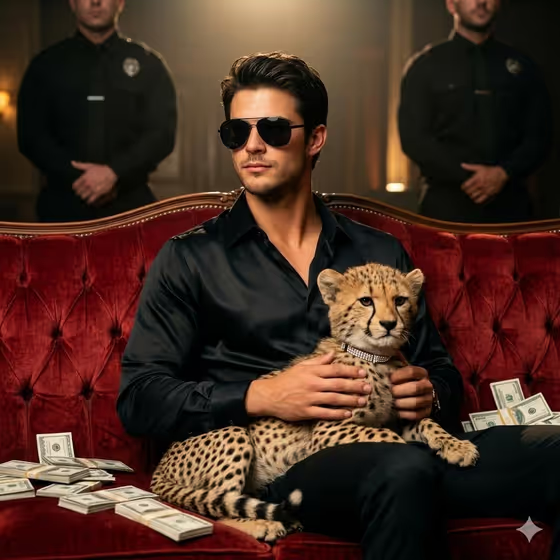
Red Velvet Portrait places you (or a subject you describe) on a vintage red velvet sofa in a dramatic, luxury-lifestyle scene. A black silk shirt, sunglasses, a cheetah resting in your lap, cash scattered around you and two blurred guards standing behind all come from the template, so the result reads like a cinematic crime-drama still.
It is built for anyone who wants a bold, moody portrait for a profile picture, a themed post or a fun character shot. The output is a 3:4 image, and the template is designed to work from a reference photo of the person you want in the scene.
What works best as input
- Upload one clear, well-lit photo of the person you want in the portrait. The prompt asks for a real face to be kept, so a sharp, front-facing shot gives the template the most to work with.
- Pick a photo where the face is not hidden by hats, heavy shadows or hands. Since the scene adds its own sunglasses, a photo without glasses is the easier starting point.
- Use the first field (labeled for the stylish man in your reference portrait subject) to name who is in the photo, for example 'the stylish man in my reference'. You can also describe a different subject, such as 'an editorial portrait subject'.
- Choose a photo with a similar vibe to the cover: upper body visible, calm or confident expression, and no busy background competing with the subject.
How to use it
- Open the Red Velvet Portrait template in Phosphene and upload your reference photo.
- In the first field, describe the subject in a short phrase or keep the suggested wording, such as 'the stylish man in my reference'.
- Open the Pose and scene dropdown and pick how you want the frame composed. The listed options include an intimate close portrait, a full-body editorial frame and an environmental candid frame.
- Generate the image, then compare the face, the sofa, the cheetah and the blurred guards against what you wanted. Adjust your choices and run it again if something is off.
Tips for a better result
- Try each Pose and scene option to see how the framing changes. A close portrait puts the focus on your face and sunglasses, while a full-body frame shows more of the sofa, cash and guards.
- Keep the subject description short and specific. A phrase that matches the person in your photo helps the template stay consistent with your reference.
- Start from a sharp, evenly lit source photo so the cinematic lighting in the scene has a clean face to build on.
- Generate a few variations from the same photo and pick the one where the face and the cheetah look most natural together.
Common mistakes
- Uploading a blurry, tiny or heavily filtered photo, which gives the template little real detail to carry into the portrait.
- Describing a different person in the text field than the one in the photo, which can pull the result away from your reference.
- Expecting to change the core look. The velvet sofa, cheetah, cash and guards are fixed parts of this template, so use another template if you want a different setting.
FAQ
Do I need to upload a photo?
Yes. The template is built around a reference picture, and it expects one photo of the person you want in the portrait.
Can I change the sofa, the cheetah or the guards?
No. Those elements are part of the fixed direction of this template. You can change who the subject is and how the image is framed.
What does the Pose and scene option do?
It sets the framing of the final image, with choices such as an intimate close portrait, a full-body editorial frame or an environmental candid frame.
What shape is the result?
The template outputs a single image in a 3:4 portrait aspect ratio.