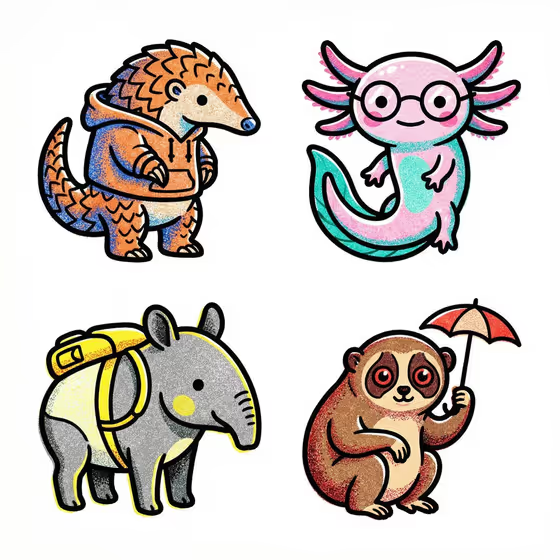
This template turns a product or design idea into a set of four icons laid out in a 2x2 grid, printed in a risograph style. You get thick black outlines, grainy stippled color fills, and a pure white background with no text, so the result feels like a cohesive little print collection.
It suits makers, small brands, and designers who want a quick themed icon set built around one featured product, a chosen theme, and a color palette. The cover shows how the four icons share one consistent look while each one stays a distinct character or object.
What works best as input
- In the Product field you can describe your product in words or add a reference photo. Pick whichever shows your product most clearly.
- If you add a photo, use one clear shot of a single product or design with a plain background so the key shape and details are easy to read.
- If you type instead, name the object and its most recognizable features, for example a sculptural packaged good or a compact smart device.
- In Theme, write a short phrase that describes a family of things, such as Outdoor adventure or Music and nightlife, so the four icons feel like they belong together.
How to use it
- Open the Risograph Studio Icon Grid template in Phosphene.
- Fill in Product by describing it or adding a reference photo, then type a Theme such as Creative studio tools.
- Choose a Color Palette, for example Cobalt blue and warm cream, then generate the image.
- Review the 3:4 result. Check that all four icons are distinct, outlined, and balanced in the grid, then adjust your fields and generate again if needed.
Tips for a better result
- Keep the theme specific. Outdoor adventure gives a more focused set than a broad word like Nature.
- Try the same product with different palettes, such as Burgundy and blush versus Forest green and sand, to compare moods.
- Use Monochrome black and white if you want the stippled texture and heavy outlines to be the main feature.
- If you use a reference photo, pair it with a theme that suits the product so the icons feel connected to it.
Common mistakes
- Writing a vague Product description, which gives the icons nothing concrete to build around.
- Using a cluttered reference photo with several objects, which makes it unclear what the featured product is.
- Choosing a theme that is too broad or mixed, so the four icons look unrelated instead of like one set.
FAQ
Do I have to upload a photo?
No. The Product field accepts a text description, and a reference photo is optional. Theme and Color Palette are text or choice fields only.
Will the icons include text or labels?
No. The template is set up to produce icons without any text.
Why is there no grid lines or border?
The four icons are placed in a 2x2 arrangement on a pure white background with no dividing lines, which keeps the set clean.
What kind of look will the icons have?
Expect a risograph print feel with thick black outlines, vibrant fills, and a grainy stippled texture, as shown in the cover image.