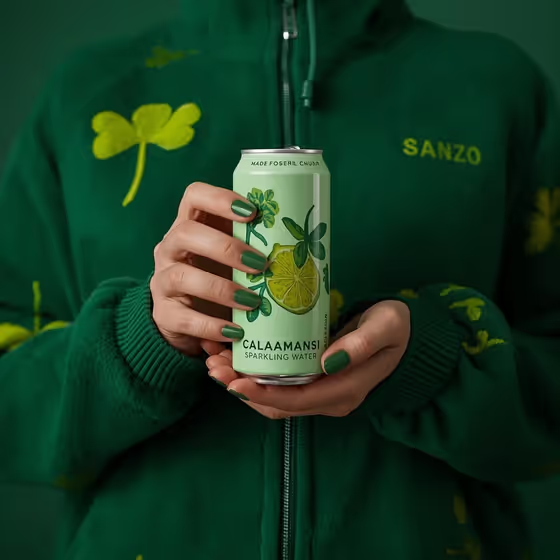
Sparkling Water Grip produces a held-can product shot: a person in a dark green fuzzy zip-up hoodie with a light green four-leaf clover pattern holds your can centrally in both hands, with glossy green manicured nails visible. The whole scene sits against a moody, solid dark green background, so the can, the outfit and the set read as one monochrome palette.
It suits beverage brands, small-batch drinks, and anyone who wants a styled social or campaign image without organizing a shoot. The output is a 3:4 image, a good fit for portrait feeds and product pages.
What works best as input
- For the first field (labeled as the slim citrus sparkling-water can product or object), you can either describe the can in words or upload a photo of your exact product. A straight-on, well-lit shot of the can works best when you want the real design carried over.
- If you describe the can instead, be specific about the flavor and artwork, for example a slim citrus sparkling-water can. The template's own can illustration shows a sliced citrus fruit with green leaves, so citrus-style cans fit the scene naturally.
- Use a photo where the whole can is visible, with the label facing the camera and no heavy glare, so the graphics and any text on it are easy to read.
- If you do not have a finished design, try the premium unbranded alternative idea from the examples, or a personal product design, and describe the colors you want.
How to use it
- Open the Sparkling Water Grip template in Phosphene.
- In the can field, type a short description of your product or upload a photo of its exact visual reference.
- Pick an option in Product presentation. The default is a photorealistic product shot of a person holding the selected content, and the other examples include clean studio hero, dynamic material interaction and annotated product breakdown.
- Generate the image, then check that the can is centered in the hands, the label looks right, and the green hoodie and background match the look you wanted.
Tips for a better result
- Keep your can's colors in the green, lime or pale yellow range if you want it to blend into the monochrome look, as the can in the cover image does.
- Try the different Product presentation options with the same can to compare a classic held shot against a cleaner studio hero or a breakdown-style layout.
- Be concrete in your description. Naming the fruit, the leaf details and the finish (matte or glossy) gives the can more character than a generic phrase.
- If the first result is close but not right, adjust only the can description and regenerate, so you can see exactly what changed.
Common mistakes
- Writing a vague can description such as just a drink, which leaves the label and artwork up to chance.
- Uploading a cluttered or angled photo of the can, which can make the label hard to read in the final image.
- Expecting a different outfit or background color. This template keeps the green fuzzy hoodie, painted nails and dark green set fixed, so only the can and the presentation change.
FAQ
Can I upload a photo of my own can?
Yes. The can field accepts either a text description or an uploaded photo of your exact product reference.
Can I change the hoodie or the background color?
No. The green fuzzy clover-patterned hoodie, the green manicure and the dark green background are fixed parts of this template. You control the can and the product presentation.
What shape is the final image?
It is a 3:4 portrait image, which suits vertical feeds and product listings.
Will the text on my can come out perfectly?
Not always. Small label text can be hard to reproduce exactly, so use a clear, front-facing reference photo and check the result before using it.