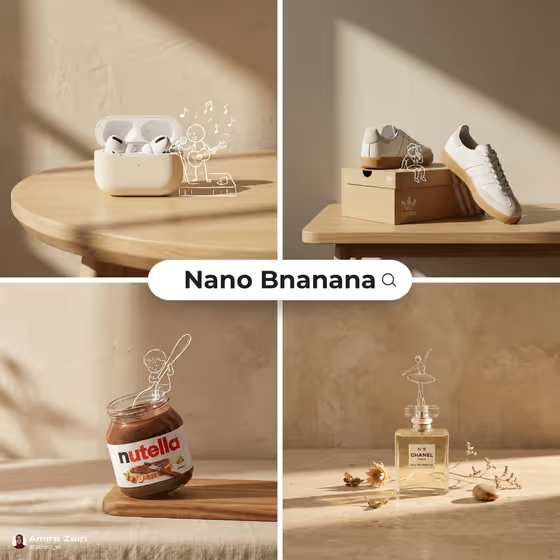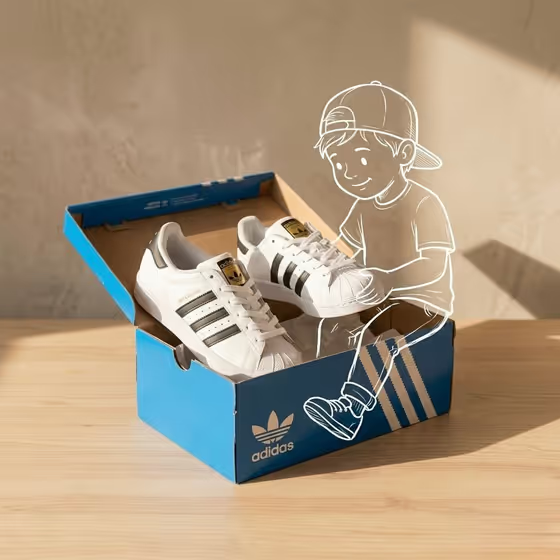
This template builds a square tabletop product shot with one hand-drawn white-line character added on top of a realistic scene. The cover shows the idea: a real pair of sneakers in an open box on a wooden table, with a sketched child sitting on the box and handling one shoe, all against a textured beige wall with soft sunlight.
It suits product photographers, small brands, and social media teams who want a witty, sparse, brand-ready image without staging an illustration by hand. You describe the product, choose how it is placed, and say what the doodle character is doing.
The template lets you upload 2 or more photos, and the Product description and Doodle character fields accept either a photo or typed text.
What works best as input
- For the Product description field, a clear photo of the exact product works best when you need the real item to be recognizable. Use a clean, well-lit shot where the shape, label, and materials are easy to read.
- If you type instead, be specific about the object and its finish, in the style of the examples: "a matte beverage can" or "a small fragrance bottle" tells the generator far more than "a bottle".
- In the Doodle character field, describe one character and one action, such as "a white-line skater circling it" or "a little musician sitting on the edge". A single clear interaction keeps the drawing believable.
- If you upload a reference for the character, choose a simple figure or sketch style so it can be redrawn as a clean white outline.
How to use it
- Open the Tabletop Product Doodle Moment template in Phosphene.
- Fill in Product description by typing it or adding a photo of the product, then pick an option for Product placement, such as upright beside a low cube or resting near the table edge.
- Fill in Doodle character with the illustrated interaction you want, either as text or with a reference photo.
- Generate the image and review the square result. Check that the product looks right, the doodle sits naturally against it, and the shadows still read as realistic.
Tips for a better result
- Match the placement to the character's action. A character sitting on the edge works well with a product resting near the table edge or on a low prop, like the box in the cover image.
- Keep the character's pose physical: climbing, sitting, polishing, or circling all give the doodle something real to touch.
- Vary the same product by changing only the Doodle character or Product placement, so you can build a small set of related images.
- Use product descriptions that mention material and finish, since the template keeps the product's own texture realistic beneath the illustration.
Common mistakes
- Asking for several characters or a busy scene. The template overlays only one white hand-drawn character, so extra figures work against the layout.
- Writing a vague product description like "a bottle", which leaves the product's look to chance.
- Picking a character action that has no physical connection to the product, which makes the doodle look pasted on instead of inhabiting the scene.
FAQ
Do I have to upload a photo?
The product and character fields accept either typed text or a photo, so you can describe them in words or add a reference. The template is set up for 2 or more uploaded photos.
Can I add text or a logo to the image?
The template's fixed direction keeps the composition clean with no extra text or watermarks, so plan to add captions or branding outside the generated image.
What size is the result?
The output is a single square (1:1) image.
Can the doodle be a different color?
The template is built around a white-line hand-drawn character, so expect the illustration to appear as a white outline over the photographic scene.