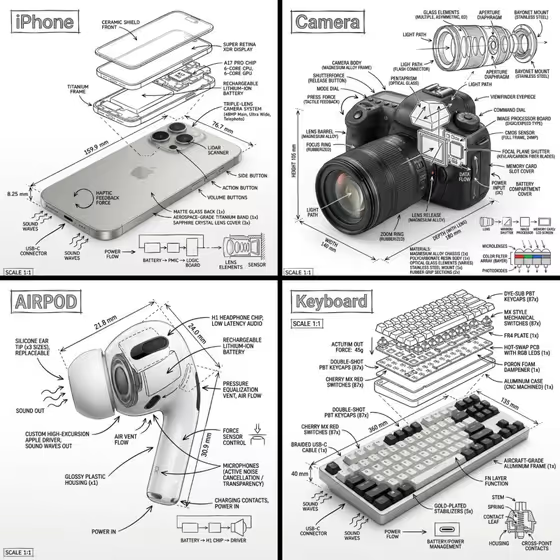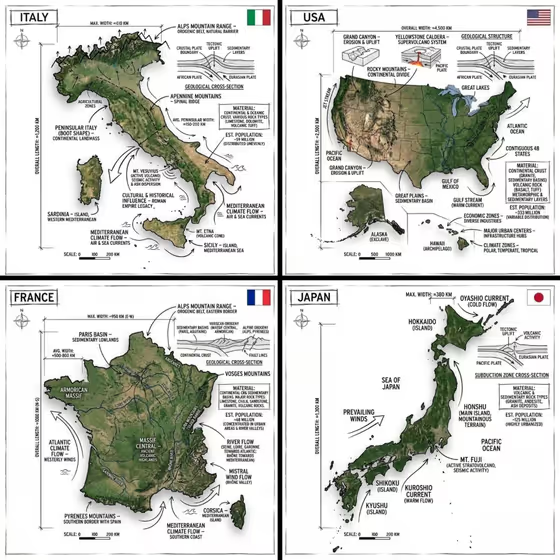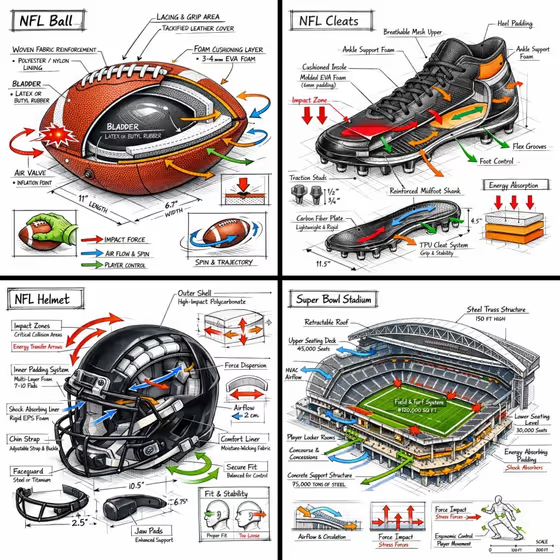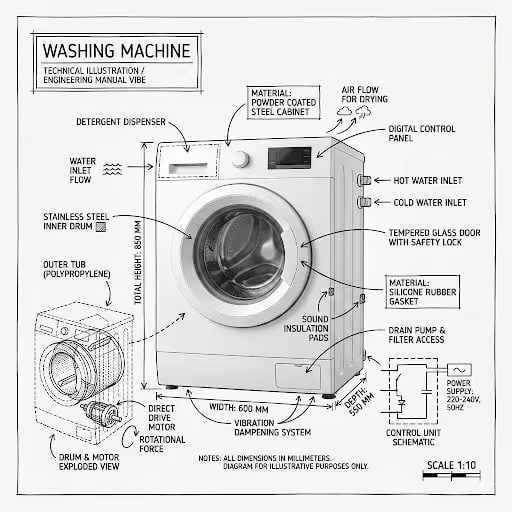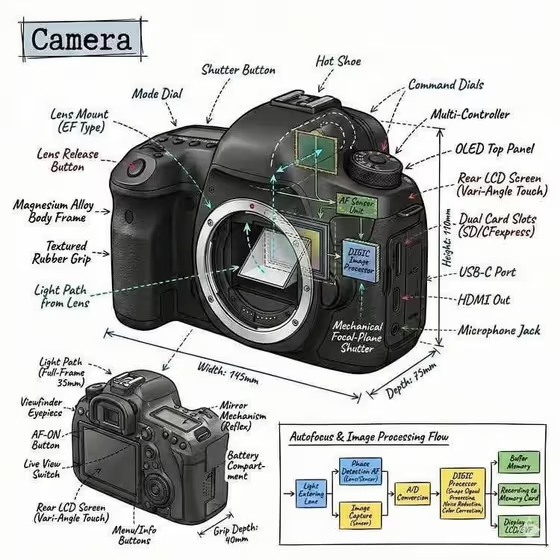
This template turns a single object into a product diagram that looks like a technical sketch drawn over a photoreal render. You get the object as a realistic three-dimensional hero, with hand-drawn style labels, arrows, measurements, and material callouts layered on top. The cover example shows a camera body surrounded by component names, dimension lines, and a small flow chart.
It suits product designers, makers, shop owners, and students who want an annotated explainer image without building one by hand. The result is a 3:4 image in a technical pen look on a white studio background.
What works best as input
- In the Object field you can describe the item in words or add a photo of it. If you use a photo, pick one with the whole object clearly visible so the render stays faithful to its real shape.
- A clean, well-lit photo against a plain background gives the annotations more room and makes the object easier to read.
- If you type instead, be specific about the product: shape, materials, and parts (for example, a compact smart device or a sculptural fragrance bottle). The more concrete the description, the more relevant the callouts.
- Objects with visible parts, ports, buttons, or layers tend to give richer labels and cutaway outlines than a plain featureless block.
How to use it
- Open the Technical Pen Product Diagram template in Phosphene.
- Fill in the Object field by describing your product or adding a reference photo of it.
- In Information Focus, write what the annotations should emphasize, such as Components and functional details, or pick one of the suggested examples.
- Generate the image, then review the labels, measurements, and overall layout before deciding whether to adjust your inputs and try again.
Tips for a better result
- Make Information Focus specific. Components and functional details points toward part labels, while a different focus shifts what gets called out around the object.
- Try the suggested example variations in Information Focus (refined classic, bold contemporary, playful expressive) to see different takes on the same object.
- Name materials in the Object field, like brushed metal, glass, or rubber grip, so material callouts have something real to reference.
- Run the same object with a few different focus phrases and compare, since the hero render stays dominant while the annotation emphasis changes.
Common mistakes
- Describing the object too vaguely, like just a product, which leaves the labels generic. Name the type of object and its notable parts.
- Using a cluttered or cropped photo where the object is partly hidden, which makes the render and callouts less accurate.
- Packing Information Focus with many unrelated goals at once. One clear focus keeps the annotations organized and legible.
FAQ
Can I upload a photo of my product?
Yes. The Object field accepts a photo as a visual reference, or you can describe the object in text. The Information Focus field is text only.
What will the output look like?
A 3:4 image with a photoreal object on a pure white background, overlaid with black ink style technical drawing: component labels, measurements, scale markers, and material callouts.
Will it include cutaway or exploded views?
The template asks for internal cutaway or exploded-view outlines where relevant, so they appear when they make sense for the object.
What should I put in Information Focus?
Describe what the annotations should highlight. Components and functional details is the placeholder, and the template also suggests variation styles like refined classic or bold contemporary.