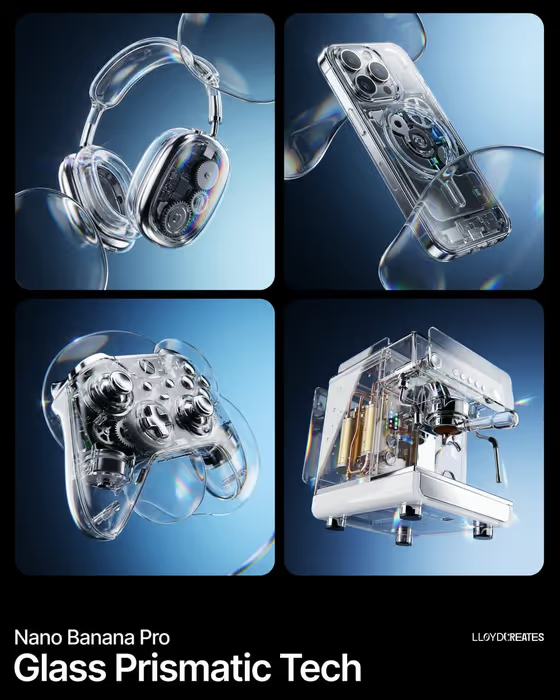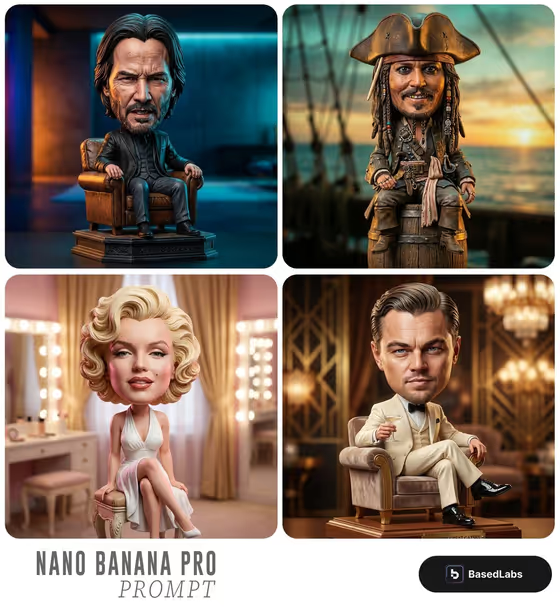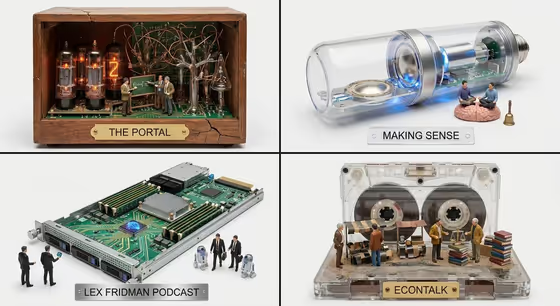
Act As A Media builds a single 16:9 image divided into a 2x2 grid. Each quadrant pairs one pick with an audio device from its own era, such as a wood-cabinet radio with glowing tubes, a clear cassette, a server blade, or a glass tube with a speaker inside. Each device is shown cut open, and its inner parts become a tiny miniature world with small figures that fits the pick's topic, and a label plate names the pick.
It suits anyone who wants a curated, collectible-looking visual built around a subject: a podcast fan making a recommendation graphic, a creator sketching a themed cover, or a designer exploring a style of device-as-diorama imagery. You supply the subject and a creative direction, and the template handles the curation and the era matching.
What works best as input
- The Featured product or object field is a text field that also accepts a photo. Either describe your subject in a short phrase or upload a clear photo of it.
- If you type, be concrete, as in the placeholder style: 'a premium beverage bottle' or 'a compact consumer device' gives the template more to work with than a single vague word.
- If you upload a photo, pick one with the subject in the center, evenly lit and uncluttered, so its defining shape and materials are easy to read.
- Stick to one subject per run. The grid pairs four picks around that single input, so mixing several subjects in one description can muddy the result.
How to use it
- Open the Act As A Media template in Phosphene.
- In Featured product or object, type a short description of your subject or add a photo of it.
- In Creative direction, choose or write a mood such as Clean editorial, Cinematic dramatic, Playful colorful, or Quiet premium.
- Generate the image, then check that all four quadrants show a different era-appropriate device with its own miniature interior and a readable label plate.
Tips for a better result
- Try the same subject with different Creative direction options. Playful colorful and Quiet premium will push the devices and miniature scenes in very different directions.
- Use a subject with a clear topic or personality. The interior worlds are meant to reflect what each pick is about, so a distinctive subject gives more recognizable scenes.
- Keep your Creative direction to a few words. The examples (Clean editorial, Cinematic dramatic) are short and work as a mood, not a full brief.
- If a result is close but not right, rerun with a slightly more specific subject description rather than changing everything at once.
Common mistakes
- Entering a very generic subject, which leaves the template little to build four distinct, era-specific picks from.
- Writing a long paragraph in the Creative direction field. It is meant to be a short style choice, and extra detail can compete with the grid structure.
- Uploading a cluttered or dark photo, which makes the subject's defining look harder to carry into the result.
FAQ
Do I have to upload a photo?
No. The Featured product or object field accepts either a text description or a photo, so you can just type your subject.
What will the final image look like?
A 16:9 image split into four panels. Each panel shows a different audio device from its own era, opened up to reveal a tiny miniature scene, with a label plate naming the pick.
Are the four picks chosen for me?
Yes. The template curates four picks related to your subject and matches each to a device that fits its era, so you do not need to list them yourself.
What does Creative direction change?
It sets the overall mood and styling of the image. Options like Clean editorial, Cinematic dramatic, Playful colorful, and Quiet premium steer the look of the whole grid.