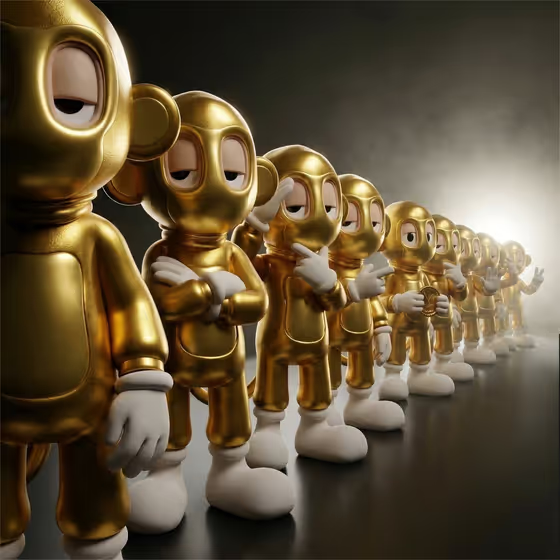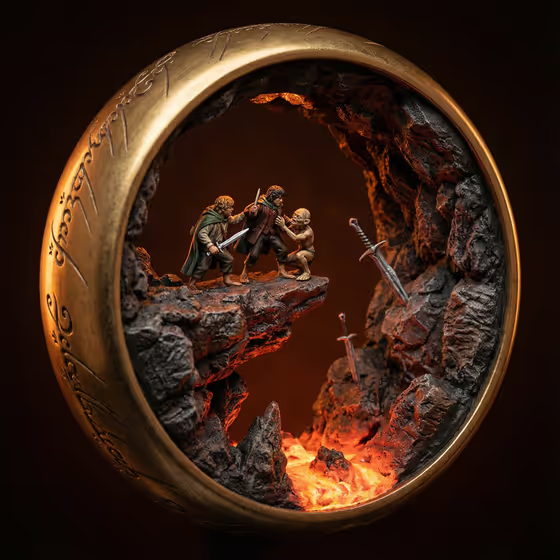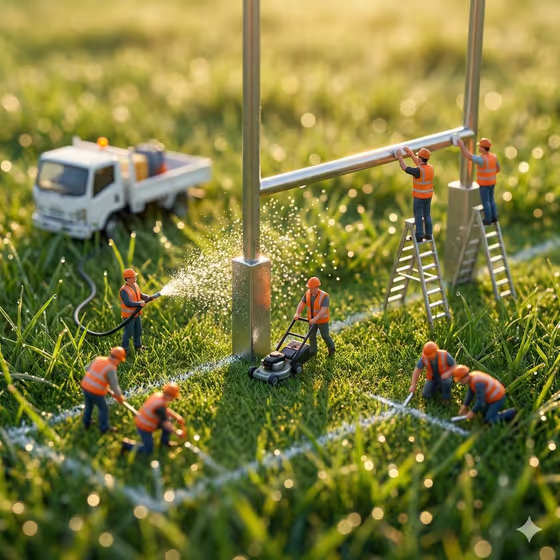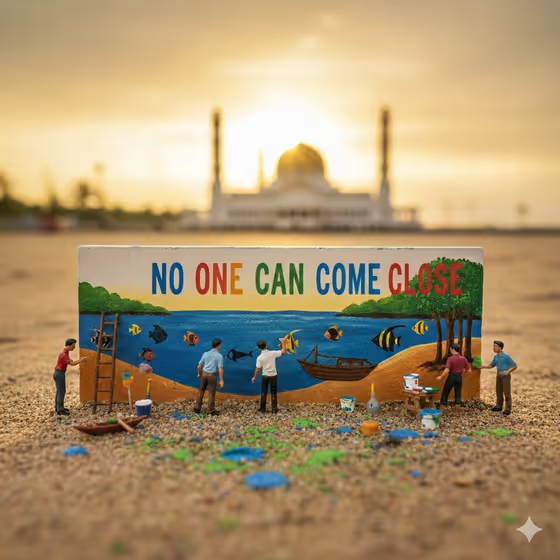
This template builds a handcrafted-looking miniature diorama around a product or object you choose, shot like cinematic macro photography. Tiny figures work on the scene, and a title you write is rendered clearly as part of it. In the cover example, small painters stand on a sandy ground with ladders, paint tins and spilled paint, finishing a colorful sign while a glowing landmark blurs in the warm background.
It suits anyone who wants a playful, storybook-style visual for a product, a place, a campaign or a personal message. You pick the featured object, set a creative direction, and name the title. The result comes out as a 3:4 image with detailed textures and soft, warm lighting.
What works best as input
- The Featured product or object field accepts a photo or a text description. Use a photo where the object is clear, well lit and not cluttered, so its shape and materials carry over into the miniature scene.
- If you type instead, be concrete. Something like "a premium beverage bottle" or "a compact consumer device" gives the template more to work with than a vague word like "thing".
- Choose one main subject. A single distinctive object tends to read better at miniature scale than a group of unrelated items.
- Keep the Rendered title or name short. One to three words in capital letters, such as AURORA or MY PLACE, are easier to render clearly on the scene.
How to use it
- Open the Artistic Miniature Diorama Of template in Phosphene.
- Fill in Featured product or object by uploading a photo or typing a short description, then pick or write a Creative direction such as Clean editorial or Playful colorful.
- Type your Rendered title or name, then generate the image.
- Review the result, checking that the title is spelled correctly and the object looks right, and adjust your inputs and generate again if needed.
Tips for a better result
- Try different Creative direction options on the same object. Cinematic dramatic and Quiet premium should give a very different mood from Playful colorful, so it is worth comparing a few.
- Match the title to the story. A name or phrase that fits the scene, like a place name or a short message, makes the tiny figures and signage feel intentional.
- Use a clean, high-quality source photo when you have one. Clear edges and visible materials help the macro-style detail look convincing.
- Run the same title with different objects, or the same object with different titles, to build a small series with a consistent look.
Common mistakes
- Writing a long sentence as the title. Long text is harder to render legibly, so shorten it to a few words.
- Using a busy photo with several competing objects. The diorama then has no clear hero, so crop or choose a simpler shot.
- Leaving the creative direction vague or contradictory, such as asking for calm and chaotic at once. Pick one clear mood.
FAQ
Do I have to upload a photo?
No. The Featured product or object field accepts either a photo or a text description. The other two fields are text or a choice, with no photo option.
What kind of image will I get?
A single image in a 3:4 ratio, styled as a cinematic macro photo of a handcrafted miniature diorama with small figures and your title rendered in the scene.
Can I choose what the title says?
Yes. Whatever you enter in Rendered title or name is what the template tries to render clearly. Check the spelling in the result, and generate again if it is off.
What should I put in Creative direction?
Pick or write a short mood phrase. The template suggests options like Clean editorial, Cinematic dramatic, Playful colorful and Quiet premium.