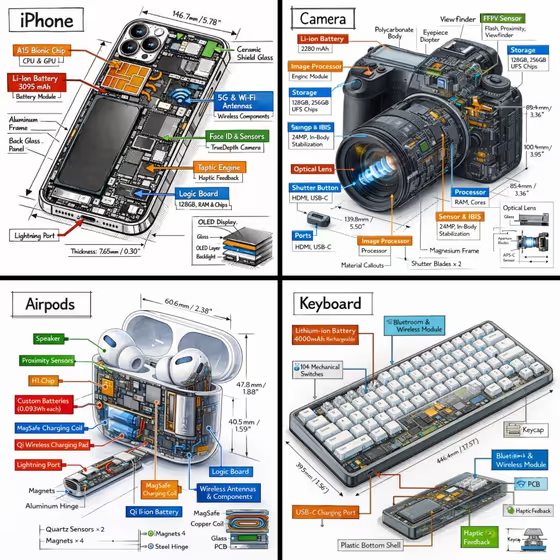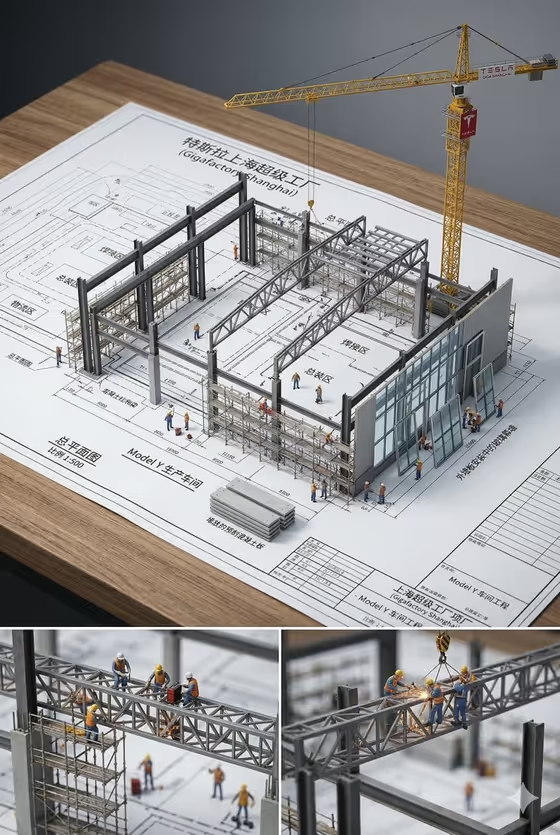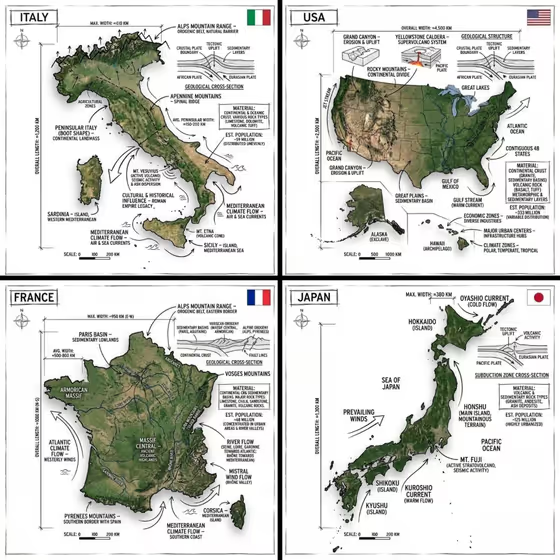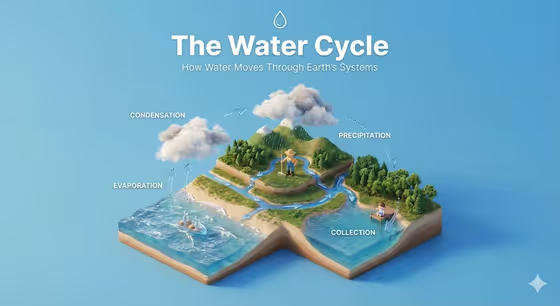
This template turns a topic into a clear 45 degree top-down isometric diorama. The cover shows the idea: a stepped miniature landscape with labeled stages, small arrows showing how things flow, tiny figures at work in the scene, and a bold title with a short subtitle and a small icon at the top.
It suits teachers, students, presenters and content creators who want an explainer visual of a process or subject without building a 3D scene by hand. You pick the subject and a creative direction, and the template handles the layered layout, soft lighting and clean background.
What works best as input
- The Scene subject or object field accepts a typed description or a photo. If you describe it in words, name a specific subject, such as the examples a famous city landmark or a personally meaningful place.
- If you use a photo, pick one where the subject is clearly visible and fills most of the frame, so the template can read its shapes and materials.
- Favor subjects that have visible parts or stages, since the diorama is built as stepped layers with arrows or paths between them.
- Keep the description short and concrete. One clear subject usually reads better than a long list of ideas.
- Avoid busy photos with several competing subjects, because the title and layers are built around a single chosen subject.
How to use it
- Open the Clear 45 Top-Down Isometric template in Phosphene.
- Fill in Scene subject or object by typing a description or adding a photo, then choose a Creative direction such as Clean editorial or Playful colorful.
- Generate the image. The result is a 3:4 isometric diagram of your subject.
- Review the title, layers and figures. If the mood or subject emphasis is off, adjust your inputs and generate again.
Tips for a better result
- Try different Creative direction options on the same subject. Clean editorial, Cinematic dramatic, Playful colorful and Quiet premium each change the overall feel.
- Name a subject with natural stages or flow, like the water cycle in the cover, so the arrows and stepped base have something meaningful to show.
- Be specific in your subject wording. A particular landmark or place gives the title and layers more focus than a vague category.
- Generate a few variations and compare how each one arranges the layers and figures before picking your favorite.
Common mistakes
- Entering a very broad or abstract subject. The diorama works best when the topic can be shown as distinct stages or parts.
- Using a cluttered photo with many unrelated objects, which makes the main subject harder to identify.
- Expecting exact label text and wording to match your plan. Check the title and any text in the result before using it.
FAQ
Do I have to upload a photo?
No. The Scene subject or object field accepts either a photo or a typed description, so you can start from text alone.
What does the Creative direction field do?
It sets the overall mood of the result. The examples include Clean editorial, Cinematic dramatic, Playful colorful and Quiet premium.
What kind of image will I get?
A 3:4 isometric diorama with a stepped base, arrows or paths between stages, tiny faceless figures, a bold title, a short subtitle and a small icon.
Can I use it for something other than a process?
Yes, you can try landmarks, neighborhoods or places. Subjects with visible parts or stages tend to fit the layered layout best.