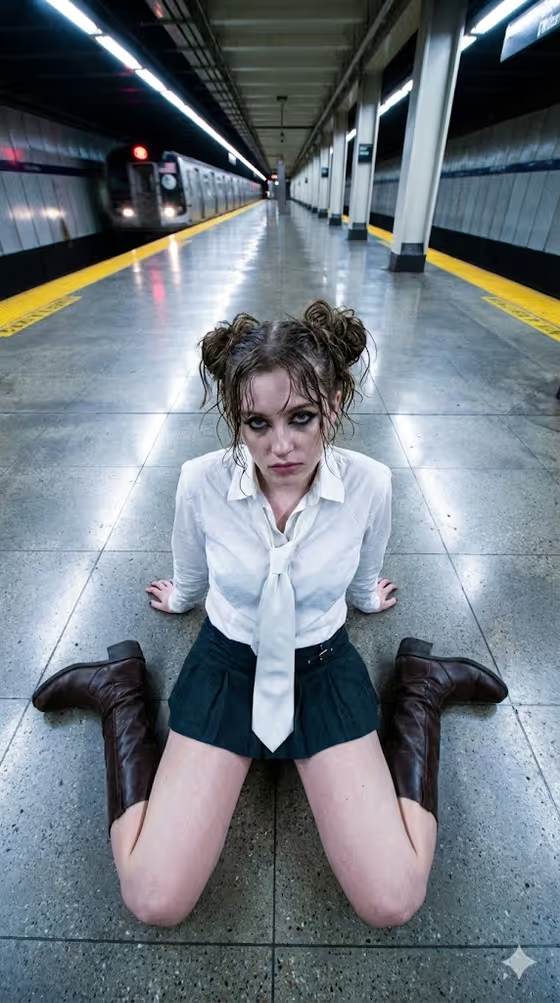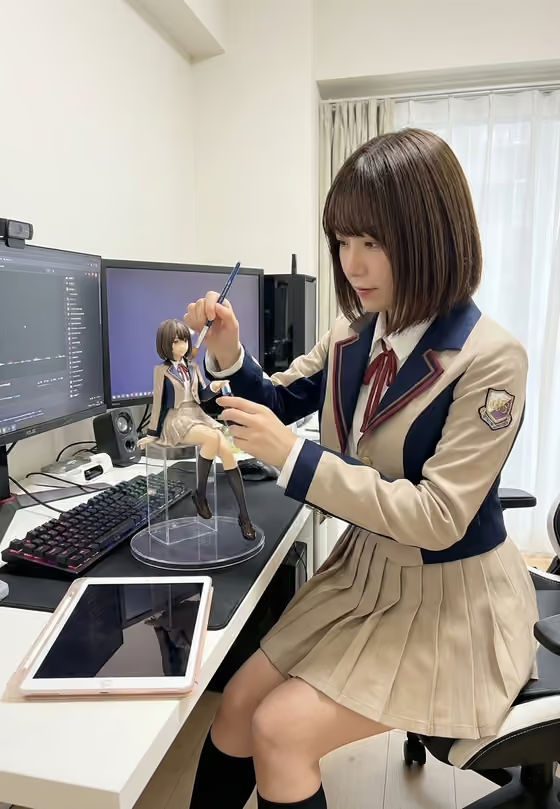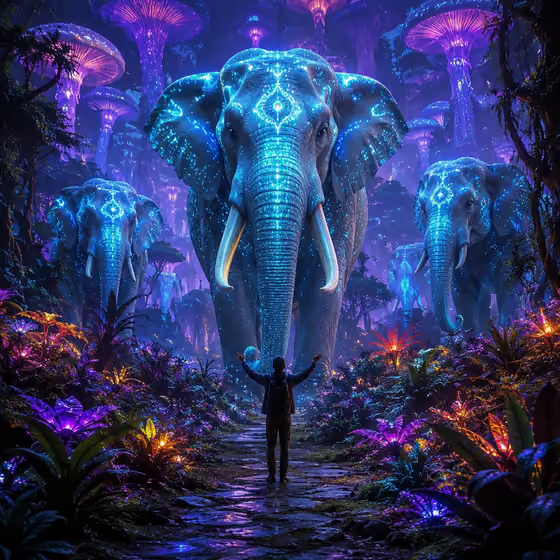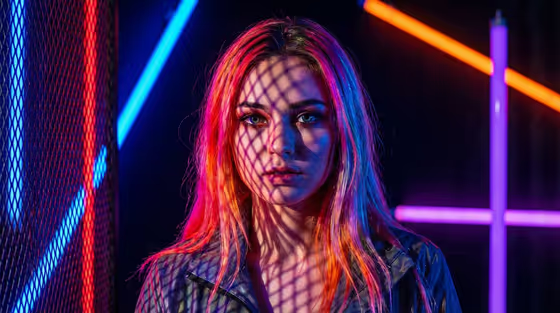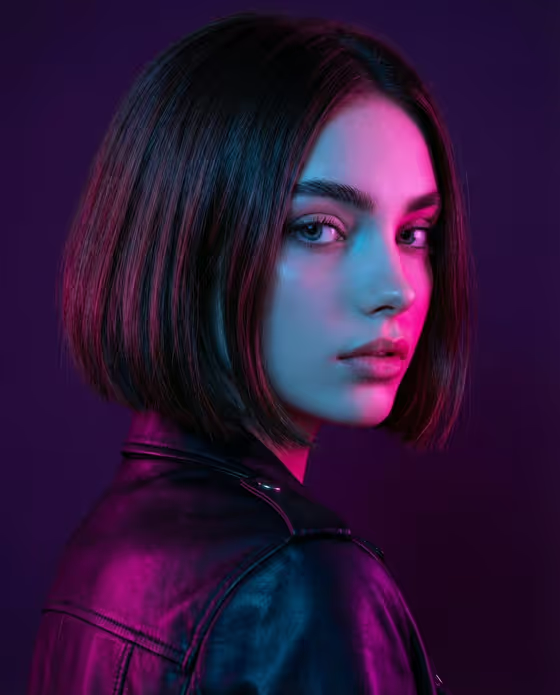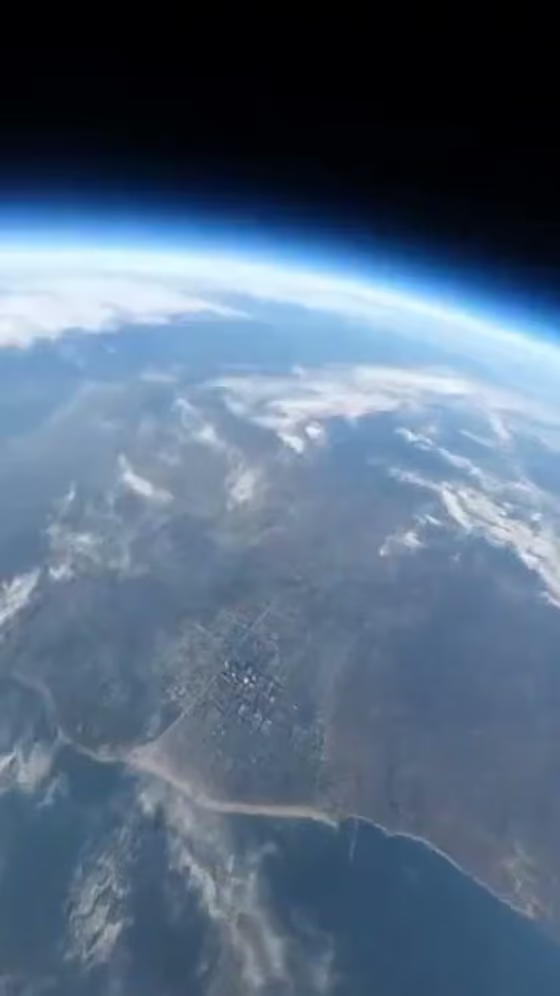
Earth Zoom turns a single image into a vertical video that starts high above the planet and ends on your uploaded scene. The camera drops through the atmosphere and clouds, passes over a landscape or city, and lands on the exact place or subject in your picture.
It suits anyone who wants a dramatic opening shot or a reveal for a travel clip, a location, a venue, a home, or a portrait. You only need one image, and the template handles the whole descent in one continuous move.
What works best as input
- Choose an image that clearly shows where the zoom should land. A recognizable street, building, landscape, or person works better than a cluttered or ambiguous frame.
- The template tries to preserve identity, clothing, architecture, and composition in the final frame, so start with a sharp, well-lit image. Blur or heavy compression can make the landing look soft.
- Use a vertical or near-vertical image if you can, since the video is 9:16. A subject that sits well within a portrait frame will stay intact at the end of the move.
- The Destination image slot accepts a person or a place. If you upload a person, pick a clear, respectful photo of someone you have permission to use.
- Avoid images with lots of text, signs, or overlays, since the template is built to finish on a clean scene without labels.
How to use it
- Open the Earth Zoom template in Phosphene.
- In the Destination image field, upload the person or place where the zoom should land. This is the only required input.
- Start the generation and wait for the video to finish.
- Review the result, checking that the descent is smooth and the final frame matches your uploaded image. Adjust your source image and generate again if needed.
Tips for a better result
- Pick a source image with a clear sense of place, like a coastline, skyline, or recognizable street, so the descent over a believable landscape feels connected to the ending.
- Try different crops of the same scene. A wide shot and a tighter shot will give two different landing moments.
- If the first result drifts from your image, try a sharper version of the photo with simpler composition and better lighting.
- Run the same image more than once to compare how the atmosphere and clouds transition, then keep the take you like best.
Common mistakes
- Uploading a low-resolution or heavily filtered image, which can make the final frame look unstable or lose detail.
- Using an image with captions, watermarks, or map-style labels. The template aims to avoid text, so busy overlays work against it.
- Choosing a source image with no clear subject or location, which gives the zoom nothing definite to land on.
FAQ
How many images do I need to upload?
One. The template asks for a single Destination image, and it is required.
Can I upload a photo of a person?
Yes. The Destination image slot accepts a person or a place, and the template tries to preserve identity and clothing in the final frame. Only use photos of people you have permission to use.
What format is the video?
It produces a 9:16 vertical video, which suits phone screens and short-form platforms.
Will text or map labels appear in the video?
The template direction asks for no map labels or text, so the zoom should be a clean continuous move ending on your scene.