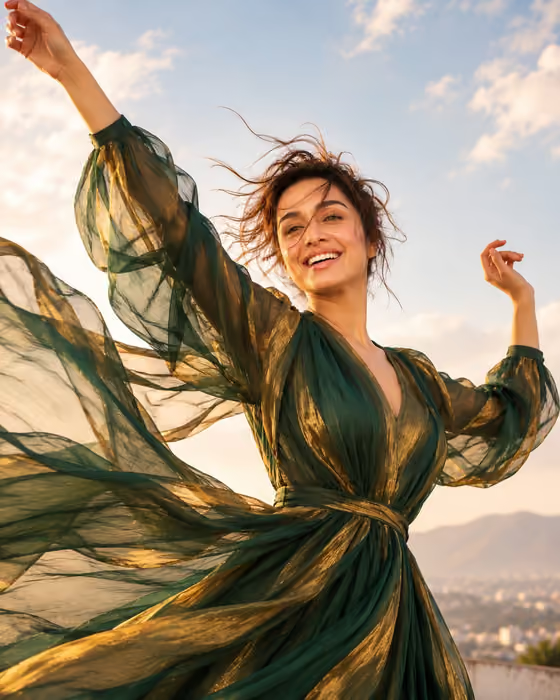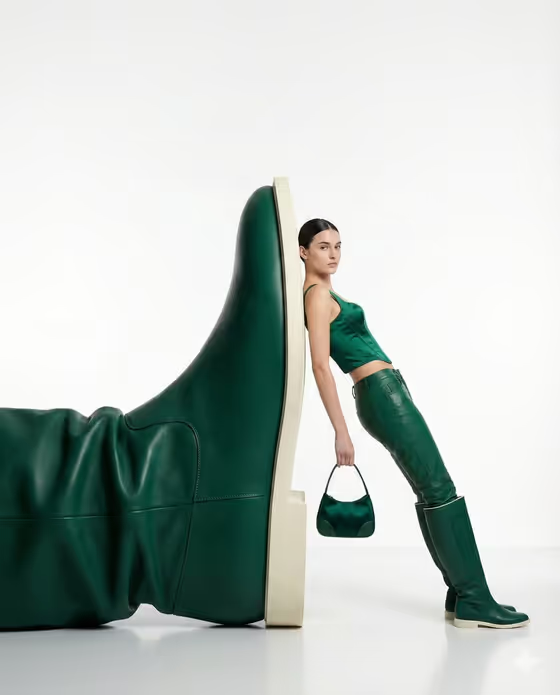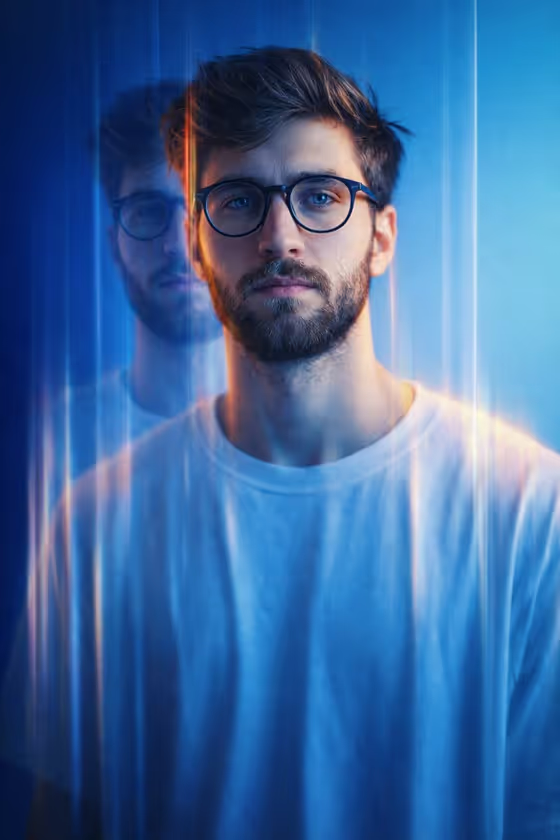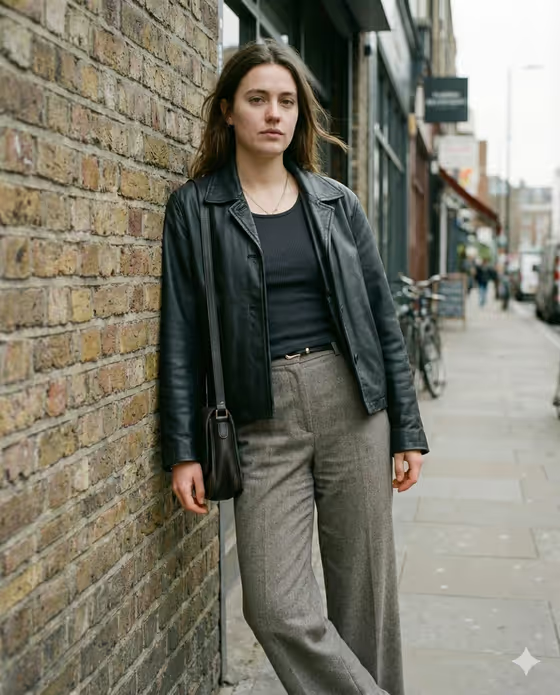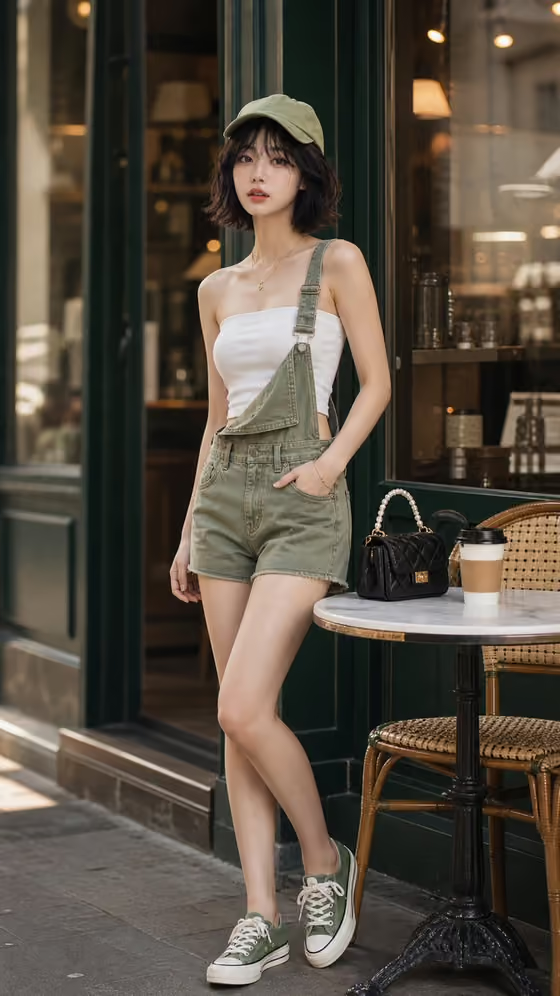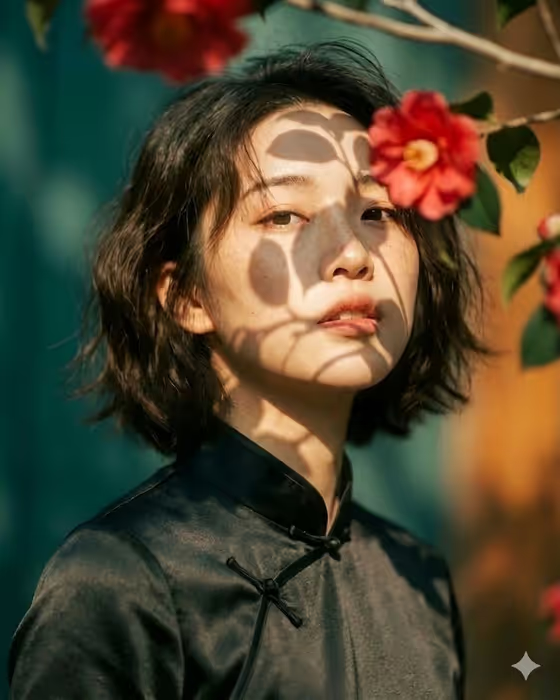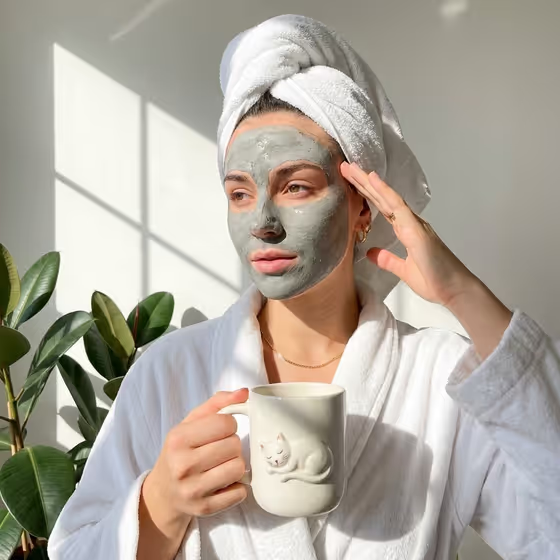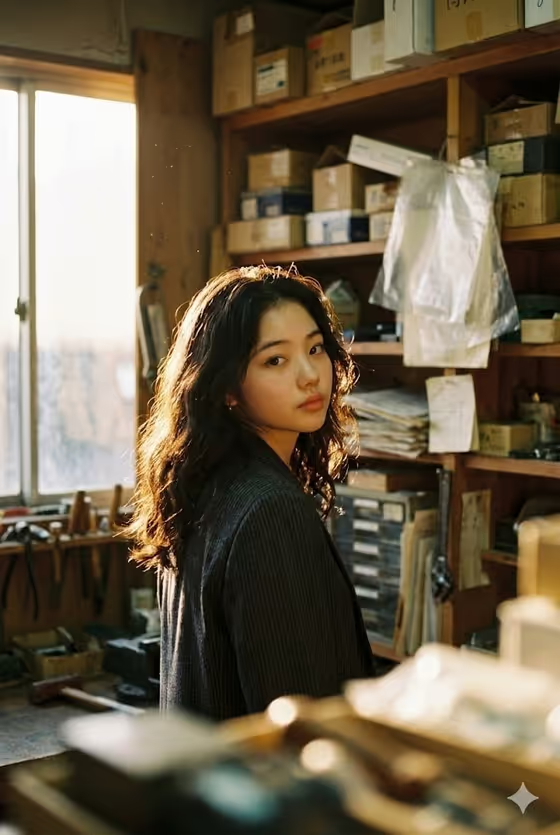
This template makes a cinematic, backlit portrait in a 3:4 frame. The subject is shown in profile, glancing back over one shoulder while strong window light behind them creates a soft, glowing halo on loose hair. The cover shows the look: a quiet, slightly melancholic mood in a cluttered workshop or storage-room setting, with film grain and a gentle bloom.
It suits anyone who wants an editorial, photobook-style portrait without setting up a shoot. You describe a subject and an outfit, or give a visual reference for either, and the template handles the lighting, framing and atmosphere.
What works best as input
- Both fields (Subject and Outfit) accept either a text description or a visual reference, and the template is set up for 2 or more uploads, so plan to give a reference or description for each.
- If you use a photo for the subject, pick a clear, well-lit image where the face and hair are easy to see. Loose, wavy hair shows the rim-light halo best.
- For the outfit, a reference photo or a short description of one garment works well. The template leans toward dark, structured, textured fabrics, so a jacket or blazer fits the scene.
- If you type instead, be specific but brief, for example 'A poised creative professional' for Subject and 'A tailored statement outfit' for Outfit.
- Avoid cluttered or heavily filtered reference photos, since they can compete with the soft, film-like look the template builds.
How to use it
- Open the Backlit Profile Rim Light Portrait template in Phosphene.
- Fill in the Subject field with a short description or add a visual reference, then do the same for Outfit. Both are required.
- Generate the image and wait for the 3:4 portrait to appear.
- Review the result, checking the glowing rim light on the hair, the over-the-shoulder glance and the outfit, then adjust your fields and generate again if needed.
Tips for a better result
- Keep the Subject description focused on who the person is rather than the scene. The template already sets the cluttered interior, window light and film grain.
- Try different outfit descriptions, such as a relaxed linen ensemble or a bold retro look, to see how fabric texture catches the backlight.
- Change only one field per attempt so you can tell whether the subject or the outfit caused a difference.
- Because the outfit is partly hidden by shadow and foreground elements in this style, choose a garment whose collar or shoulders will read clearly.
Common mistakes
- Writing long, multi-part descriptions in the Subject or Outfit fields. The template already carries detailed direction, so extra scene instructions can conflict with it.
- Using a low-quality or heavily shadowed reference photo, which gives the generator little to work with for the face and hair.
- Expecting a bright, evenly lit portrait. This template is built around strong backlight, shadow and a soft, dreamy mood.
FAQ
Do I have to upload photos?
The Subject and Outfit fields both accept either a text description or a visual reference. The template is listed as needing 2 or more uploads, so plan to supply references for both.
What aspect ratio does it produce?
It produces a 3:4 portrait image.
Can I change the setting or lighting?
The setting, backlight and film-photography mood are part of the template's fixed direction. You control the Subject and Outfit, and the rest stays consistent.
What kind of outfit works best?
Dark, structured or textured clothing like a blazer suits the scene, but you can describe other looks such as a linen ensemble or a technical outdoor outfit and see how they render.