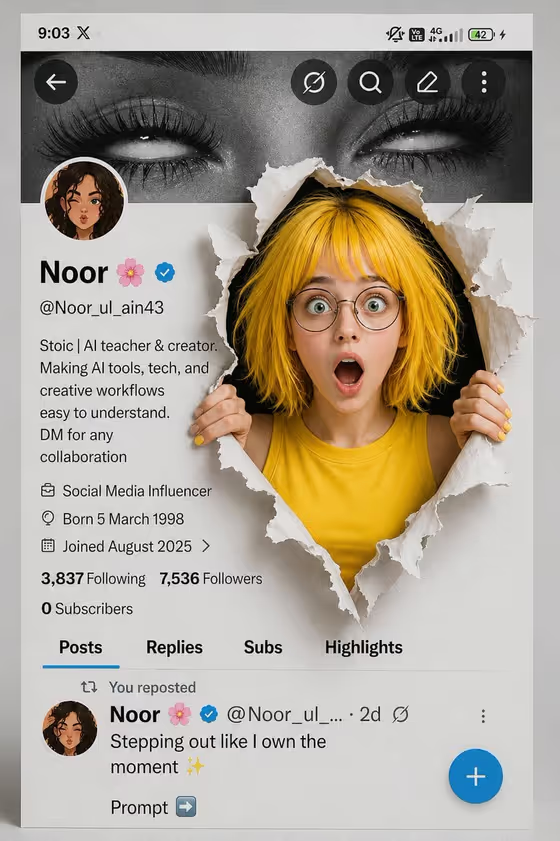
Break Through the Profile makes a 3D image of a person tearing straight through the middle of a social profile screen. The surrounding interface shows a banner, avatar, verified mark, bio and follower stats, while jagged paper edges and a dark cavity behind the tear give the scene depth. The output is a 3:4 image.
It suits creators, influencers, musicians and anyone who wants a playful profile graphic for an announcement, a launch or a new avatar. You set who breaks through, what style of profile interface surrounds them, and the name or handle shown on the page.
What works best as input
- For the Profile portrait subject field, you can either type a description (for example, a surprised creator with yellow hair) or upload a matching reference photo. The template expects one photo at most.
- If you upload a photo, pick one where the face is clear, well lit and not hidden by sunglasses or heavy shadow, since the character needs to read well through the torn opening.
- Photos with visible hands or shoulders can help, because the template has the person gripping both ripped paper edges.
- If you describe instead of uploading, mention expression, hair and clothing. The cover example uses an open-mouthed surprised look with bright hair and glasses, and that kind of detail translates well.
- Only upload photos of yourself or people who have agreed to it.
How to use it
- Open the Break Through the Profile template in Phosphene.
- Fill in Profile portrait subject by typing a description or uploading a reference photo. Then choose a Profile interface style, such as minimal verified creator profile or dark-mode video profile.
- Enter your Profile name or handle, for example Noor or Studio Alex, exactly as you want it to appear on the profile.
- Generate the image, then review the tear, the legibility of the profile text and how closely the character matches your reference. Adjust the fields and run it again if needed.
Tips for a better result
- Pick the interface style to match your real platform feel. A clean professional network profile and a playful portfolio profile will look quite different around the same tear.
- Keep the handle short and simple. Shorter names tend to stay more legible among the bio and follower stats.
- Be specific about expression in the subject field, such as a smiling fashion influencer versus an expressive musician, to change the energy of the pose.
- Try the same subject with different interface styles to get a small set of variations for different channels.
Common mistakes
- Writing a vague subject like person or me. Without details or a clear photo, the character will lack the personality the scene is built around.
- Typing a very long name or handle, which can crowd the profile area and hurt legibility.
- Uploading a low-quality or heavily cropped photo, which gives the character less to work with when it is placed into the torn opening.
FAQ
Do I have to upload a photo?
No. The Profile portrait subject field accepts either a typed description or an uploaded reference, so you can describe your character in words if you prefer.
Can I change the platform look?
You can choose the Profile interface style, with options like minimal verified creator profile, dark-mode video profile, playful portfolio profile and clean professional network profile.
What name appears on the profile?
Whatever you enter in the Profile name or handle field. The template uses it as the profile's name on the generated screen.
What size is the result?
The template outputs a single image in a 3:4 aspect ratio.