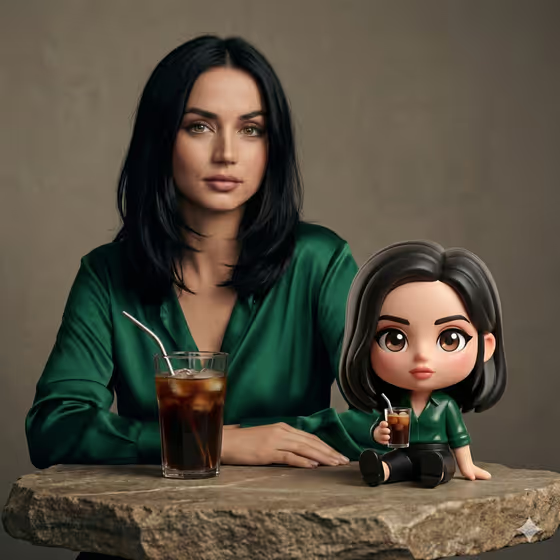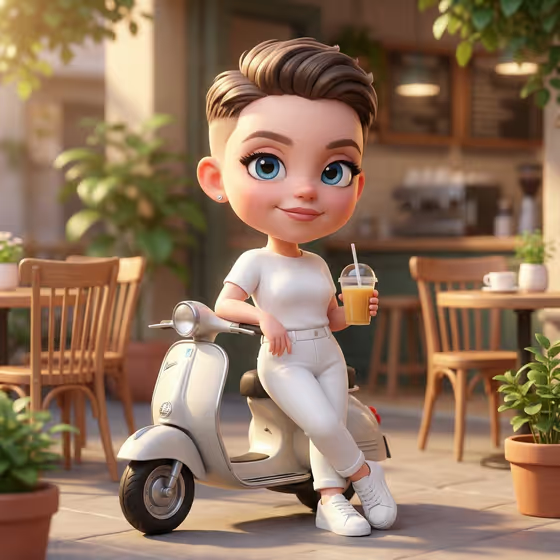
Chibi Scooter Cafe Portrait turns a person into a cute 3D chibi character with a big head, large expressive eyes and a smooth, toy-like finish. In the cover image, the character leans on a small cream scooter in a cafe courtyard, holding a takeaway drink, with wooden chairs, potted plants and warm golden light behind.
It suits anyone who wants a playful avatar, profile picture or social post in a pastel 3D style. You give it a portrait subject and a creative direction, and it returns a square 1:1 image.
What works best as input
- Use a clear photo of one person with the face fully visible and evenly lit. The template is built to base the character on the uploaded image, so a sharp face helps the likeness come through.
- If you would rather describe the subject, type it into the Portrait subject field. The placeholder and examples (such as "a joyful young woman" or "an expressive young man") show the kind of short phrase that fits.
- Pick a photo where the hair and general outfit style are easy to see. The cover look uses a monochrome outfit and a modern fade haircut, so a photo with a clean silhouette gives the model more to work with.
- Only upload photos of yourself or people who have agreed to it, and avoid busy group shots where it is unclear who the subject is.
How to use it
- Open the Chibi Scooter Cafe Portrait template in Phosphene.
- In Portrait subject, upload your photo or type a short description of the person, for example "a confident adult".
- Set Creative direction by choosing one of the options, such as Clean editorial, Cinematic dramatic, Playful colorful or Quiet premium, or by describing your own.
- Generate the image, then review the character, outfit, scooter and cafe background, and run it again if you want another take.
Tips for a better result
- Try different Creative direction options on the same photo. Playful colorful pushes the mood lighter, while Quiet premium or Clean editorial may suit a more polished profile image.
- Keep the subject description short and concrete if you type it instead of uploading, naming age range, mood and one standout trait.
- Use the square 1:1 output to your advantage: it works well as an avatar or grid post, so pick a photo where your face is centered.
- Generate a few versions and compare them. Small changes in the subject text or direction can shift the expression and styling.
Common mistakes
- Uploading a dark, blurry or heavily filtered photo, which makes it harder for the character to resemble the person.
- Writing a long, overloaded subject description. The template already sets the scooter, cafe courtyard, drink and pastel light, so extra scene instructions can clash with it.
- Expecting an exact copy of the real outfit. The template styles the character in its own chibi look, so treat the result as a stylized interpretation.
FAQ
Do I have to upload a photo?
The Portrait subject field accepts a photo, but you can also choose or describe the subject in text, using examples like "a joyful young woman" as a guide.
What does Creative direction change?
It sets the overall mood of the portrait. The listed options are Clean editorial, Cinematic dramatic, Playful colorful and Quiet premium, and you can describe your own.
What format is the result?
The template produces a single image in a square 1:1 aspect ratio.
Will the scene always include a scooter and cafe?
Yes, the template is built around a chibi character leaning on a mini scooter in a cozy cafe courtyard with a drink in hand, so those elements are part of the design.