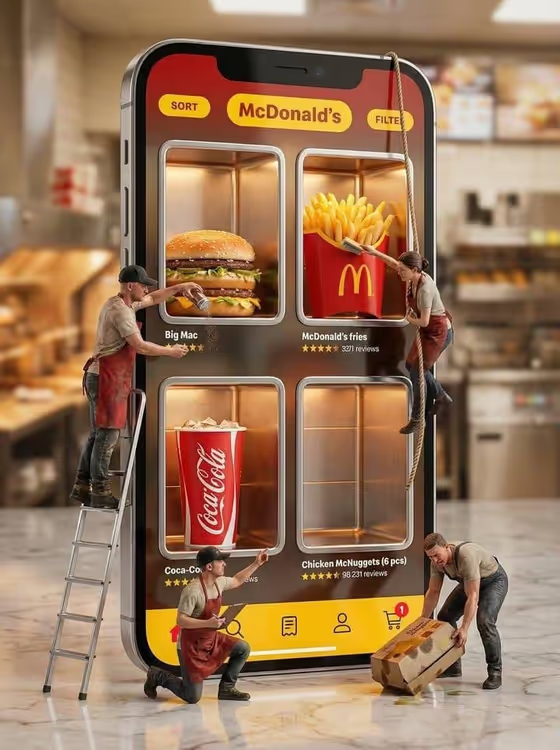
Miniature Ordering Kitchen turns a food ordering app into a surreal photo-style scene. A giant smartphone stands inside a real restaurant kitchen, its screen split into glowing food compartments with star ratings and order buttons, while tiny apron-clad workers climb ropes, use ladders and carry a delivery box.
It suits restaurant owners, food bloggers and anyone who wants a playful hero image for a menu, a delivery app promo or a social post. You name the app or restaurant and the four menu items, and the template builds the scene around them in a 3:4 portrait format.
What works best as input
- For the Ordering app product or restaurant field, type a clear description such as the examples "burger delivery app" or "coffee pickup app", or upload a reference that matches your brand or product.
- If you upload a reference, pick one with a clearly visible logo, color scheme or storefront so the phone interface can echo it.
- For Featured menu set, list four distinct items in one line, like "burger, fries, soda and nuggets". The screen shows a grid of compartments, so four items fill it neatly.
- Choose items that look different from each other (a sandwich, a side, a drink, a snack) so each compartment reads clearly.
- Keep wording short and concrete. Name the actual dishes rather than writing "our best food".
How to use it
- Open the Miniature Ordering Kitchen template in Phosphene.
- In Ordering app product or restaurant, type your app or restaurant description, or add a matching reference photo.
- In Featured menu set, choose or describe the four menu items you want on the phone screen.
- Generate the image, then check that each compartment shows the right food and that the workers and ropes look natural. Adjust your wording and run it again if needed.
Tips for a better result
- Try different cuisines, such as the pizza, salad, drink and dessert example, to see how the food wall changes while the kitchen setting stays.
- Use a more specific product description (for example a pickup app versus a delivery platform) to shift the tone of the interface.
- Pick menu items with strong colors and textures, since the scene is lit warmly and aims for sharp food detail.
- Generate a few versions and compare them, since the worker poses and rope placement can vary between runs.
Common mistakes
- Listing too many or too few menu items. The screen is built around four compartments, so a long list may get ignored or crowded.
- Writing vague input like "food app" with no items. Without specifics, the food wall looks generic.
- Expecting exact logos, readable text or precise ratings to match your real brand. Treat small interface details as stylized and check them before using the image.
FAQ
Do I have to upload a photo?
No. The Ordering app product or restaurant field accepts text, and a photo is optional. You can type something like "burger delivery app" instead.
What goes in the Featured menu set field?
Describe the four items to show on the phone screen, for example "coffee, pastry, sandwich and juice".
What size is the result?
The template makes a single image in a 3:4 portrait ratio.
Can I use it for my own restaurant?
Yes, you can describe your own restaurant ordering app and list your own four menu products, then review the result before sharing it.