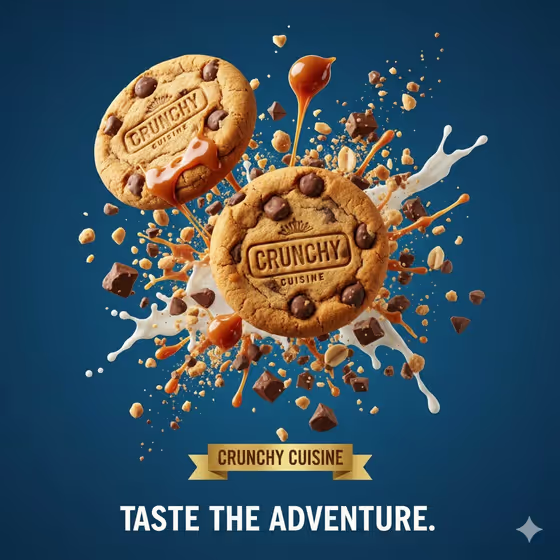
Chocolate Chip Cookie Burst makes a 3:4 product image of three cookies frozen mid-air in an explosion of chocolate chunks and crumbs. The nearest cookie stays tack-sharp while the rest sit slightly deeper in the frame, all against a solid studio color of your choosing.
It suits bakers, cafe owners, food bloggers and anyone who needs an indulgent hero shot for a menu, social post or product page. You describe the cookie (or upload a reference photo of it), pick the floating ingredients, and name a backdrop color.
The template fixes the composition for you: exactly three handmade cookies, a center-weighted burst, a view slightly from below, and clean negative space around the action.
What works best as input
- The Cookie product field accepts either a text description or an uploaded reference photo. If you upload, use a clear, well-lit shot of the cookie you want to feature.
- If you describe instead, be specific about the flavor and look, such as "three sea-salt caramel cookies" or "three double-chocolate cookies". The placeholder "three chocolate-chip cookies" shows the format that fits.
- Keep the cookie as the only subject in a reference photo. Plates, hands and packaging are excluded from the result, so a busy shot gives the template less to work with.
- Pick Floating ingredients that match the cookie. Dark chocolate chunks and crumbs suit a chocolate-chip cookie, while caramel shards and sea salt suit a caramel one.
How to use it
- Open the Chocolate Chip Cookie Burst template in Phosphene.
- In Cookie product, type a description of your cookies or upload a reference photo of them.
- Choose an option in Floating ingredients, then enter a solid color in Background color (for example pastel blue, soft lavender, warm cream or muted mint).
- Generate the image, then review it: check that the front cookie is sharp, there are three cookies, and the particles feel natural. Adjust your inputs and run it again if needed.
Tips for a better result
- Try a different Background color to change the whole mood: a warm cream feels cozy, while a pastel blue makes the golden cookies stand out more.
- Match the floating ingredients to the flavor you describe so the crumbs and chunks look believable around the cookies.
- Name specific details in your description, like oatmeal and chocolate or double chocolate, to steer the cookie's texture and color.
- Run the template several times with the same inputs to compare versions, since the particle scatter is random each time.
Common mistakes
- Asking for text, logos, plates, hands or packaging. The template's fixed direction excludes them, so they will not appear.
- Describing a different number of cookies. The template always keeps exactly three, so write your description around three.
- Using a busy or multi-color phrase for Background color. The template is built for a clean solid studio field, so name one simple color.
FAQ
Can I upload my own cookie photo?
Yes. The Cookie product field accepts either a text description or an uploaded reference photo of your cookie.
Can I change how many cookies appear?
No. The template is set to show exactly three handmade cookies in the burst.
What aspect ratio does the image come in?
The output is a 3:4 image.
Can I add my brand name or a logo to the image?
No. The fixed direction excludes text and logos, so the result is a clean image you can add branding to elsewhere.