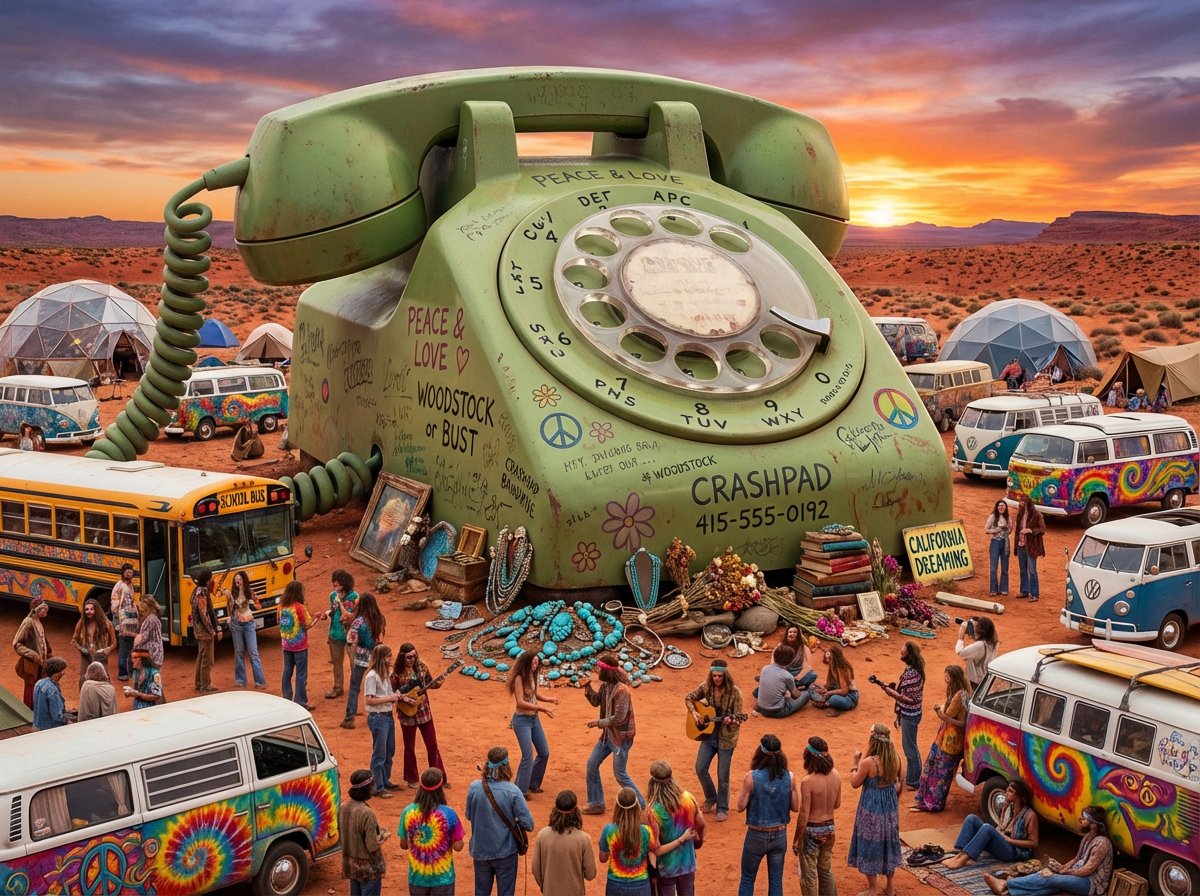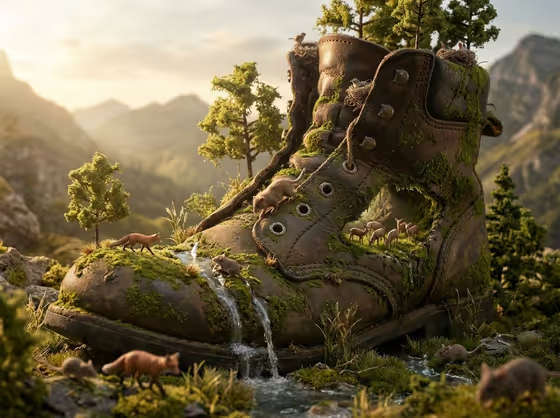
This template turns an everyday object into a colossal, weathered landscape where tiny animals live. In the cover example, a worn leather boot becomes a mossy mountain with a waterfall running off the toe, small trees growing from the laces, foxes and mice roaming the surface, and grazing animals tucked inside the opening.
It suits product designers, brand teams, illustrators and anyone who wants a playful, documentary-style image of an object as a miniature wilderness. The result is a 3:4 image that keeps the object recognizable while its materials read as natural terrain.
The template combines your object with a creative direction you choose, so you can steer the overall mood without writing a full prompt.
What works best as input
- For the Featured product or object field, you can upload a photo or describe the object in text. A clear photo helps the scene stay faithful to the real shape.
- Pick an object with a distinctive silhouette, texture or material. Things like boots, bottles, devices or sculptural accessories give the biome plenty of ridges, cavities and surfaces to inhabit.
- Use a photo where the object fills most of the frame, sits on a simple background and is evenly lit, so its details are easy to read.
- If you type instead, be specific about material and character, for example 'a premium beverage bottle' or 'a sculptural fashion accessory', rather than a vague word like 'thing'.
- Avoid photos with heavy clutter, strong filters or several competing objects, since the template expects one featured subject.
How to use it
- Open the Colossal Object Wildlife Biome template in Phosphene.
- In Featured product or object, upload a photo or describe the object in text.
- Set Creative direction by choosing an option such as Clean editorial, Cinematic dramatic, Playful colorful or Quiet premium, or describing your own.
- Generate the image, then review how the terrain, wildlife and lighting look and run it again if you want another take.
Tips for a better result
- Try different Creative direction choices on the same object. Cinematic dramatic and Quiet premium will pull the scene in very different moods.
- Choose objects with varied surfaces. Laces, seams, openings and curved edges give the template natural places for water, moss and animals.
- Run the same object more than once. Each generation can arrange the terrain and wildlife differently, so you can pick the composition you like best.
- Keep the object description short and concrete so the weathered, naturalistic treatment is the star of the image.
Common mistakes
- Describing the object too vaguely, which gives the scene little shape or material to build terrain from.
- Uploading a photo with several objects or a busy background, which makes it unclear what should become the biome.
- Expecting exact branding or fine text to stay crisp. The object is reimagined as weathered terrain, so small details may change.
FAQ
Do I have to upload a photo?
No. The Featured product or object field accepts a photo or a text description, so you can use either.
What does the Creative direction field change?
It sets the overall mood of the visual, with options like Clean editorial, Cinematic dramatic, Playful colorful and Quiet premium.
What kind of image will I get?
A single 3:4 image in a documentary style with golden wildlife lighting, showing tiny life living across the object's surfaces.
Will the object still look like itself?
The template aims to keep it recognizable while its materials weather into natural terrain, though exact details can vary between generations.