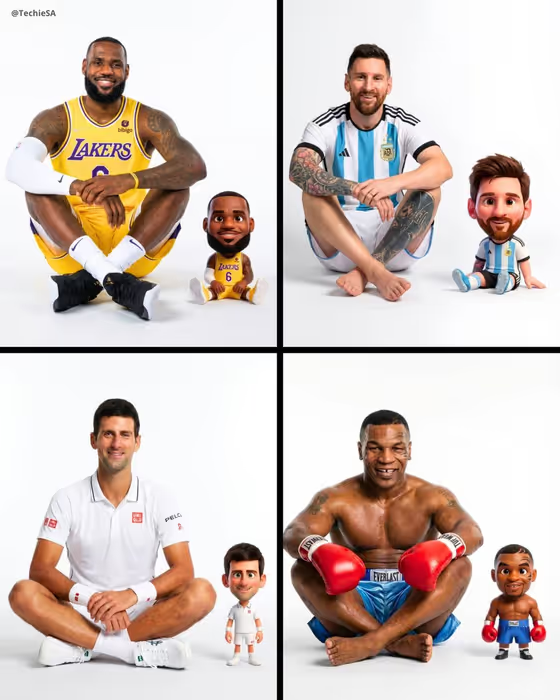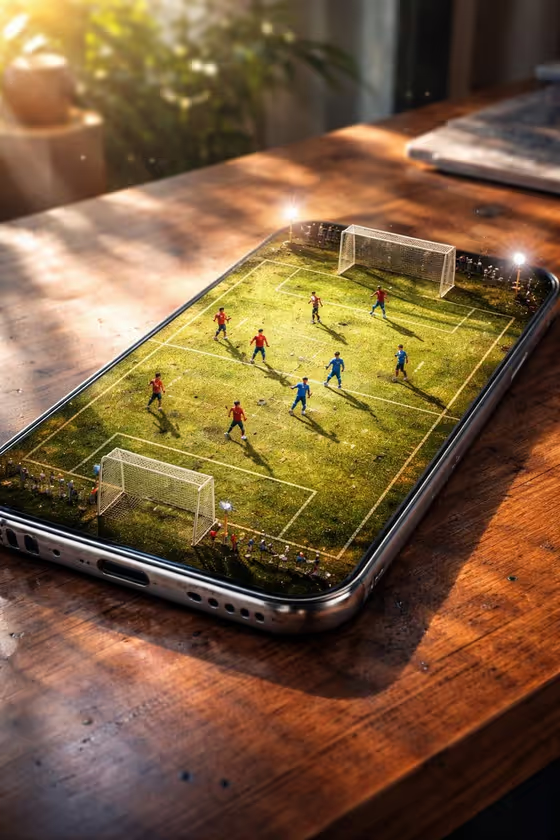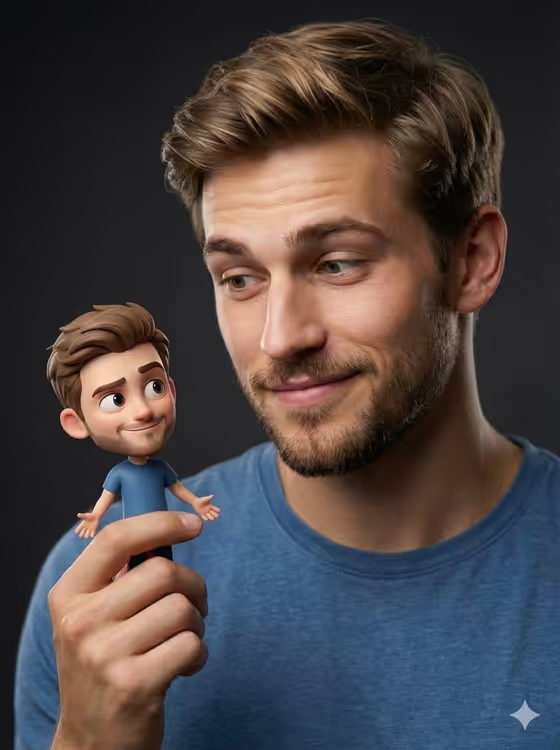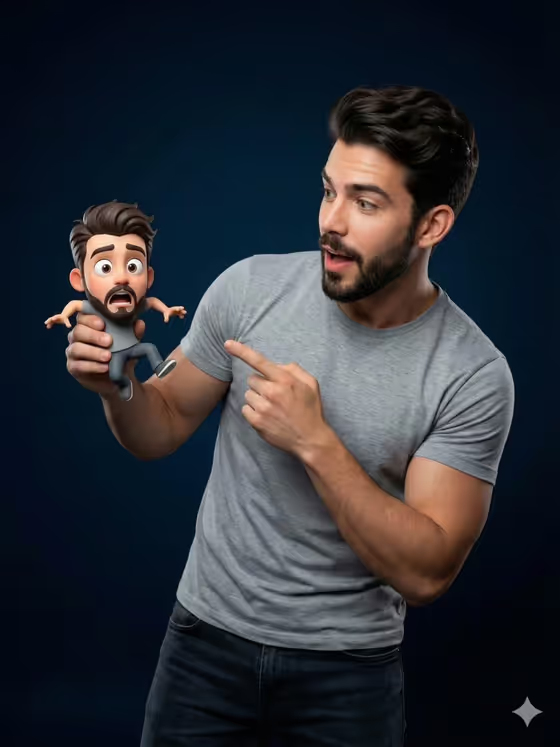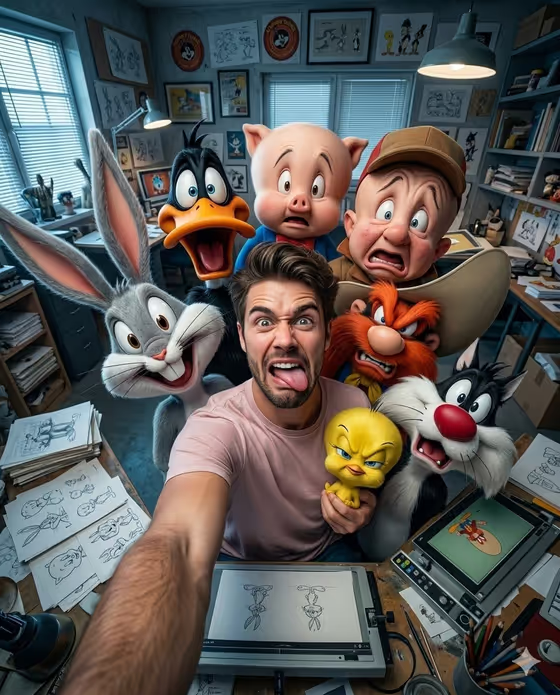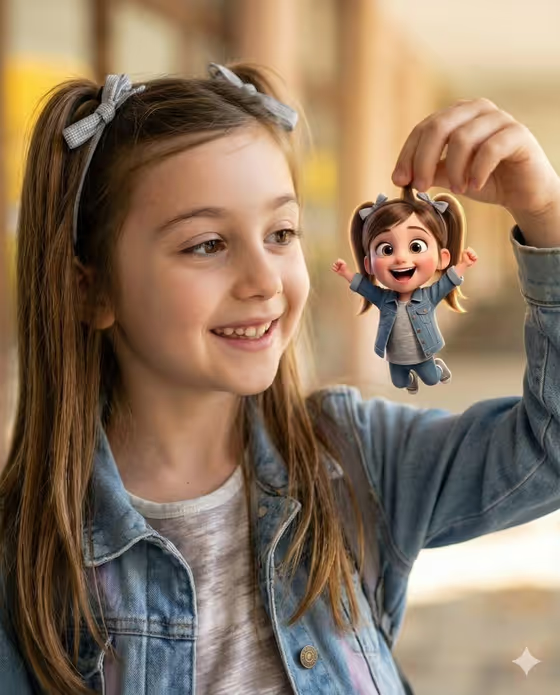
This template creates a bright, joyful portrait of your subject holding a tiny 3D cartoon version of themselves between two fingers. The cartoon is styled in a Pixar-inspired look, with oversized expressive eyes and rounded features, and the person in the photo looks down at it with a happy smile.
It suits parents, kids, and anyone who wants a playful keepsake or a fun profile image. The result is a 2:3 portrait image, so it fits well as a vertical share or print.
What works best as input
- Use a clear, well-lit photo of the person's face so the tiny cartoon can echo their hair, clothes, and overall look.
- A friendly, relaxed expression works well here, since the finished scene is built around a bright, happy mood.
- Pick a photo where the hair and outfit are easy to see, such as a visible hairstyle, accessories, or a jacket, because these details can carry over to the mini cartoon version.
- If you describe your subject in the Portrait subject field instead, keep it short and concrete, like 'a joyful young woman' or 'an expressive young man'.
How to use it
- Open the Girl With Fingertip Mini-Me template in Phosphene.
- In the Portrait subject field, upload a photo of the person or describe them in a few words (for example, 'a confident adult').
- Set the Creative direction field to the mood you want, such as Clean editorial, Cinematic dramatic, Playful colorful, or Quiet premium.
- Generate the image, then review it. Check that the tiny cartoon, the held pose, and the overall mood feel right before saving.
Tips for a better result
- Try Playful colorful in Creative direction to lean into the bright, cheerful cartoon feel, or Quiet premium for a calmer, more polished look.
- Use a photo with distinctive details like hair accessories or a casual jacket, since the template is built to preserve defining details such as these in the cartoon version.
- Generate the same subject with different Creative direction options to compare moods and pick your favorite.
- If your first result is close but not quite right, adjust the wording in the Portrait subject field and run it again.
Common mistakes
- Using a dark, blurry, or heavily cropped photo, which gives the template little to work with for the face, hair, and outfit.
- Leaving the Portrait subject field too vague or empty of detail, which can lead to a generic result that does not feel like your person.
- Choosing a creative direction that fights the template's joyful tone, such as an overly dramatic mood, and then expecting a bright, cheerful scene.
FAQ
Do I have to upload a photo?
The Portrait subject field accepts a photo, and the template is designed around one, so uploading a photo is the best way to get a result that resembles your subject. You can also describe the subject in text.
What does the tiny cartoon look like?
It is a miniature 3D character in a Pixar-inspired style, with oversized expressive eyes and rounded features, held delicately between two fingers.
What shape is the finished image?
The output is a single image in a 2:3 vertical portrait format.
Can I change the mood of the picture?
Yes. The Creative direction field offers options like Clean editorial, Cinematic dramatic, Playful colorful, and Quiet premium, which shape the overall feel of the result.