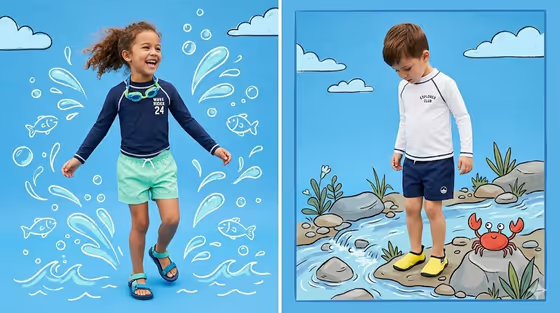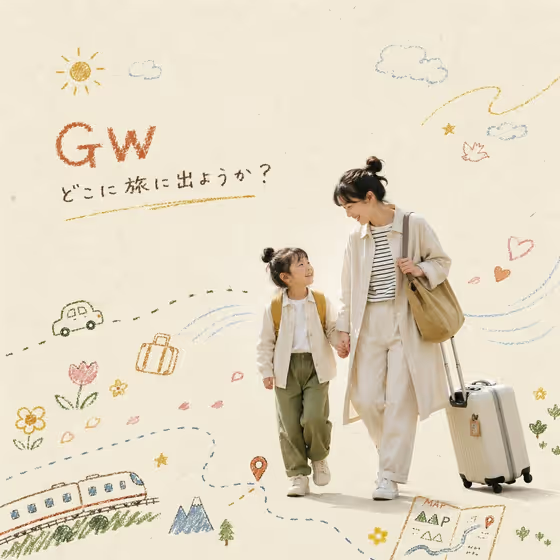
Crayon Photo Editorial turns a lifestyle photo into a magazine-style spread with hand-drawn crayon marks layered around it. The cover example shows the idea: a clean, real photograph stays the main visual while little drawings (a sun, clouds, a car, a train, flowers, a suitcase, a map) sit on warm paper around the people, with a bold title in the corner.
It suits anyone who wants a playful, warm cover or poster built around an everyday moment, such as a family trip, a weekend outing, or a product shot with a friendly storytelling feel. You give it the subject and the exact title words, and the template handles the editorial layout and the crayon art.
What works best as input
- For the first field (lifestyle photo subject product or object), you can either describe the subject in text or upload a photo of it, since this slot accepts both. A clear, well-lit photo gives the crayon marks a solid main visual to build around.
- Pick a photo with some open space around the subject. The cover leaves room for a title and drawings, and a tightly cropped photo gives the art less space to play.
- Choose a photo that has a clear moment or mood (walking, laughing, travelling). The template adds marks that respond to the moment, so a photo with a story gives better results.
- If you describe instead of upload, be concrete about who or what is in the scene and what they are doing, for example 'a mother and daughter walking with a suitcase'. Only use photos of people you have permission to use.
How to use it
- Open the Crayon Photo Editorial template in Phosphene and fill in the first field with a short description of your subject, or upload your photo there.
- Choose an option in the Product presentation field to set how the content is framed, such as clean studio hero, dynamic material interaction, or annotated product breakdown.
- Type your exact words into the Editorial title field. Whatever you enter is rendered as the title, so check spelling and spacing first.
- Generate the image, then review the 3:4 result. Check that the title reads correctly and the drawn marks suit the moment, and adjust your inputs and run it again if needed.
Tips for a better result
- Keep the title short. A few words render more cleanly than a long sentence, and the cover shows how a short headline with a small subtitle line fits the layout.
- Match your title to the photo's story. A travel photo with a trip-themed title lets the crayon drawings echo the same idea, as the car, train, and map do on the cover.
- Try different Product presentation options on the same photo to see how the framing changes while the crayon style stays the same.
- Use a bright, natural-looking photo. The warm paper background and light crayon colors pair best with soft, everyday lighting.
Common mistakes
- Typing the title loosely or with typos. The template renders the exact words you enter, so errors will appear in the final image.
- Using a cluttered or very dark photo. The crayon marks need clean space around the subject, and a busy image leaves little room for the drawings.
- Expecting extra text to be added. The template is set up not to invent extra copy, so any wording you want must go into the Editorial title field.
FAQ
Do I have to upload a photo?
The first field accepts either a text description or an uploaded photo of your subject. Uploading a photo gives the template an exact visual to keep as the main image.
Can I choose the title text?
Yes. The Editorial title field is where you enter the exact words to render. The template is set up to show them clearly without adding other copy.
What shape is the result?
The output is a single image in a 3:4 aspect ratio, laid out like a magazine-style spread.
What does the Product presentation field do?
It sets how your subject is framed in the editorial, with options such as clean studio hero, dynamic material interaction, and annotated product breakdown. The crayon style itself stays the same.